view multiple workbooks in excel

How to View Multiple Workbooks

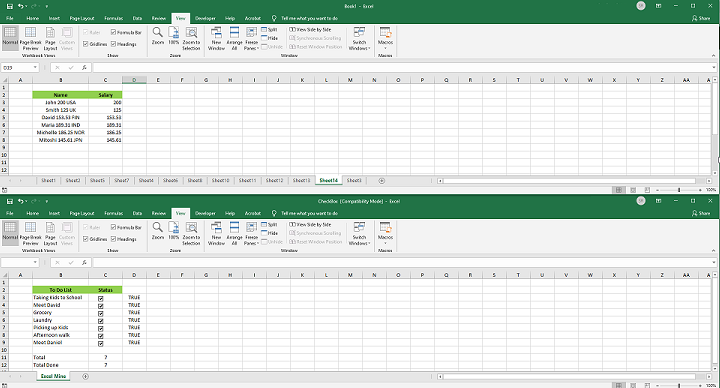
View Multiple Workbooks Excel offers an easy way to view multiple workbooks. Follow the steps below. 1. Open at least two workbooks. 2. Click “Arrange All” on the View tab. 3. Arrange your workbook the way you want. Here, we click Horizontal. 4. Click OK. Note: You try other orientations as a practice to see […]

How to View Multiple Workbooks Read More »
change excel theme

How to Change Excel Themes

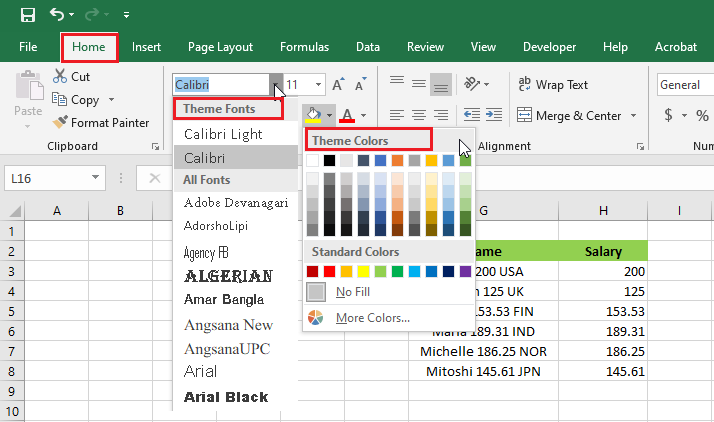
Change Excel Themes To change the look of your workbook, Excel provides different Excel themes to choose from. 1. Click the “Themes” on the Page Layout tab. By default, Excel uses the “Office” theme for the workbook. 2. You can also see the Theme colors and Theme fonts from the Home tab. Note: You can

How to Change Excel Themes Read More »

Excel window parts

Excel Window Parts

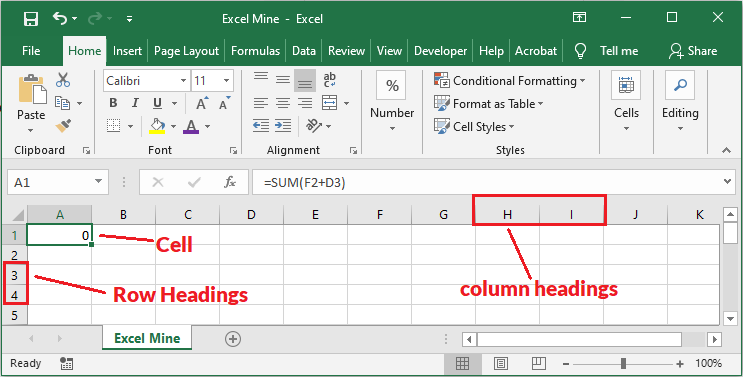
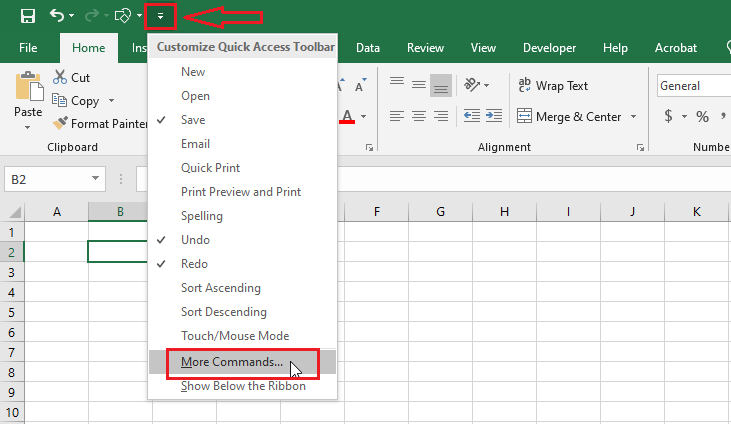
Learn Excel Window Parts Title Bar | Quick Access Toolbar | Tabs | Ribbon | Name Box | Column Headings | Sheet Tabs Welcome to our free “Excel Basics” course. In the first lesson, we are going to explore the most frequently used window parts of Microsoft Excel. Knowing these parts by their names will

Excel Window Parts Read More »

insert checkbox in excel

How to insert Checkbox in Excel

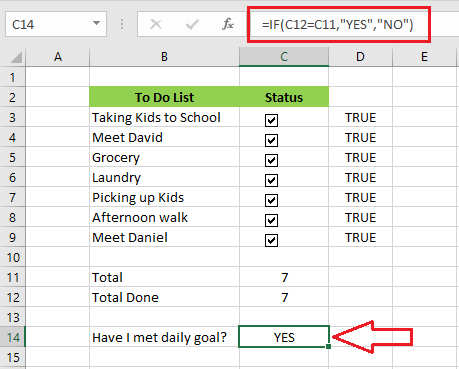
How to insert checkbox in Excel Link a Checkbox | Create a To-Do List The checkbox in Excel is very useful to create a checklist. In this lesson, we are going to discuss how to insert checkbox, link a checkbox, and create a checklist. Insert a Checkbox 1. On your excel Developer tab, click “Insert.”

How to insert Checkbox in Excel Read More »

excel status bar

How to use Excel Status Bar

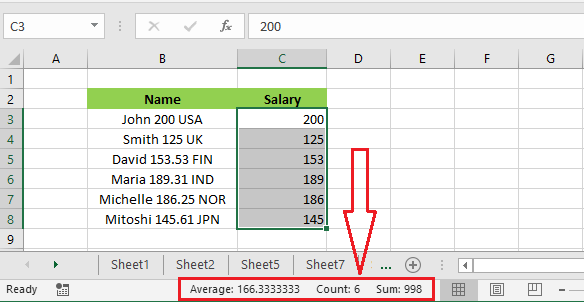
Using Excel Status Bar Customize Status Bar The Excel status bar locates at the bottom of the Excel window and it displays quite useful information. Status bar displaying statistics The status bar can display the average, count, and sum when you select a range of cells. 1. Select the cell range C3:C8. 2. Take a

How to use Excel Status Bar Read More »

customize excel ribbon

How to add Developer Tab in Excel

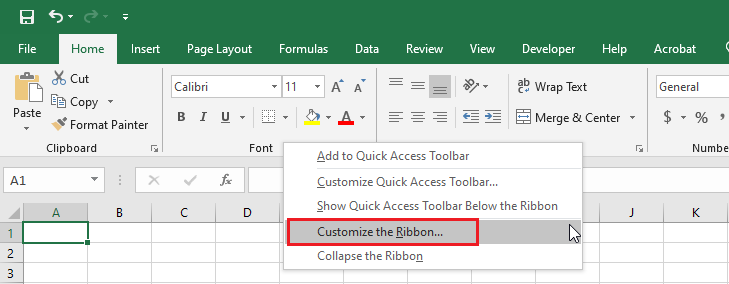
Turn on Excel Developer Tab The Developer tab in Excel is used to create a macro or insert controls. You can add the Developer tab by following the steps below. 1. Right-click anywhere on the Ribbon and then click “Customize the Ribbon.” 2. Under Customize the Ribbon, make sure that “Main Tabs” is selected. 3.

How to add Developer Tab in Excel Read More »

customize excel ribbon

How ot Customize Ribbon in Excel

Customize Ribbon in Excel If you like to customize Ribbon in Excel by creating your own tab and adding commands to it, follow the steps below. 1. Right-click anywhere on the ribbon and then click “Customize the Ribbon.” 2. Click New Tab. 3. You can rename the “New Tab” by right-clicking on it and then

How ot Customize Ribbon in Excel Read More »

excel workbook

What is Excel Workbook?

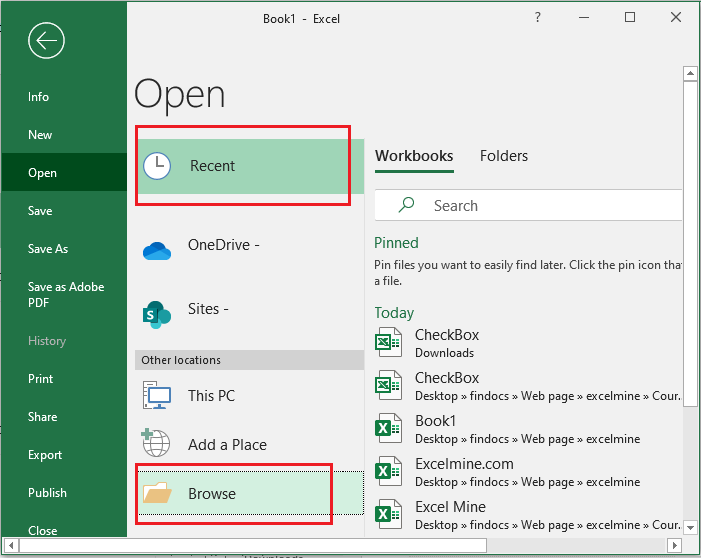
Excel Workbook Close Workbook | New Workbook | Turn off Start Screen A workbook is an excel file that contains one or more worksheets. In this tutorial, we will show how to open an existing Excel Workbook, close a workbook, and create a new workbook. Open an Existing Workbook 1. Click Open on the File

What is Excel Workbook? Read More »

make excel workbook as final

How to mark Workbook as final

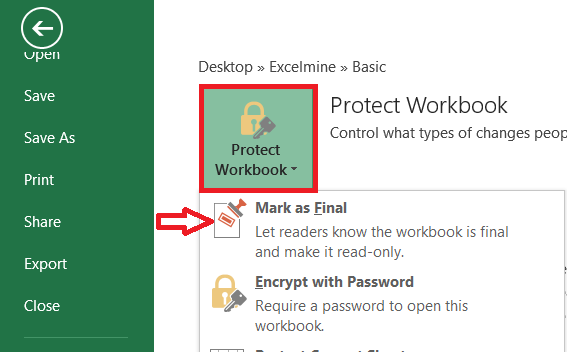
Mark Workbook as Final Excel offers options to mark Workbook as final. Marking a workbook as final discourages other users to edit it. Note that, users can edit the final version since it is not protected. Let’s follow the steps below: 1. Open a workbook (for example, Book1). 2. Click File and click Info. 3.

How to mark Workbook as final Read More »