How to Use the Excel Status Bar
The status bar is the strip along the bottom of the Excel window. It’s easy to overlook, but it gives you quick answers about your data without writing a single formula.
See quick totals for selected cells
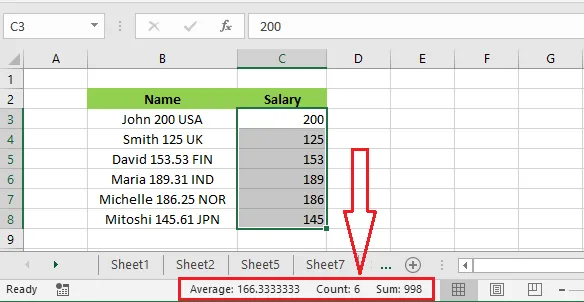
When you select two or more cells that contain numbers, the status bar shows their average, count and sum.
- Select the cells C3:C8.
- Look at the status bar at the bottom of the window. Excel shows the average, count and sum of the selected cells straight away.
Tip: The status bar also has a zoom slider on the right. Drag it to zoom in or out of your worksheet.
Customize the status bar
You can choose which numbers the status bar shows. For example, to add the largest value:
-
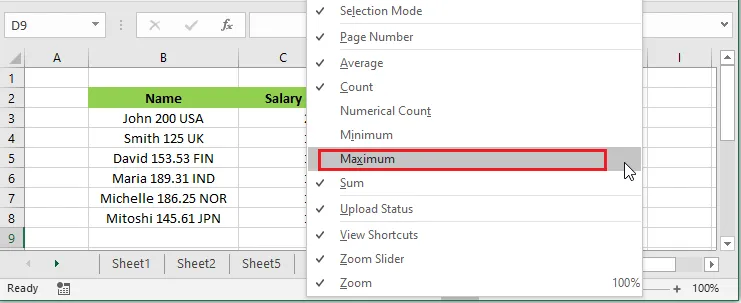
Right-click the status bar.
-
Click Maximum, so it’s ticked.
-
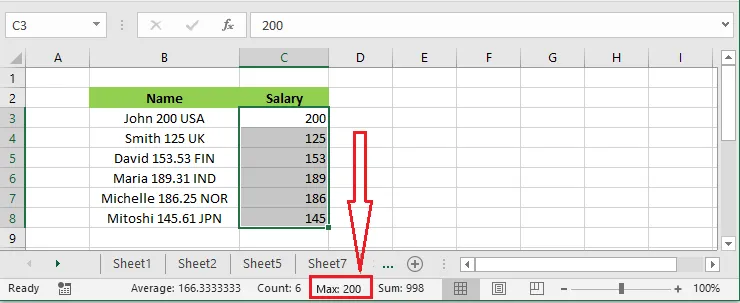
Select the cells C3:C8 again.
-
The status bar now shows the maximum alongside the average, count and sum.
The same menu lets you add Minimum and Numerical Count (the number of cells with numbers in them), or turn off anything you don’t need.