How to Copy Excel Data Into Word
You can share Excel data with Word (and other Office programs) in two ways: a plain paste, which is a one-time copy, or a paste link, which stays connected to the Excel file and updates when it changes.
Paste
-
Select the Excel data. Here, B3:E12.
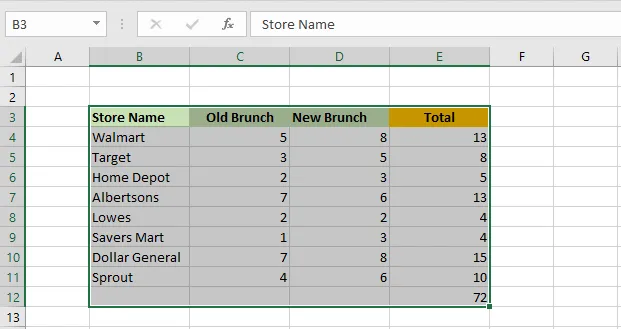
-
Copy it (Ctrl + C).
-
Open the Word document and click where the table should go.
-
Press Ctrl + V.
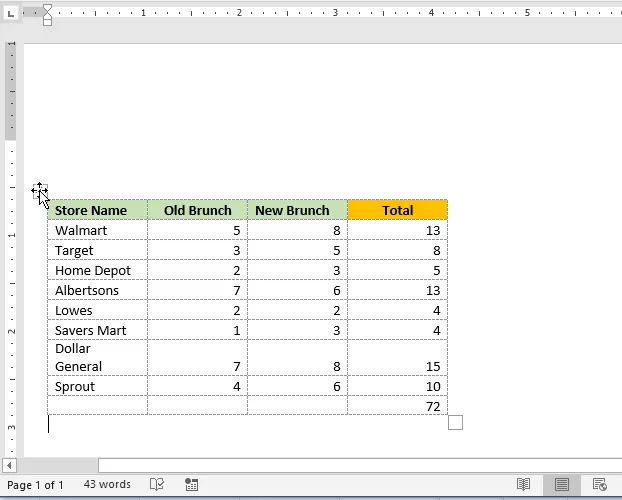
-
Click the small square handle at the top-left corner of the table to select it all. Now you can add borders or change the formatting.
Note: Drag the same handle to move the table. To delete the table, select it and press Backspace.
Paste Link
With a link, any change to the data in Excel shows up in Word too.
-
Select B3:E12 in Excel.
-
Copy it (Ctrl + C).
-
In Word, click Home > the arrow under Paste > Paste Special.
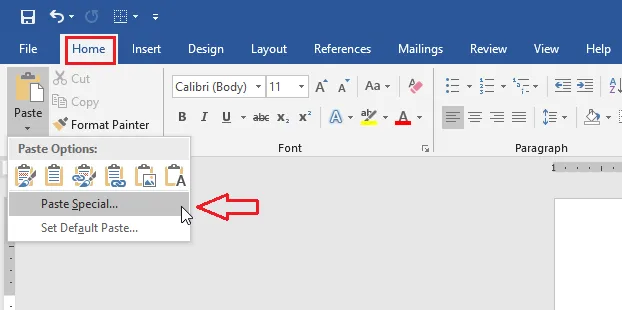
-
Choose Paste link, select HTML Format, and click OK.
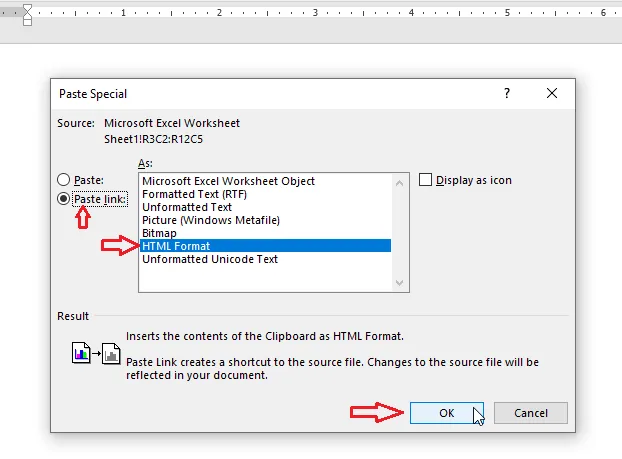
-
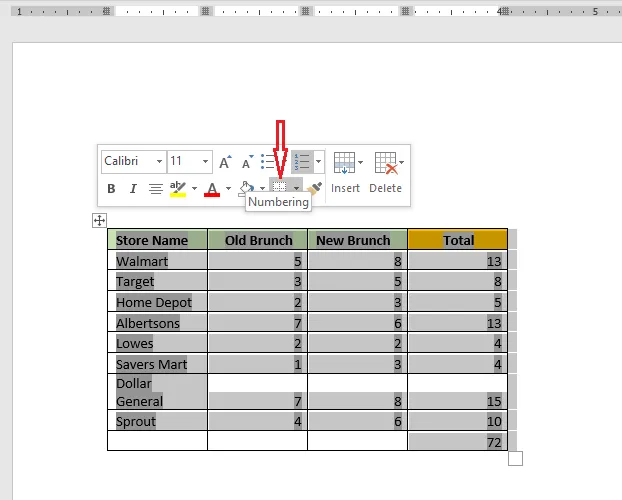
Select the table with its corner handle and add borders.
-
Now change something in Excel. Here, cell C4 changes to 15.
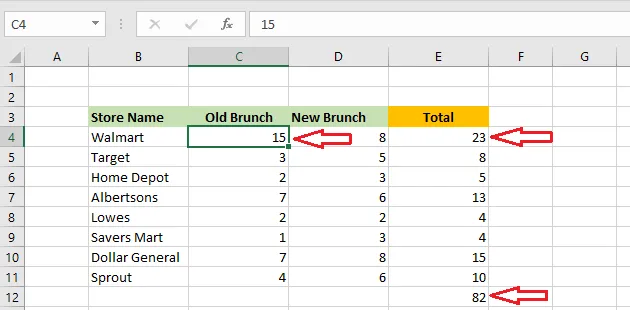
Result: the table in Word updates automatically.
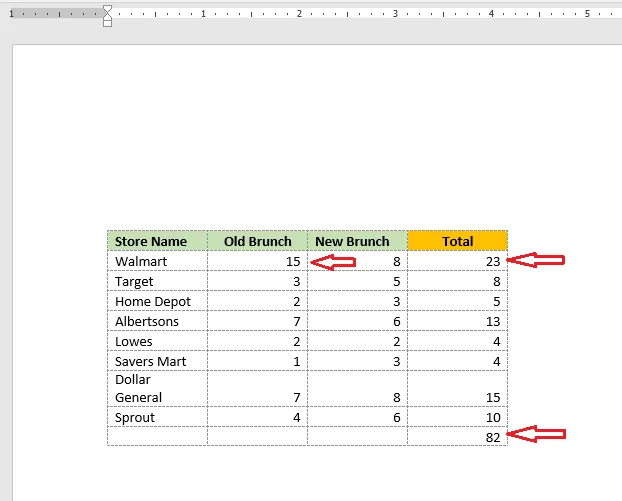
Note: If Word doesn’t update straight away, right-click the table and click Update Link. Keep the Excel file in the same folder, or the link will break.
To work with Excel formulas inside Word, see Embed an Excel Worksheet in Word.