Currency vs Accounting Format in Excel
Currency and Accounting formats both show money, but they look different. Here’s how they compare, and how to style negative numbers and totals.
Currency vs Accounting
-
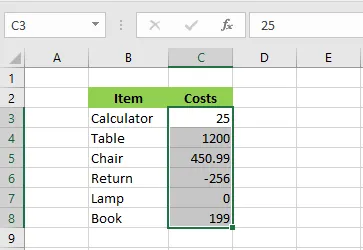
Select the range C3:C8.
-
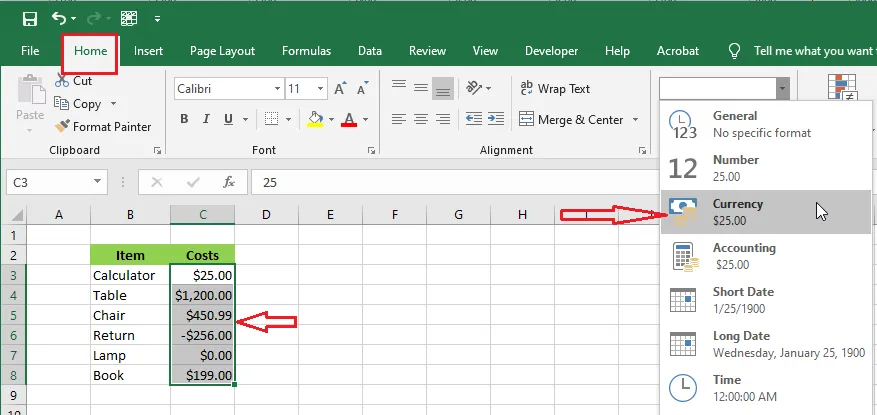
Apply Currency from the Number Format list on the Home tab.
-
Now apply Accounting to the same cells.
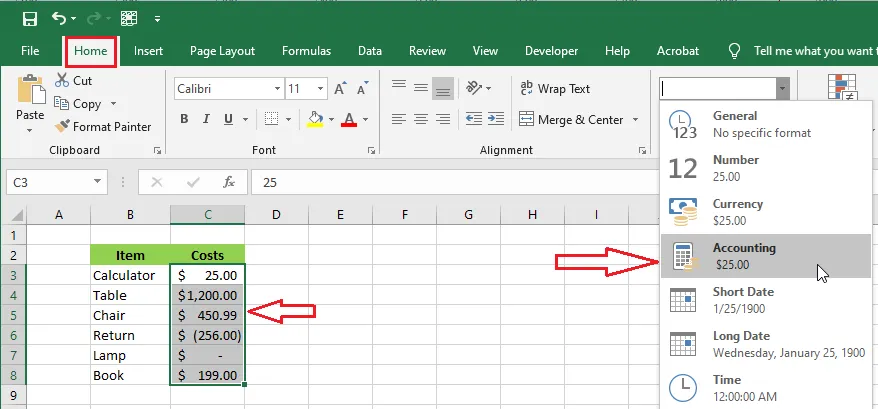
The difference:
| Currency | Accounting | |
|---|---|---|
| Currency symbol | Right next to the number | Lined up at the left edge of the cell |
| Negative numbers | Minus sign (or red, or brackets, if you choose) | In brackets, e.g. (45.89) |
| Zero | Shown as $0.00 | Shown as a dash ( – ) |
Accounting is the usual choice for financial tables, because the symbols and decimal points line up in a neat column.
Show negative numbers in red
-
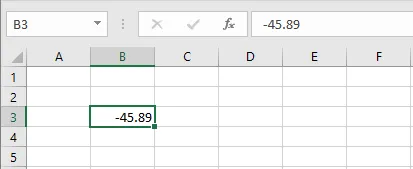
Type -45.89 in cell B3.
-
Select B3.
-
Right-click and click Format Cells.
-
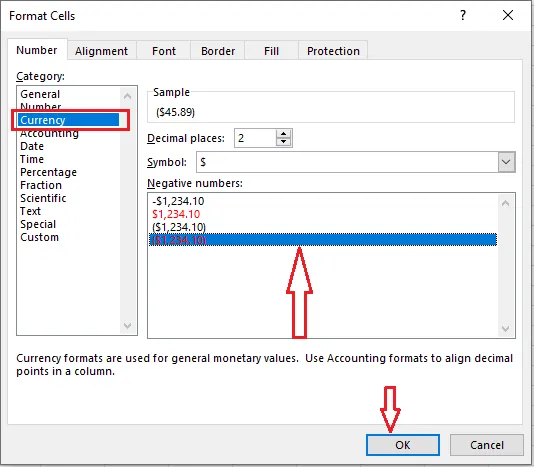
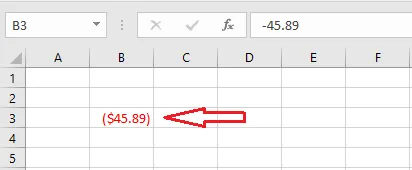
Click Currency, then under Negative numbers choose the last option: red, with brackets.
-
Click OK.
Underline totals like a financial statement
Financial statements often show totals with a single or double underline across the cell.
-
Select cell B3 again.
-
Right-click and click Format Cells.
-
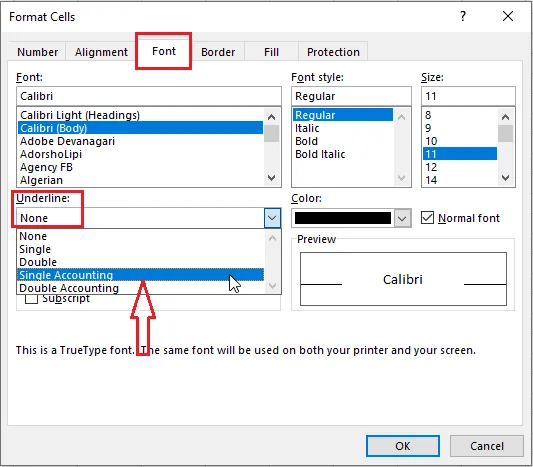
On the Font tab, open the Underline list and choose Single Accounting.
-
Click OK.
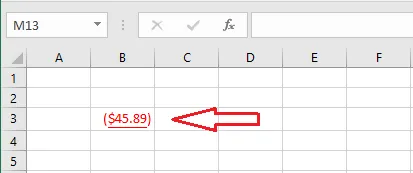
Tip: Use Double Accounting for a grand total. Accounting underlines run under the whole cell, not just the digits.