How to Add Bullet Points in Excel
Excel has no bullet-list button like Word, but there are three easy ways to add bullet points.
With a keyboard shortcut
If your keyboard has a number pad on the right:
-
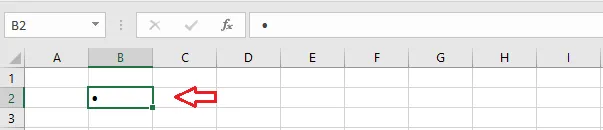
Hold Alt and press 7 on the number pad for a solid bullet (•).
-
Hold Alt and press 9 on the number pad for a hollow bullet (○).
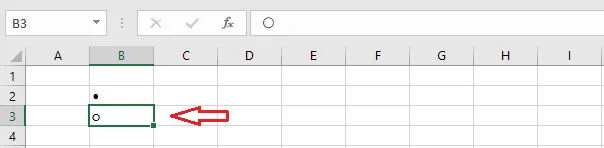
Note: The number keys above the letters won’t work for this. On a laptop without a number pad, use one of the methods below.
With Insert > Symbol
-
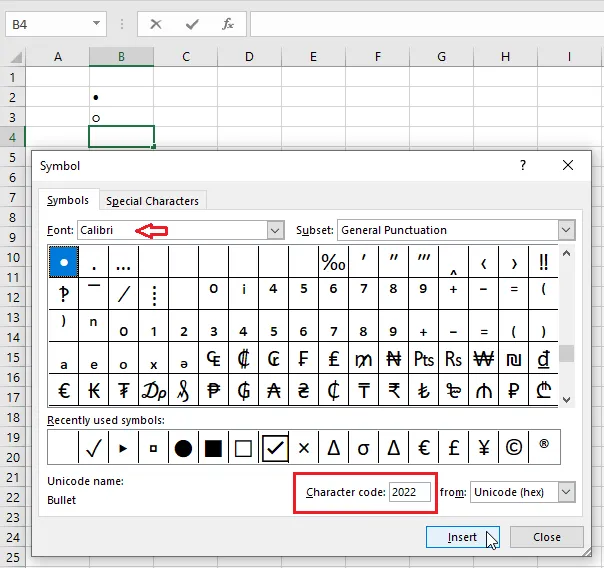
On the Insert tab, click Symbol.
-
Choose a font (here, Calibri) and type 2022 in the Character code box. Any font and symbol will do.
-
Click Insert, then Close.
Result: the bullet is in cell B4.
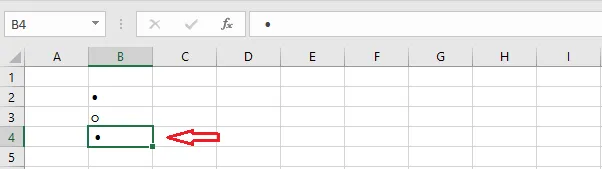
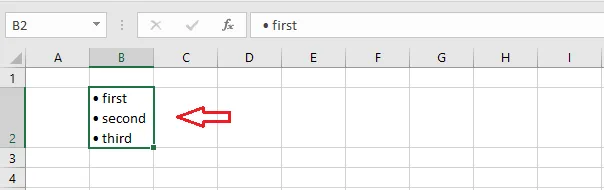
To put several bullets in one cell, insert the first bullet and its text, press Alt + Enter to start a new line, and add the next one. Press Enter when you’re done.
With a custom number format
To have Excel add a bullet automatically to anything you type:
-
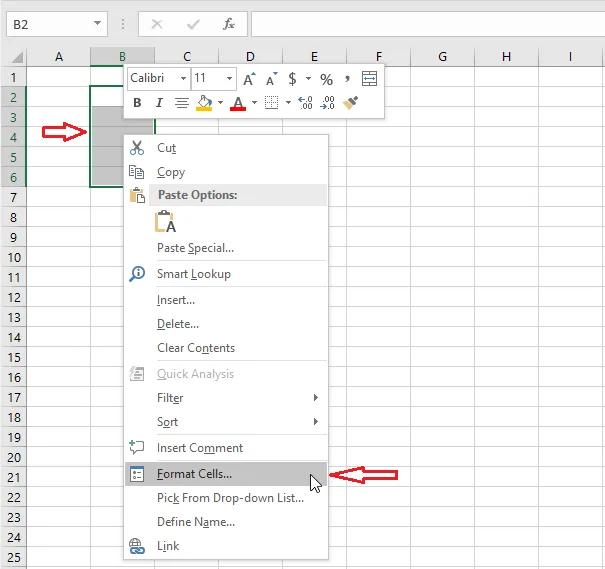
Select B2:B6, right-click, and click Format Cells.
-
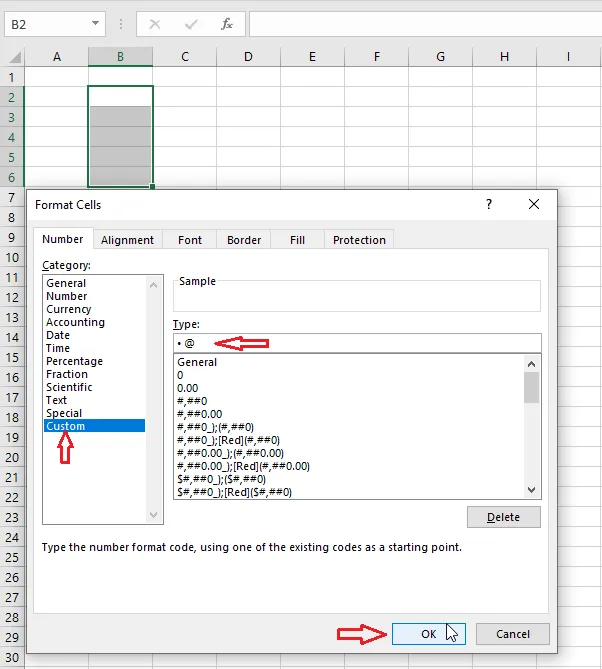
Choose Custom.
-
In the Type box, insert a bullet (Alt + 7 on the number pad, or copy one from a cell), type a space, and then type
@. -
Click OK.
-
Type your list. Excel adds the bullets for you.
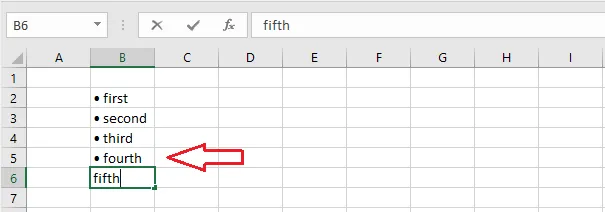
The @ stands for whatever text you type in the cell. See custom number formats for more. To copy the format to other cells, use Format Painter. To remove it, set the cells back to General.