Excel Formulas and Functions for Beginners
A formula is a calculation you write yourself, such as =(B2+B3)/2. A function is a ready-made formula with a name, such as AVERAGE. You can use functions inside your formulas, which is where Excel gets really powerful.
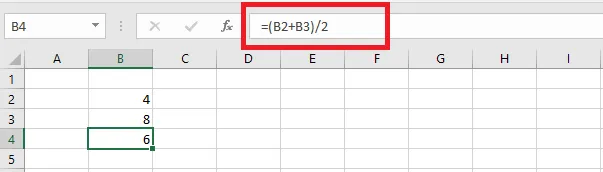
Here are both approaches side by side. In the first, cell B4 has a formula that adds B2 and B3 and divides the sum by 2:
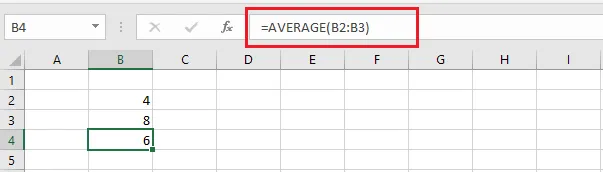
In the second, B4 uses the AVERAGE function on the same two cells. Both give the same result.
Enter a formula
-
Select the cell for the formula. Here, B4.
-
Type an equal sign (
=), then your formula, and press Enter.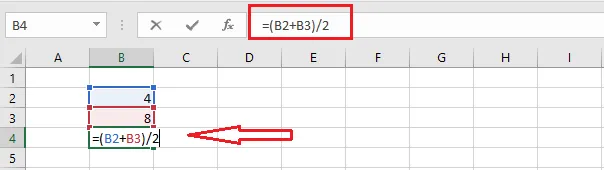
Note: Always start a formula with
=. Without it, Excel treats what you type as plain text or a number, not a calculation.
-
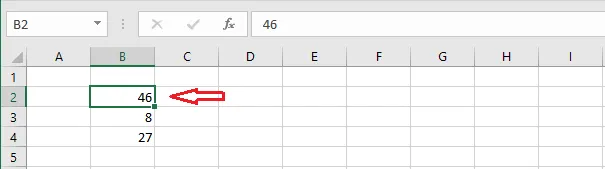
From now on, if you change B2 or B3, Excel recalculates B4 automatically.
Edit a formula
-
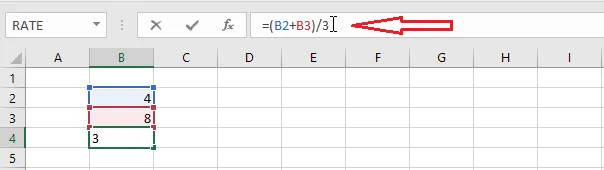
Select the cell with the formula. The formula appears in the formula bar.
-
Click in the formula bar and make your change. (Or press F2 to edit inside the cell.)
-
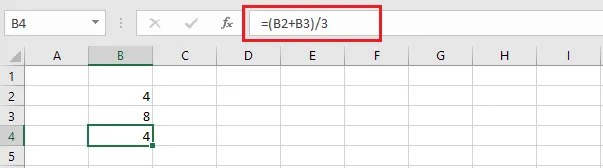
Press Enter.
Copy and paste a formula
-
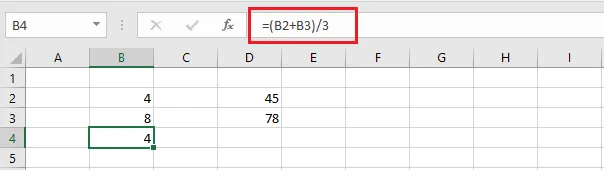
Select the cell with the formula you want to copy. Here, B4.
-
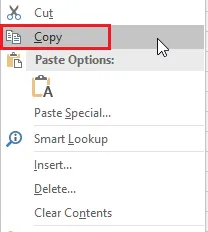
Right-click and click Copy, or press Ctrl + C.
-
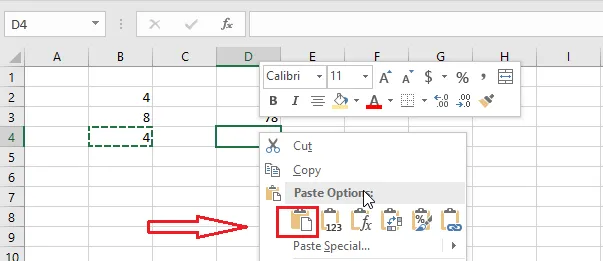
Select D4 (or any target cell), right-click and click Paste, or press Ctrl + V.
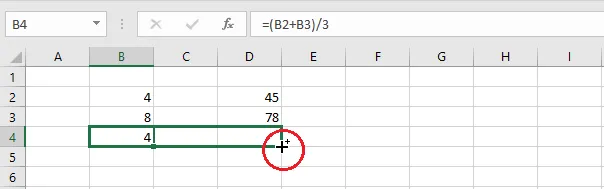
Or, select B4 and drag the fill handle (the small square at the bottom-right corner) to the right as far as D4.
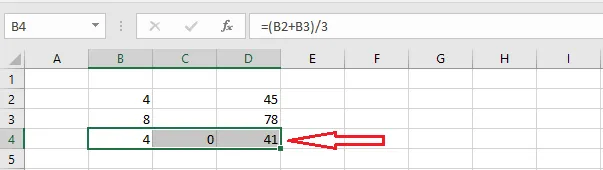
Result: the formula is copied, and it adjusts to its new column, so D4 adds D2 and D3. Dragging also filled C4; it shows 0 because C2 and C3 are empty.
Insert a function
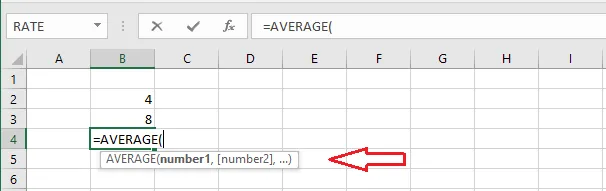
If you know the function’s name, just type = and start typing it. Excel suggests matching functions as you go.
To browse for a function instead:
-
Select cell B4.
-
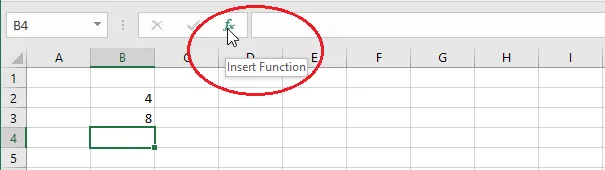
Click the Insert Function button (fx) next to the formula bar.
-
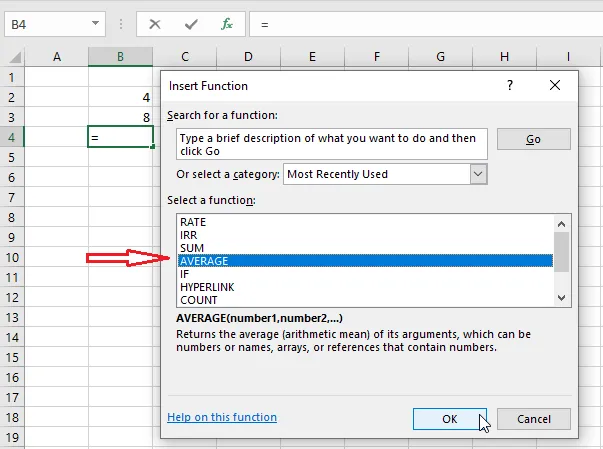
Search for the function you need, here AVERAGE.
-
Click OK.
-
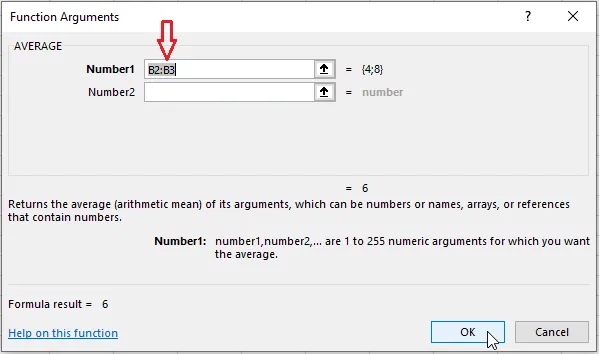
Click in the Number1 box and select the cells with your mouse, or type the range, here B2:B3.
-
Click OK.
Next, see the most used functions in Excel.