How to Freeze Panes in Excel
When you scroll down a big table, the headings scroll away too. Freeze Panes keeps chosen rows or columns in view while the rest of the sheet scrolls.
Freeze the top row
-
On the View tab, click Freeze Panes, then Freeze Top Row.
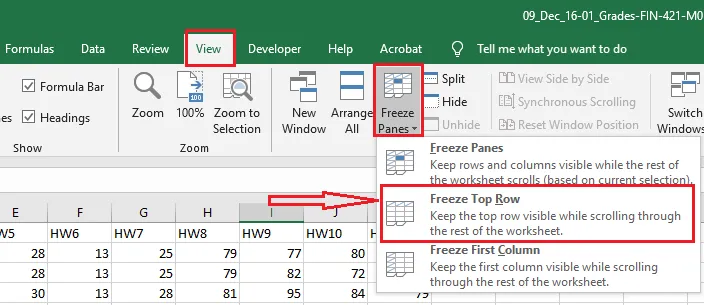
-
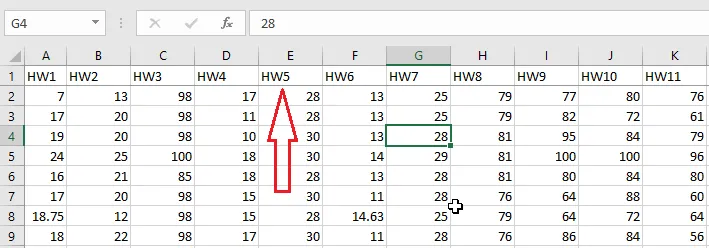
Scroll down: the top row stays in place, with a thin line below it.
Unfreeze panes
-
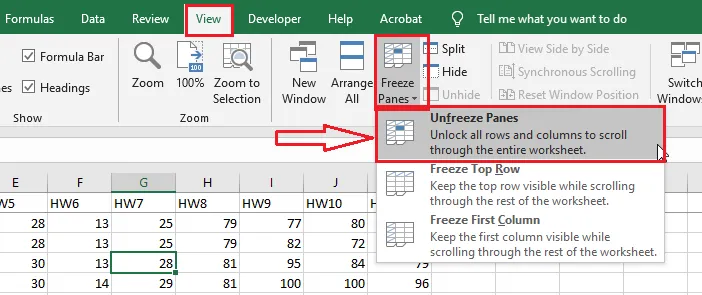
On the View tab, click Freeze Panes.
-
Click Unfreeze Panes.
Freeze the first column
-
On the View tab, click Freeze Panes.
-
Click Freeze First Column.
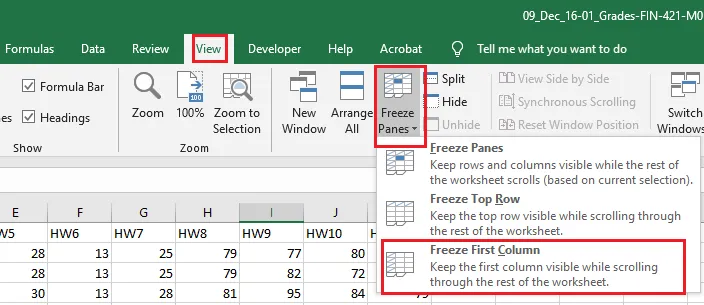
-
Scroll right: column A stays in place, with a thin line beside it.
Freeze several rows
-
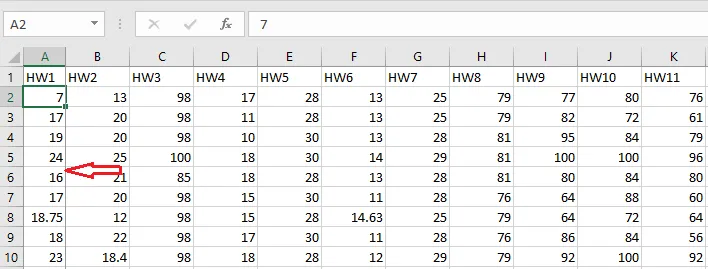
Select the row below the last row you want to freeze. To freeze rows 1 to 4, select row 5.
-
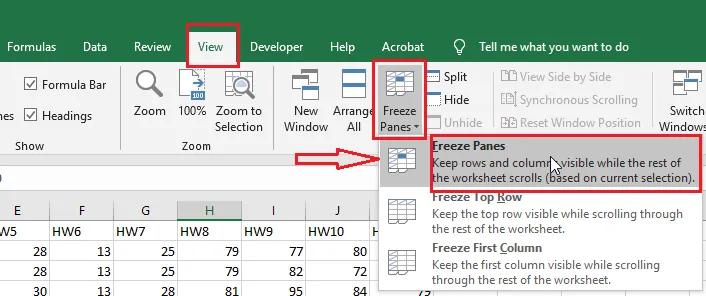
On the View tab, click Freeze Panes, then Freeze Panes.
-
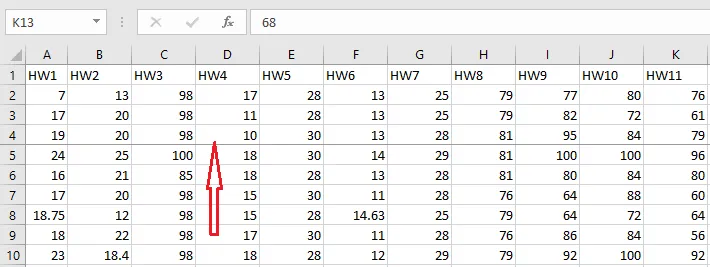
Rows 1 to 4 now stay in view.
Freeze several columns
-
Select the column to the right of the last column you want to freeze. To freeze columns A and B, select column C.
-
On the View tab, click Freeze Panes, then Freeze Panes.
-
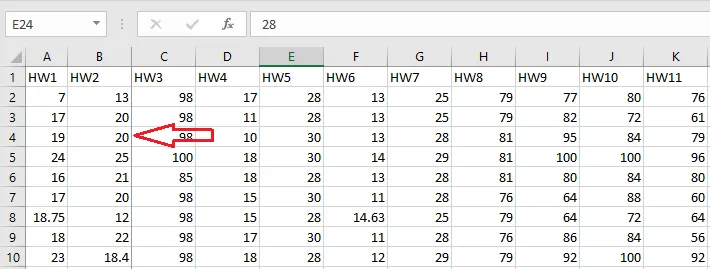
Columns A and B now stay in view.
Freeze rows and columns together
-
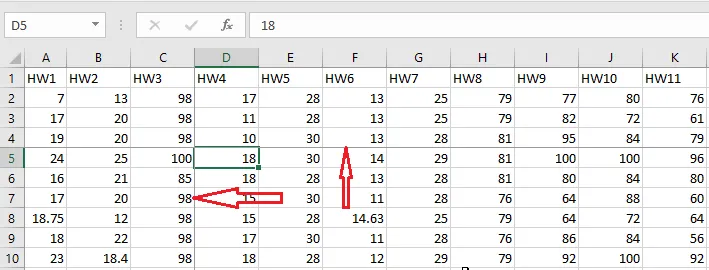
Select the cell just below and to the right of the area you want to freeze. Selecting D5 freezes rows 1 to 4 and columns A to C.
-
On the View tab, click Freeze Panes, then Freeze Panes.
-
Everything above row 5 and left of column D stays in view.
Add a one-click Freeze Panes button
If you freeze panes often, add the command to the Quick Access Toolbar.
-
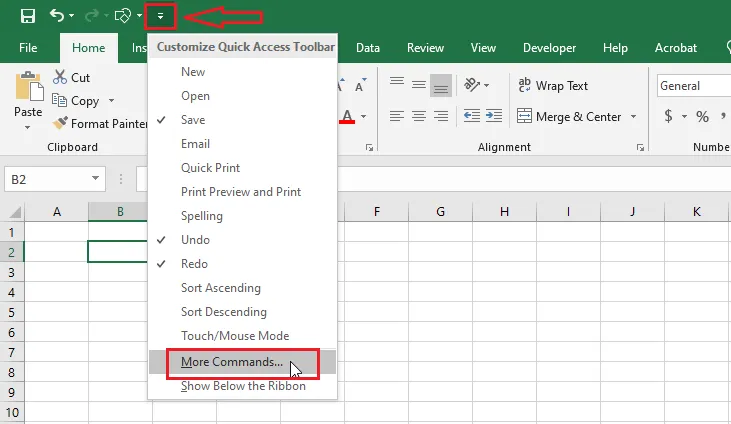
Click the small down arrow at the end of the Quick Access Toolbar.
-
Click More Commands.
-
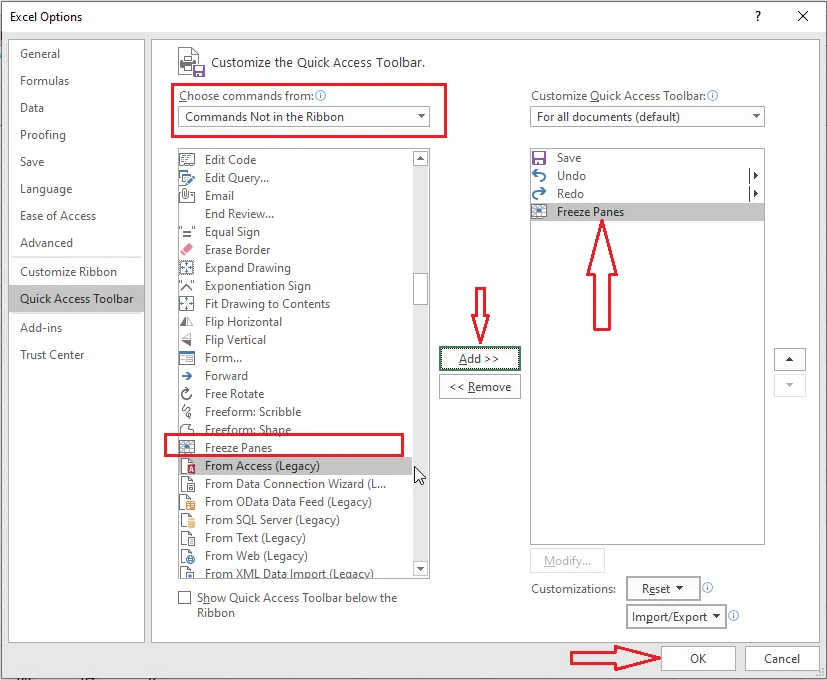
Under Choose commands from, select Commands Not in the Ribbon.
-
Select Freeze Panes and click Add.
-
Click OK.
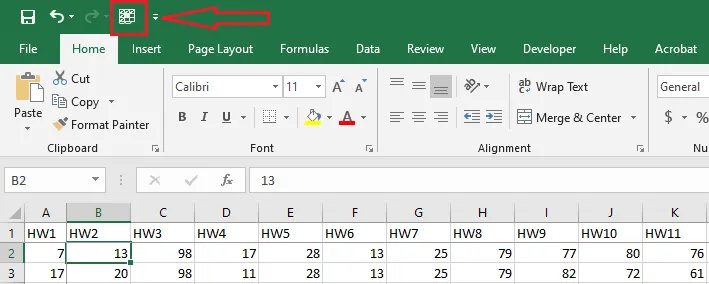
Now one click freezes the panes based on the cell you’ve selected.