Excel Workbook Basics: Open, Close and Create
A workbook is an Excel file. Each workbook holds one or more worksheets (the tabs at the bottom). This lesson shows how to open, close and create workbooks.
Open an existing workbook
-
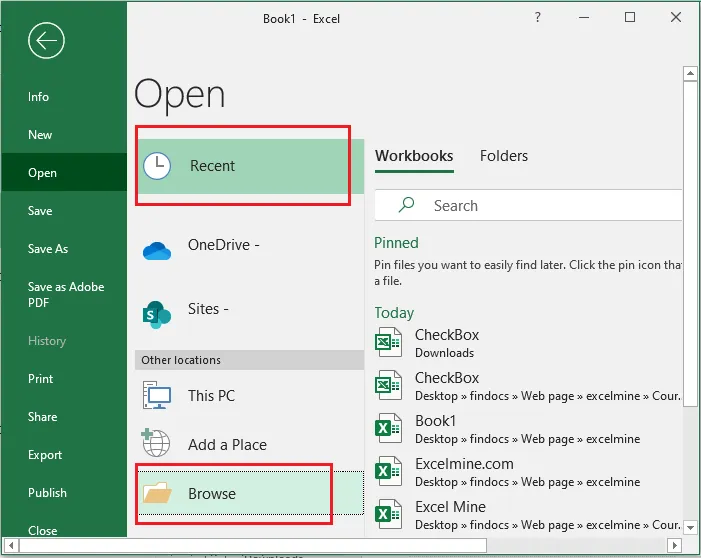
Click File > Open.
-
Under Recent, you’ll see the workbooks you used last. Click one to open it.
-
If the file isn’t listed, click Browse to find it on your computer.
Tip: The shortcut Ctrl + O opens the same screen.
Close a workbook
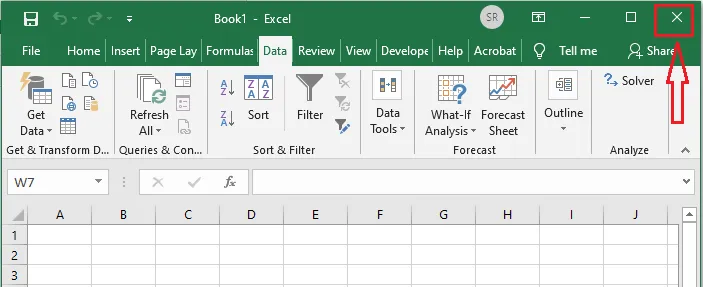
Click the X in the top-right corner of the window to close the active workbook. If you have unsaved changes, Excel asks whether to save them first.
Create a new workbook
-
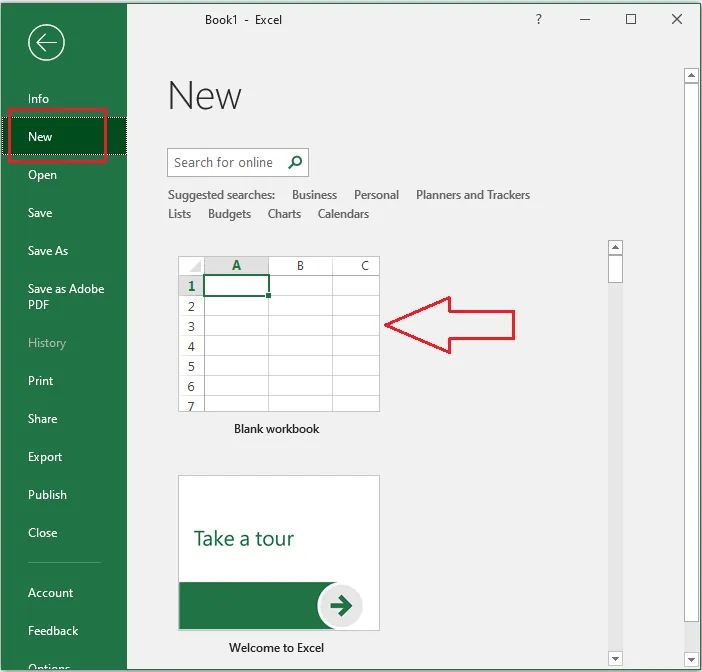
Click File > New.
-
Click Blank workbook.
Tip: Press Ctrl + N to create a new blank workbook in one step.
Turn off the Start screen
When Excel opens, it shows a Start screen with recent files and templates. To go straight to a new blank workbook instead:
-
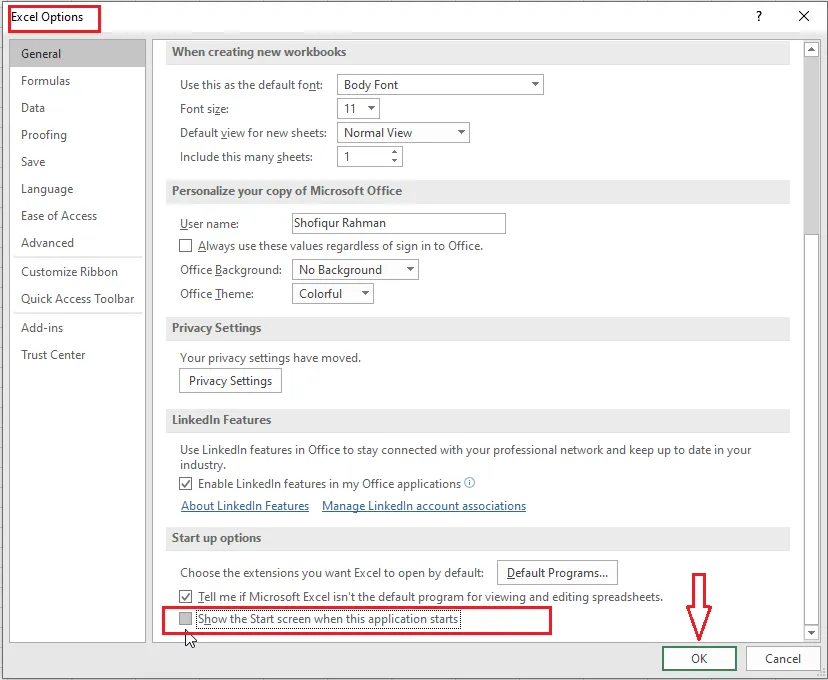
Click File > Options.
-
On the General page, scroll to the bottom and untick Show the Start screen when this application starts.
-
Click OK.