How to Delete Blank Rows in Excel
Removing blank rows one by one takes forever. With Go To Special, you can select every blank cell and delete their rows in one go.
-
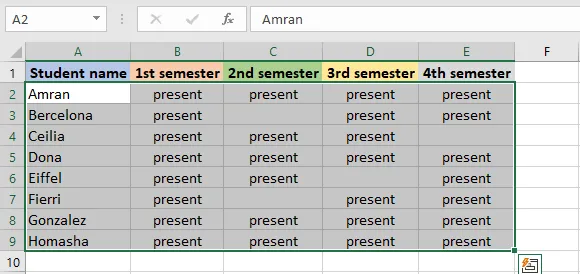
Select the range to clean up. (To check the whole sheet, select a single cell instead.)
-
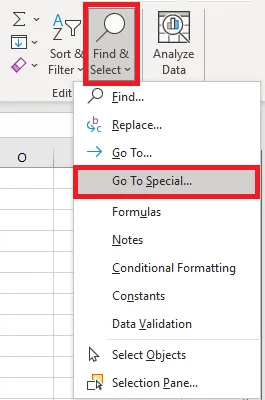
On the Home tab, click Find & Select > Go To Special.
-
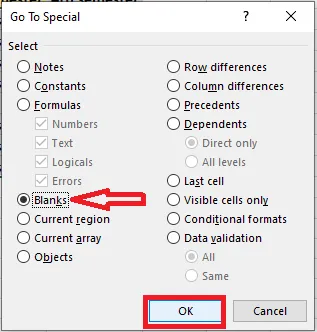
Choose Blanks and click OK.
-
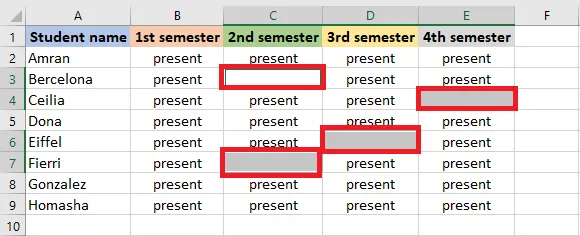
Excel selects all the blank cells.
-
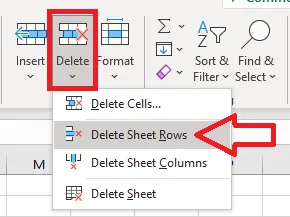
On the Home tab, click Delete > Delete Sheet Rows. (The same menu can delete columns or just the cells.)
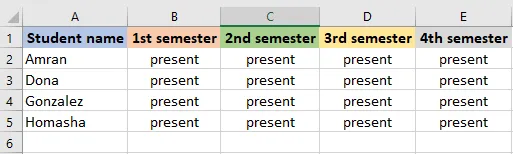
Result: the rows with blank cells are gone.
Note: This deletes every row that has any blank cell in the selected range, even if the rest of the row has data. Check the selection before you delete, and press Ctrl + Z if too much goes. If some rows are only partly empty, select just one column that’s always filled when a row has data.