How to Find Row Differences in Excel
Row differences compares each row against one column and selects the cells that don’t match. It’s a quick way to spot differences between columns, such as planned vs actual values.
-
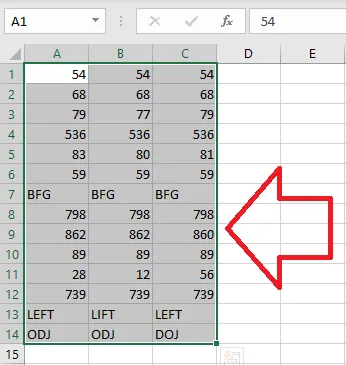
Select A1:C14 by clicking A1 first and dragging to C14. Because you started in A1, column A is the column the others are compared with.
-
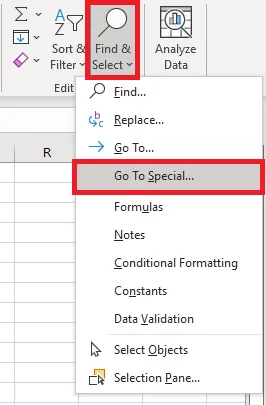
On the Home tab, click Find & Select > Go To Special.
-
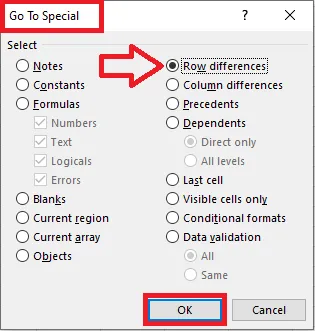
Choose Row differences and click OK.
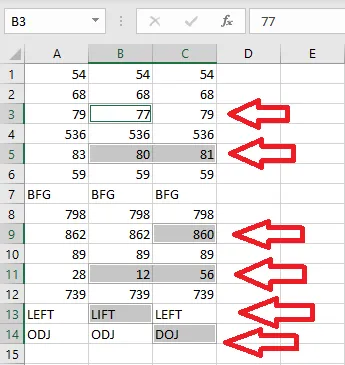
Result: Excel selects every cell whose value differs from column A in the same row.
-
While they’re selected, click Fill Color on the Home tab to highlight them.
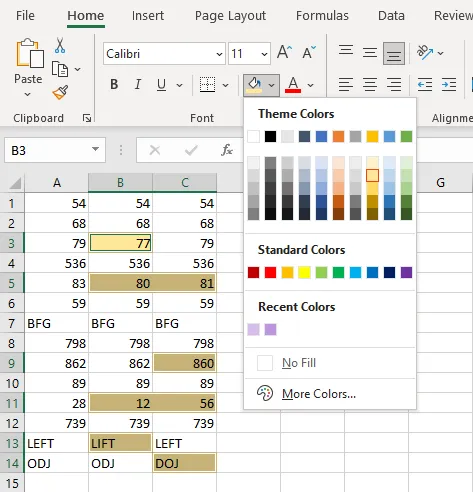
Now the differences stand out at a glance.
Tip: The shortcut for row differences is Ctrl + \ after selecting the range.