How to Find the Closest Match in Excel
Finding an exact match in Excel is easy. Finding the closest match, the nearest value whether it’s higher or lower, takes a smarter formula. Here are two ways:
- INDEX and MATCH (all versions)
- XLOOKUP (Microsoft 365 and Excel 2021 or later)
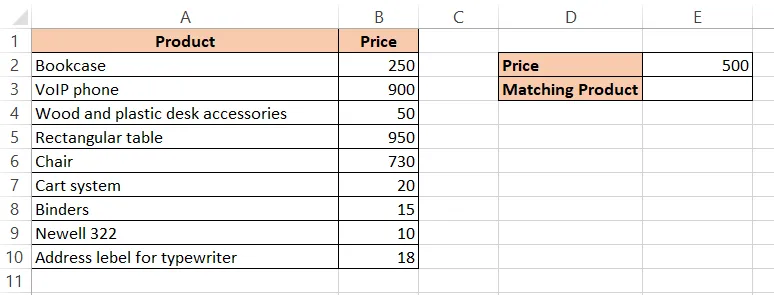
In this list, each product has a price. We want the product whose price is closest to the price in E2 (500).
1. INDEX and MATCH
MATCH finds the position of a value in a list, and INDEX returns the value at a given position. Together they look up a value and return something from the same row. Add ABS and MIN to find the closest value:
=INDEX(A2:A10,MATCH(MIN(ABS(B2:B10-E2)),ABS(B2:B10-E2),0))
In Microsoft 365, just press Enter. In Excel 2019 and earlier, this is an array formula: press Ctrl + Shift + Enter. Excel adds curly braces { } around it. Don’t type them yourself.
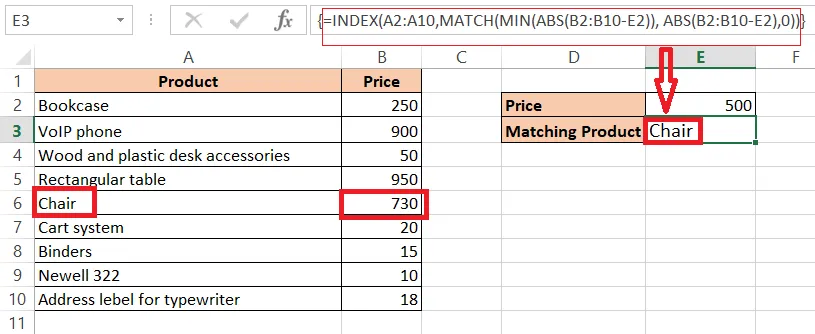
Result: Chair. Its price of 730 is closer to 500 than any other.
Note: If two prices are equally close, the formula returns the first one in the list.
How it works
B2:B10-E2subtracts 500 from each price: {−250; 400; −450; 450; 230; −480; −485; −490; −482}. Prices below 500 give negative numbers.ABS(...)removes the minus signs, so you get the distance from 500 either way: {250; 400; 450; 450; 230; 480; 485; 490; 482}.MIN(...)finds the smallest distance: 230.MATCH(230, ..., 0)finds where it is in the list: position 5.INDEX(A2:A10, 5)returns the 5th product: Chair.
2. XLOOKUP
XLOOKUP is the modern replacement for VLOOKUP. Its parts are:
XLOOKUP(lookup_value, lookup_array, return_array, [if_not_found], [match_mode], [search_mode])
- lookup_value: what to look for.
- lookup_array: where to look.
- return_array: what to return from the matching row.
- if_not_found (optional): what to show if there’s no match.
- match_mode (optional): 0 exact match (default), −1 exact or next smaller, 1 exact or next larger, 2 wildcard match.
- search_mode (optional): 1 search from the top (default), −1 from the bottom, 2 and −2 binary search on sorted data.
The simple version, =XLOOKUP(E2,B2:B10,A2:A10,,1), returns the product with the next larger price: Chair again.
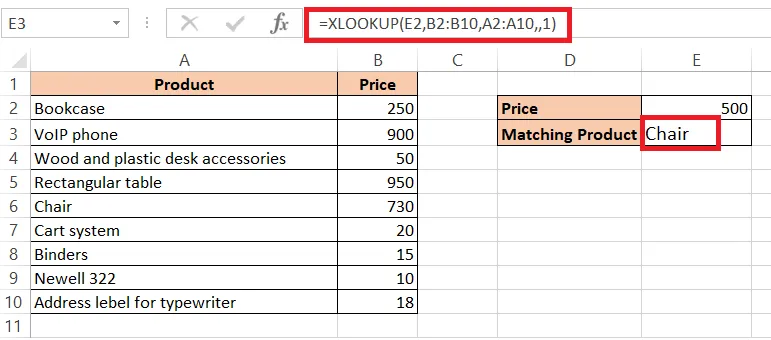
Note: Match mode 1 finds the nearest price at or above 500, and −1 finds the nearest at or below. Here the nearest larger price happens to be the closest one too, but that won’t always be true. If a product cost 480, it would be closer, but this formula would still return Chair.
To find the truly closest price in either direction, combine XLOOKUP with ABS:
=XLOOKUP(0,ABS(B2:B10-E2),A2:A10,,1)
This looks for a distance of 0 (an exact match) or, if there isn’t one, the next larger distance, which is the smallest distance in the list. Unlike VLOOKUP’s approximate match, neither formula needs the data to be sorted.