How to Split Cells in Excel
“Splitting a cell” can mean two things in Excel:
- making one cell look like two, by inserting a column and merging cells, or
- splitting the text in a cell into several cells, for example a full name into first and last names.
This lesson covers both, with four methods.
Split a cell into two
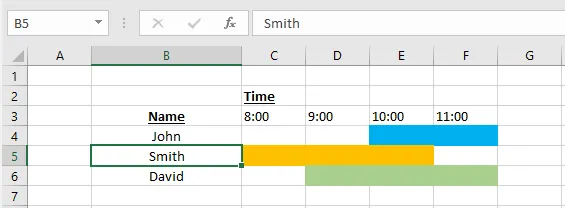
In this schedule, Smith works from 8:00 to 10:00. To show him starting at 8:30 instead, we need to split the 8:00 cell, C5, in half.
-
Here is the schedule before the change.
-
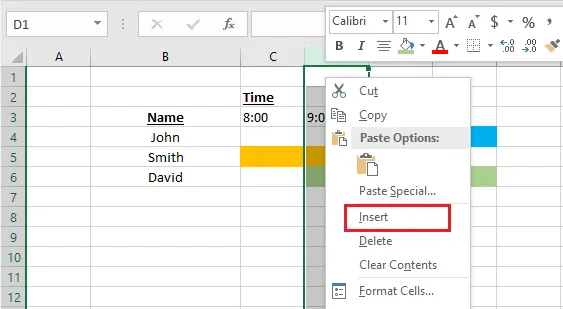
Select column D, right-click it, and click Insert.
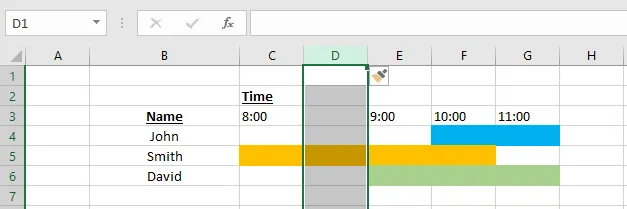
Result: a new, empty column appears.
-
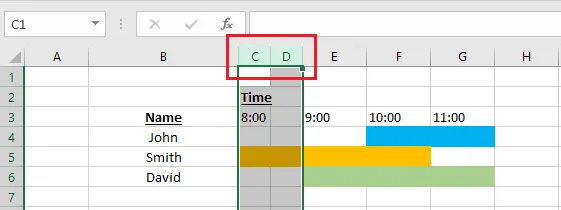
Select columns C and D and make them each half as wide, so together they match the original width (here 32 pixels each, 64 in total).
-
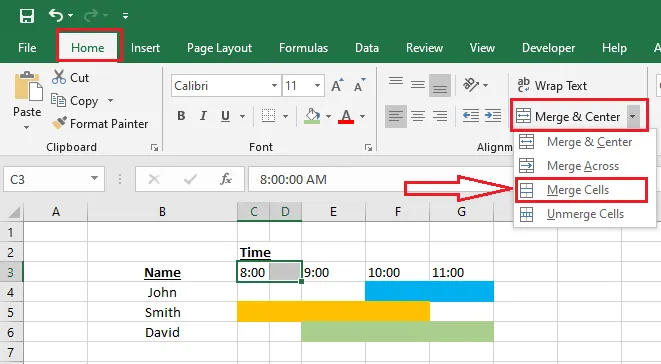
Select C3 and D3. On the Home tab, in the Alignment group, click the arrow next to Merge & Center, then click Merge Cells.
-
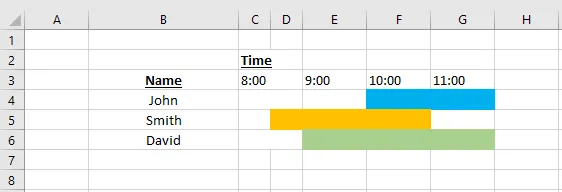
Do the same for C4:D4 and C6:D6. Finally, set the fill of C5 to No Fill, so only the 8:30–9:00 half stays colored.
Split text with Text to Columns
-
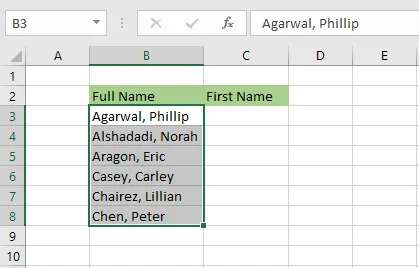
Select the cells with the full names. In this list, each name is written “Last, First” with a comma between.
-
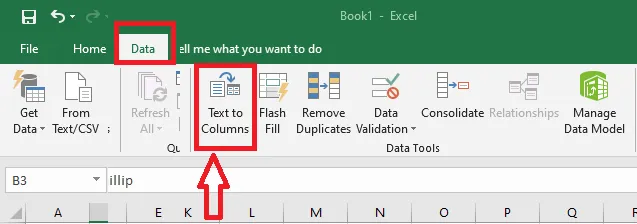
On the Data tab, click Text to Columns.
-
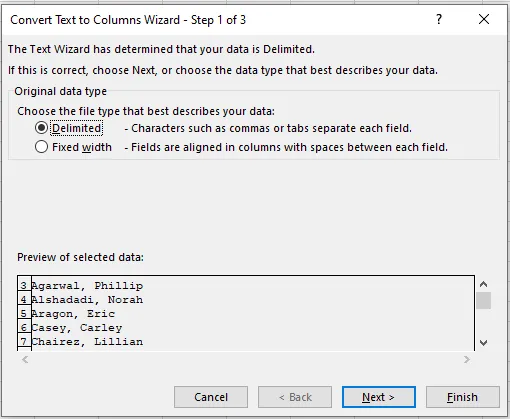
In the wizard, choose Delimited and click Next.
-
Untick every delimiter except Comma. Click Next, then Finish.
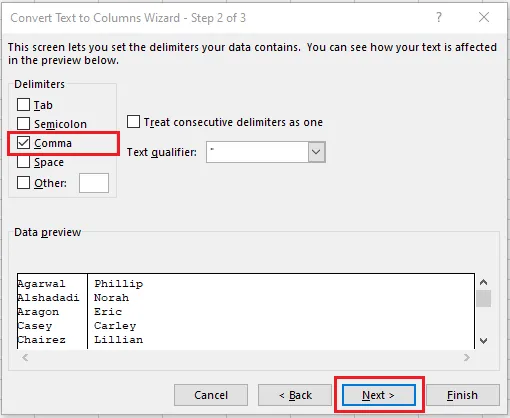
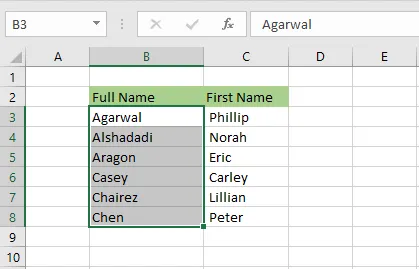
Result: the last and first names are now in separate columns. If your data uses another separator, such as a space or a semicolon, choose that delimiter instead.
Split text with Flash Fill
Flash Fill can split text by following an example you type.
-
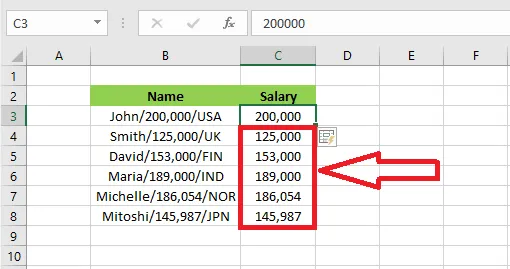
In cell C3, type the part you want from B3, here 200,000.
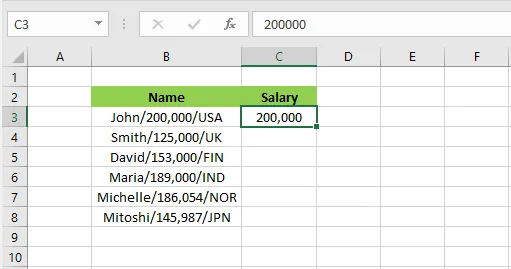
-
On the Data tab, click Flash Fill (or press Ctrl + E).

Result: Excel fills in the rest of the column.
Split text with formulas
Formulas take a little more typing, but unlike the other methods they update automatically when the full name changes. With names written as “Last, First” in column B:
-
In C3, enter this formula to get the first name (everything after the comma and space):
=RIGHT(B3, LEN(B3) - FIND(",", B3) - 1)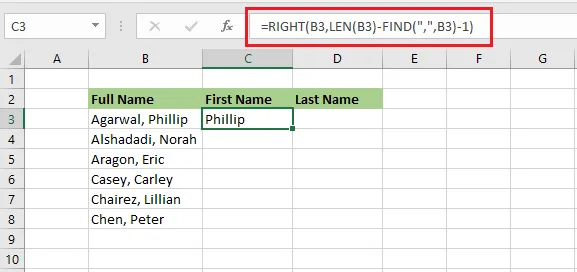
-
In D3, enter this formula to get the last name (everything before the comma):
=LEFT(B3, FIND(",", B3) - 1)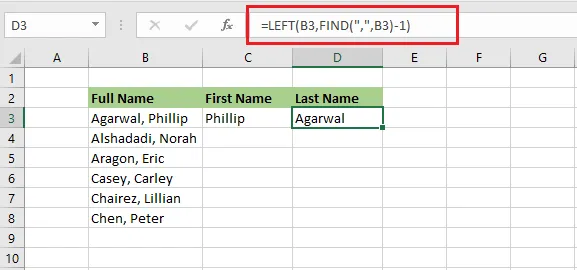
-
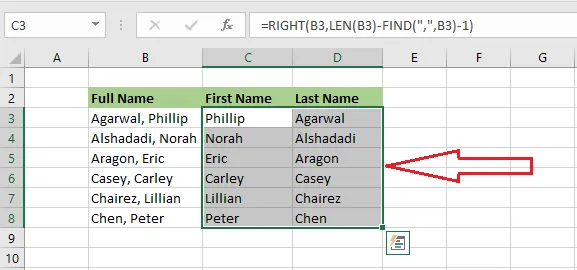
Select C3:D3 and drag the fill handle down to copy both formulas to the other rows.
Using Microsoft 365? The newer
TEXTBEFOREandTEXTAFTERfunctions make this simpler:=TEXTAFTER(B3, ", ")gives the first name and=TEXTBEFORE(B3, ",")the last name.