How to Use AutoFill in Excel
AutoFill continues a pattern for you. Type one or two values, drag the fill handle (the small square at the bottom-right corner of the selection), and Excel fills in the rest. For text patterns, Flash Fill does the same job.
Example 1: a number pattern
-
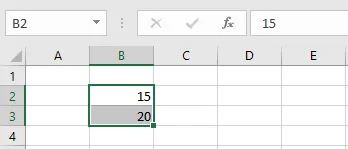
Type 15 in cell B2 and 20 in B3.
-
Select B2:B3 and drag the fill handle down.
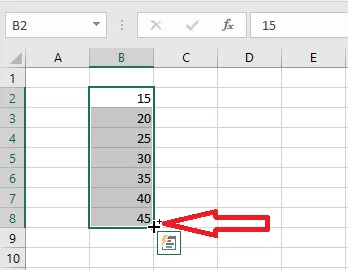
How it works: Excel looks at the cells you selected, spots the pattern (here, adding 5 each time), and continues it.
Example 2: months
-
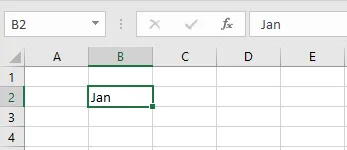
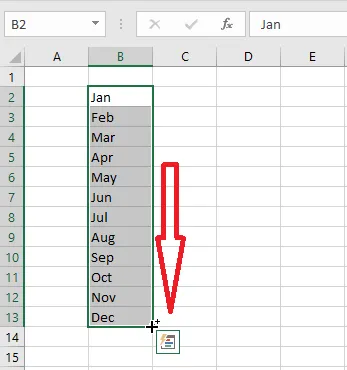
Type Jan in cell B2.
-
Drag the fill handle down. Excel fills in Feb, Mar, Apr and so on.
Example 3: dates
-
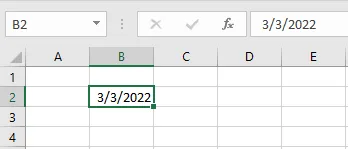
Type the date 03/03/2022 in cell B2.
-
Drag the fill handle down. Excel fills in the following days.
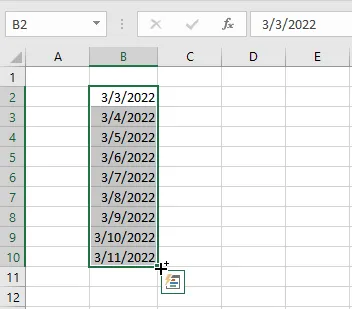
Try it with days of the week too, such as Monday.
Tip: After dragging, click the small Auto Fill Options button that appears to choose how to fill, for example Fill Weekdays to skip weekends, or Fill Months.
Example 4: Flash Fill
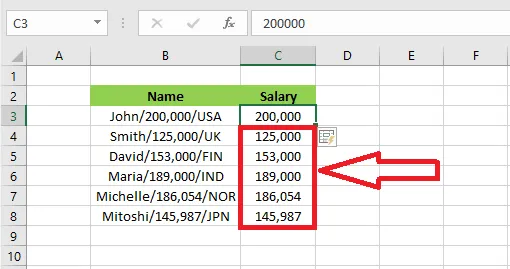
Flash Fill fills a column by copying a text pattern you type once.
-
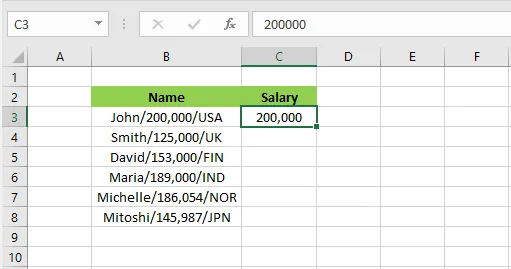
In cell C3, type the number you want from B3, here 200,000.
-
On the Data tab, click Flash Fill (or press Ctrl + E).

Result: Excel fills in the rest of the column.
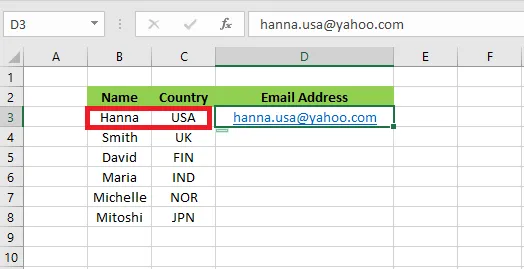
Flash Fill can also combine cells, for example to build email addresses:
-
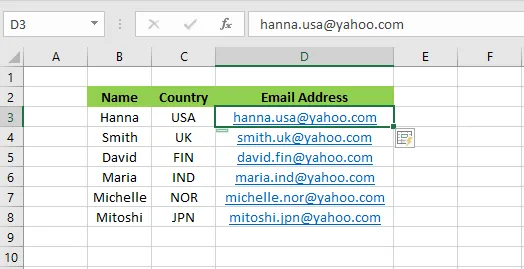
In cell D3, type the email address you want for the first row.
-
On the Data tab, click Flash Fill (or press Ctrl + E).
Result: every row gets its email address.