How to Make a BMI Calculator in Excel
Body Mass Index (BMI) is a number calculated from your height and weight. In this lesson, you’ll build a BMI calculator that works in standard units (pounds, feet and inches) or metric units (kilograms and centimeters).
-
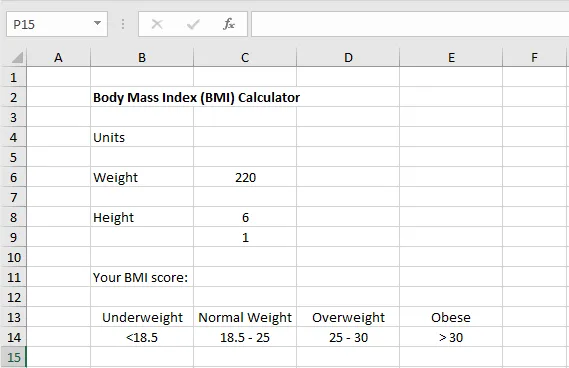
Type the labels into your sheet as shown.
-
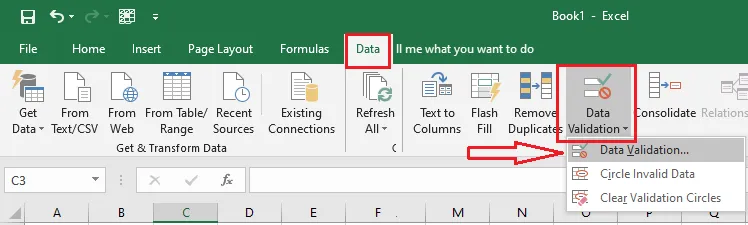
Select cell C4, and on the Data tab, click Data Validation.
-
Under Allow, choose List. In Source, type
Standard,Metric.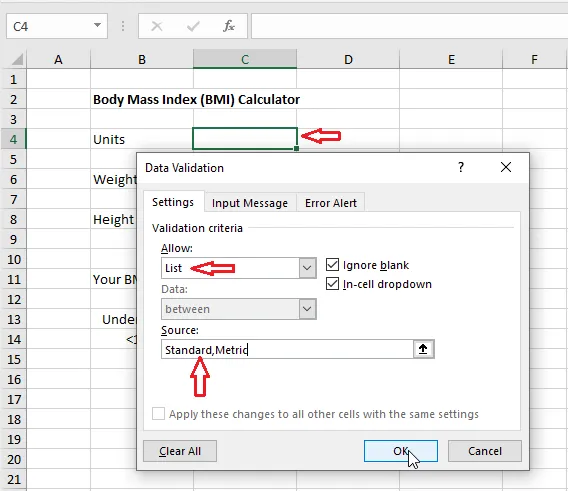
-
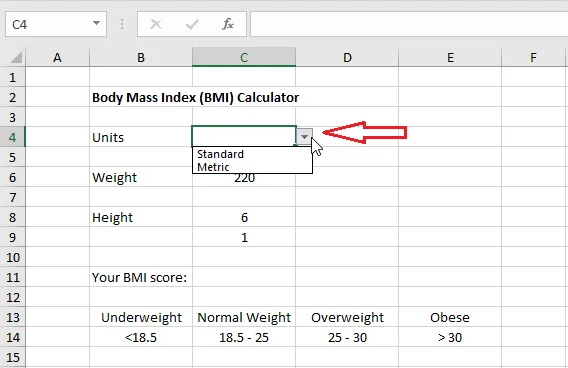
Click OK. C4 now has a drop-down list of units.
-
Add IF formulas so the unit labels change with the choice in C4:
- D6:
=IF(C4="Standard","pounds","kg") - D8:
=IF(C4="Standard","feet","cm") - D9:
=IF(C4="Standard","inches","")
- D6:
-
Metric doesn’t use the inches box, so hide it when Metric is chosen. Select C9 and click Home > Conditional Formatting > New Rule. Choose a formula rule, such as
=$C$4="Metric", and set the fill and font color to match the background.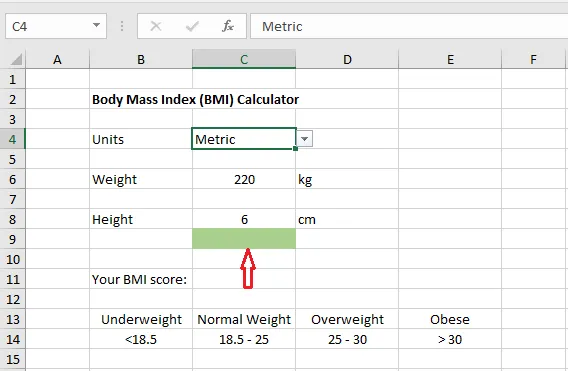
-
In C11, type the BMI formula:
=IF(C4="Standard",(703*C6)/(C8*12+C9)^2,C6/(C8/100)^2)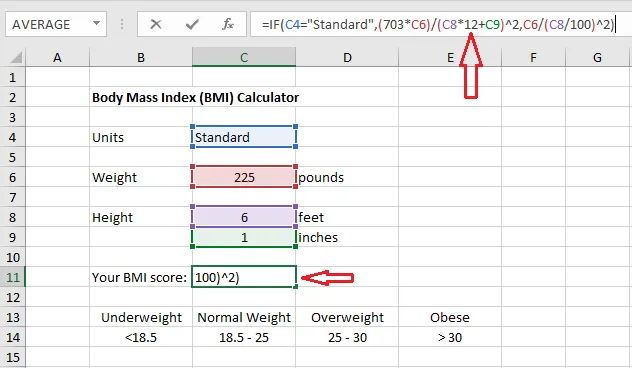
For standard units, BMI is 703 × weight in pounds ÷ (height in inches)². Height in inches is feet × 12 + inches. For metric, BMI is weight in kg ÷ (height in meters)², and dividing cm by 100 gives meters.
The calculator works now. Try a few different numbers.
-
To make it look finished, add conditional formatting to C11 so its color changes with the result, for example with the ranges in the table below it. Click Home > Conditional Formatting > New Rule.
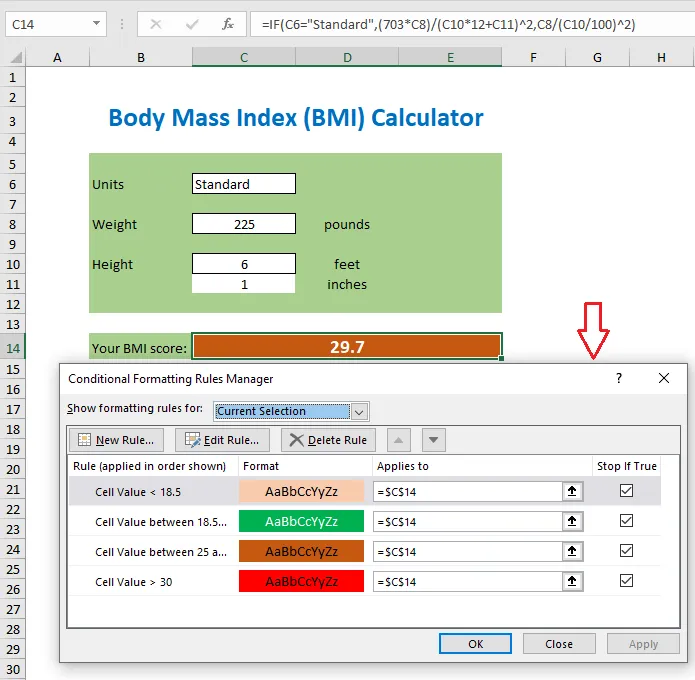
Result: after adding fills and removing gridlines, the calculator looks like this:
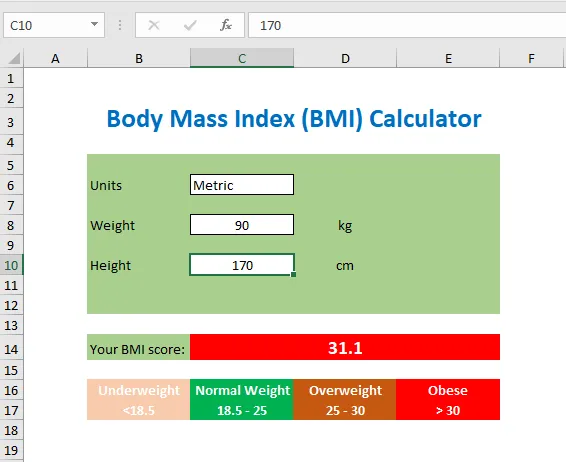
Note: This is a spreadsheet exercise. BMI is only a rough guide and isn’t medical advice.
Download the template to compare: excel-bmi-calculator.xls