How to Get the Sheet Name in Excel
Excel has no single function that returns a worksheet’s name, but you can combine three: CELL, FIND and MID. Here’s how it works, one step at a time.
Note: The workbook must be saved at least once. Until then, CELL has no file name to return.
-
Enter this formula in any cell. It returns the full path of the workbook, ending with the sheet name after a closing square bracket, ]:
=CELL("filename")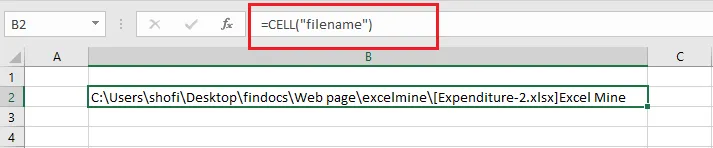
-
This formula finds where the sheet name starts, one character after the ]:
=FIND("]", CELL("filename")) + 1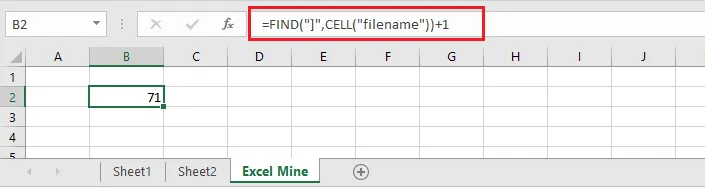
-
Put the two together with MID, which takes the text from that position onward (31 characters is the longest a sheet name can be):
=MID(CELL("filename"), FIND("]", CELL("filename")) + 1, 31)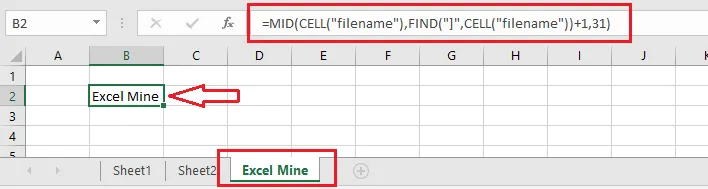
The result is the name of the sheet the formula is on.
Get the name of a different sheet
Add a reference to any cell on that sheet inside both CELL functions. For example, for a sheet called Sales:
=MID(CELL("filename", Sales!A1), FIND("]", CELL("filename", Sales!A1)) + 1, 31)
Tip: It’s a good idea to add a cell reference even for the current sheet, such as
CELL("filename", A1). Without one, CELL can show the name of whichever sheet was last changed.
Using Microsoft 365? TEXTAFTER makes it shorter:
=TEXTAFTER(CELL("filename", A1), "]")