How to Create a Dynamic Named Range
A normal named range covers a fixed set of cells. If you add data below it, formulas using the name ignore the new values. A dynamic named range grows automatically.
The problem
-
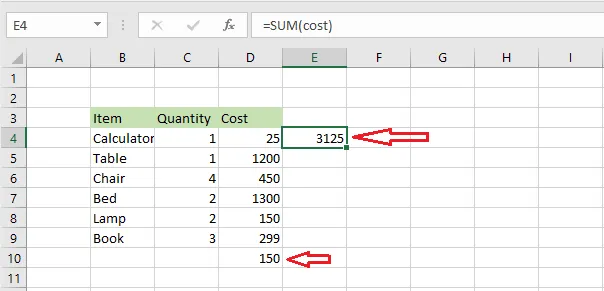
Select D4:D9 and, in the Name Box, name the range cost.
-
In cell E4, type
=SUM(cost).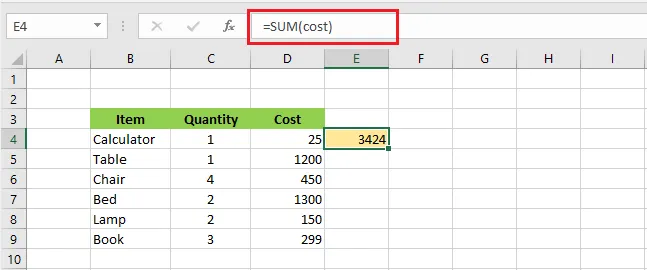
-
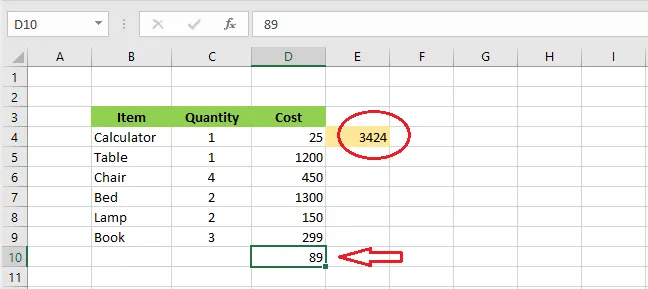
Now type 89 in cell D10. The total in E4 doesn’t change, because D10 is outside the range.
Make the range dynamic
-
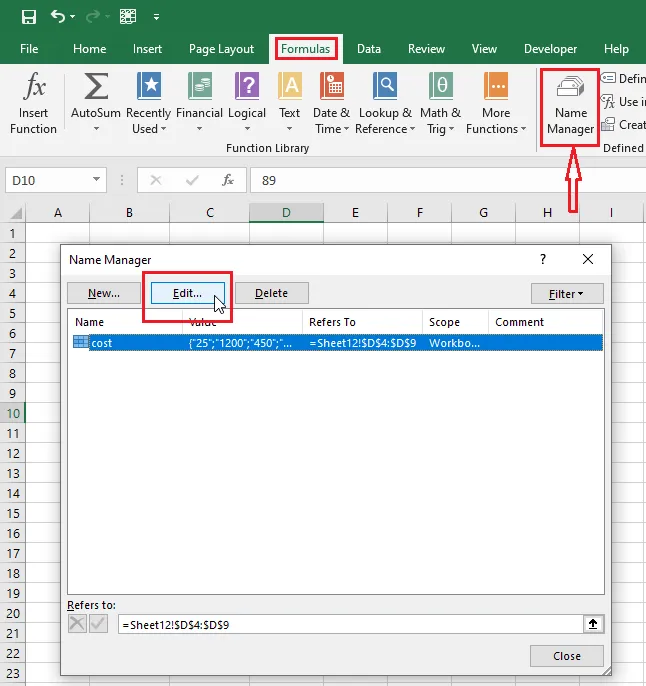
On the Formulas tab, click Name Manager.
-
Select cost and click Edit.
-
In the Refers to box, replace the range with this formula (use your own sheet name):
=OFFSET(Sheet3!$D$1,0,0,COUNTA(Sheet3!$D:$D),1)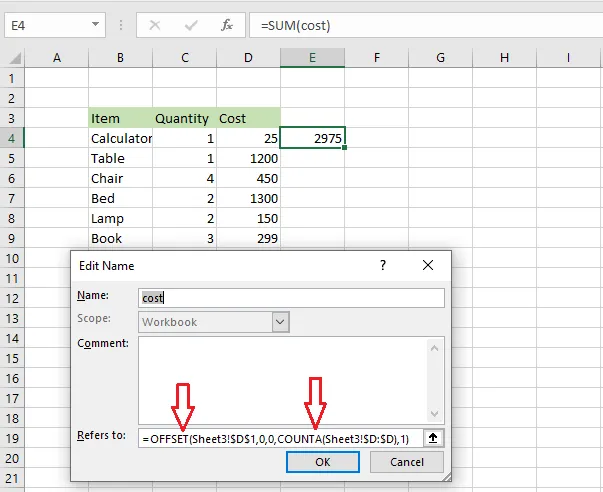
OFFSET builds a range from five parts:
- $D$1: where the range starts.
- 0, 0: move zero rows and zero columns from there.
- COUNTA($D:$D): the height, which is the number of non-empty cells in column D, so it grows as you add values.
- 1: the width, one column.
-
Click OK, then Close.
Result: add a value in D10 and the total in E4 updates straight away. The range cost now stretches to include it.
Note: Keep column D free of other entries (notes, totals) below the data, or COUNTA will count them too. Text headings above the numbers are fine, because SUM ignores text.
Tip: The easiest way to get a growing range is an Excel Table: select your data and press Ctrl + T. A formula like
=SUM(Table1[Cost])includes new rows automatically, with no OFFSET needed.