How to Extract the Last Name in Excel
Name lists are everywhere: employees, customers, members. Often you need just the last names. Here are four ways to extract them, from the quickest to the most powerful:
- Text to Columns
- Flash Fill
- A formula
- Power Query
1. Text to Columns
Text to Columns splits text into separate columns at a delimiter, a character that separates the parts. In a full name, the delimiter is the space.
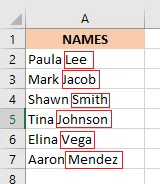
In this list, the last names are outlined in red.
-
Select the names, A2:A7.
-
Click Data > Text to Columns.

-
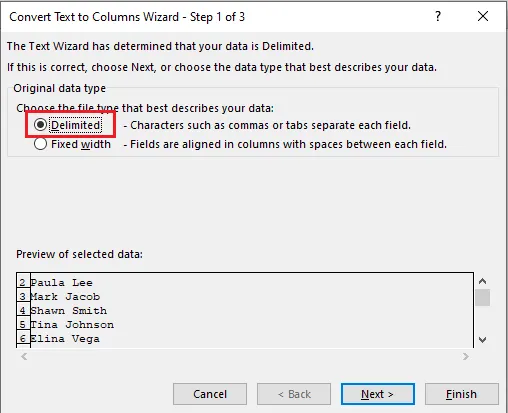
Step 1: choose Delimited and click Next.
-
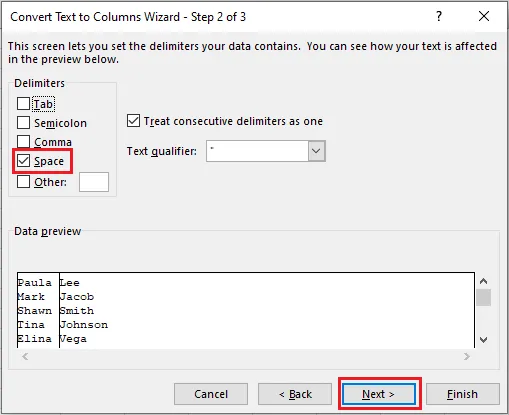
Step 2: untick Tab and tick Space.
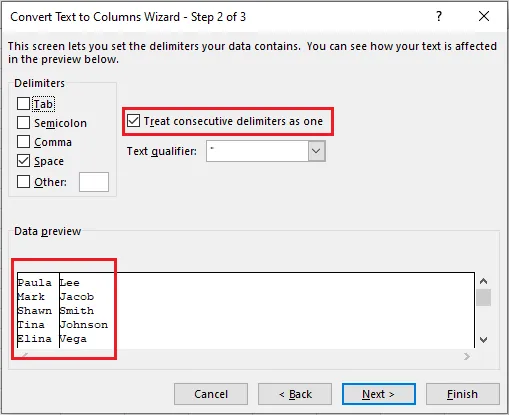
Also tick Treat consecutive delimiters as one, in case some names have extra spaces. The preview shows how the names will split. Click Next.
-
Step 3: choose General, type
$B$2in Destination so the results start in B2, and click Finish.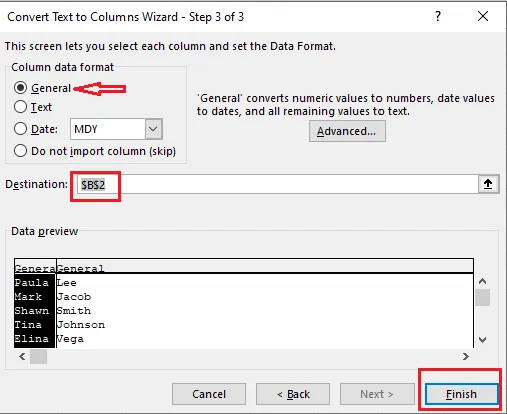
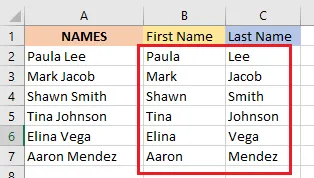
The first names are now in column B and the last names in column C. (Type First Name in B1 and Last Name in C1.)
-
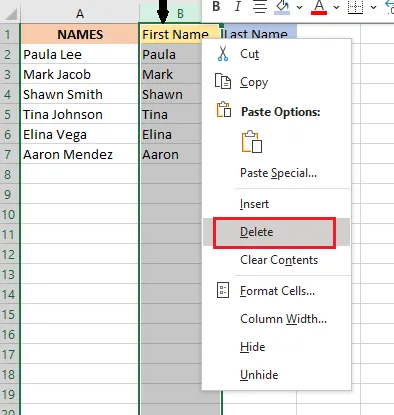
To keep only the last names, right-click the column B heading and click Delete.
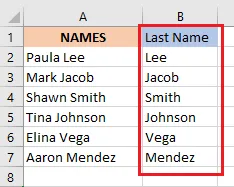
Result: the last names are now in column B.
Note: This works only when every name has the same number of parts. If some names have a middle name, their last names end up in a different column. Use Flash Fill or a formula instead. For more, see How to Split Cells.
2. Flash Fill
Flash Fill (Excel 2013 and later) spots the pattern in your typing and fills in the rest. It handles middle names, and names written with commas, too.
-
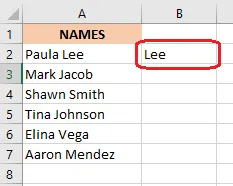
Type the first last name yourself. Here, Lee in B2.
-
Click Data > Flash Fill, or press Ctrl + E (Cmd + E on a Mac).

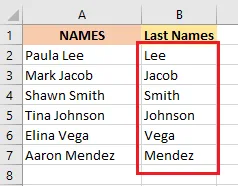
Result: Excel fills in the rest of the last names.
Note: Flash Fill results don’t update if the names change later. A formula does.
3. A formula
First and last names only
=RIGHT(A2,LEN(A2)-SEARCH(" ",A2))
This uses three functions:
- RIGHT(text, num_chars) returns the given number of characters from the right end of the text.
- LEN(text) returns the number of characters in the text.
- SEARCH(find_text, within_text, [start_num]) returns the position of one piece of text inside another. Here, the position of the space.
start_numis optional and says where to start looking.
Type the formula in B2 and copy it down:
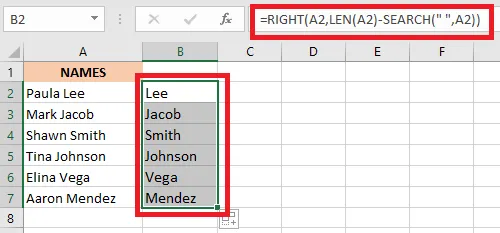
Here’s how it works for Paula Lee:
SEARCH(" ",A2)finds the space at position 6.LEN(A2)-SEARCH(" ",A2)is 9 characters − 6 = 3, the length of the last name.RIGHT(A2,3)returns the last 3 characters: Lee.
Tip: FIND works in place of SEARCH (FIND is case-sensitive, which doesn’t matter for a space). To remove stray spaces, wrap it all in TRIM:
=TRIM(RIGHT(A2,LEN(A2)-SEARCH(" ",A2))).
First, middle and last names
=RIGHT(A2,LEN(A2)-SEARCH(" ",A2,SEARCH(" ",A2)+1))
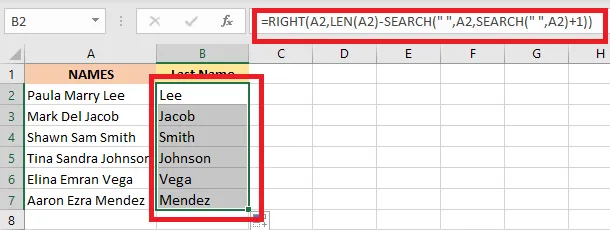
For a name like Paula Marie Lee (15 characters):
SEARCH(" ",A2)+1is the first space (6) plus 1 = 7.SEARCH(" ",A2,7)starts looking at position 7 and finds the second space at 12.LEN(A2)-12is 15 − 12 = 3.RIGHT(A2,3)returns Lee.
Last name first, with a comma
For names written as Lee, Paula, the last name is on the left, so use LEFT:
=LEFT(A2,SEARCH(",",A2)-1)
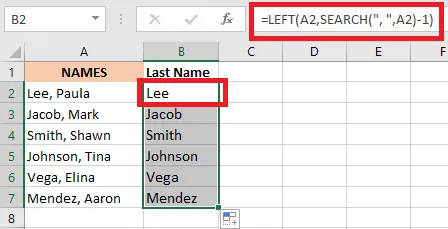
SEARCH(",",A2)finds the comma at position 4.LEFT(A2,4-1)returns the first 3 characters: Lee.
Using Microsoft 365?
=TEXTAFTER(A2," ",-1)returns the text after the last space, so it works with or without a middle name. For Lee, Paula, use=TEXTBEFORE(A2,",").
4. Power Query
Power Query (on the Data tab in Excel 2016 and later) takes more steps, but you can refresh it whenever the list changes.
-
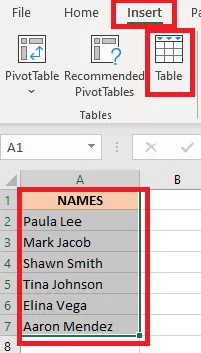
Select the names and click Insert > Table (Ctrl + T).
-
Check that the range is right (A1:A7) and click OK.
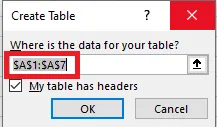
The names are now in a table.

-
With a cell in the table selected, click Data > From Table/Range.
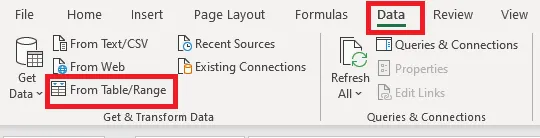
The Power Query Editor opens.
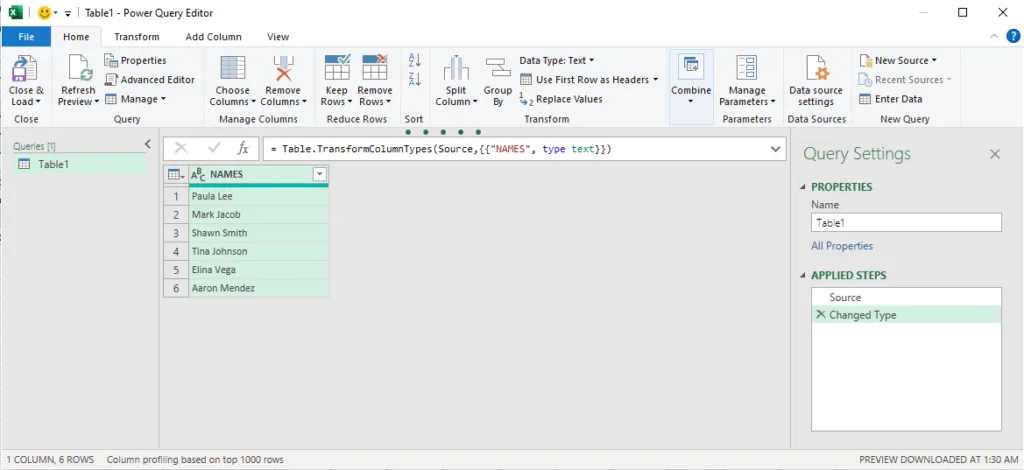
-
Click Home > Split Column > By Delimiter.
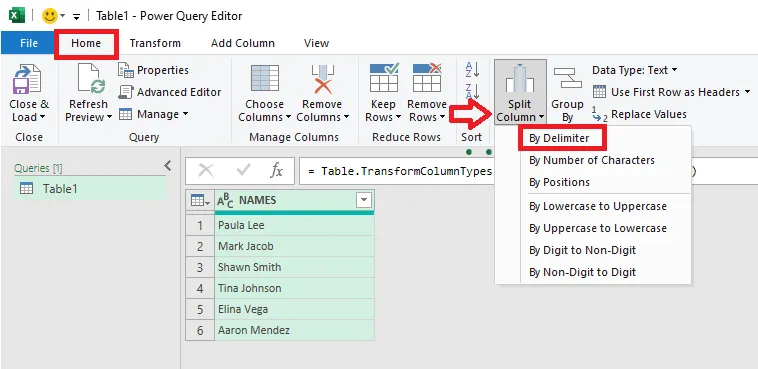
The Split Column by Delimiter dialog box opens.
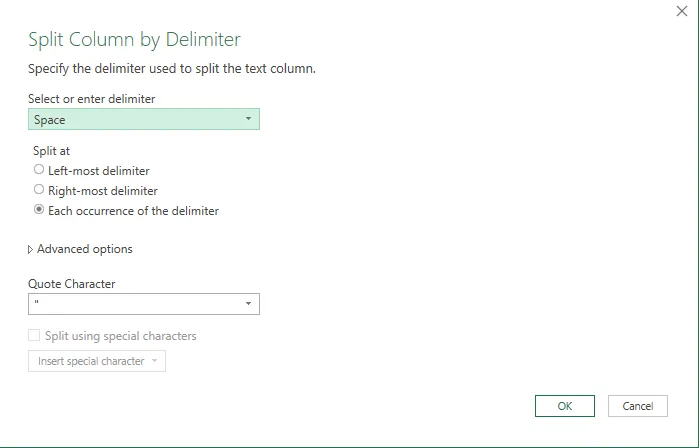
-
Choose Space as the delimiter, and choose Each occurrence of the delimiter. Click OK.
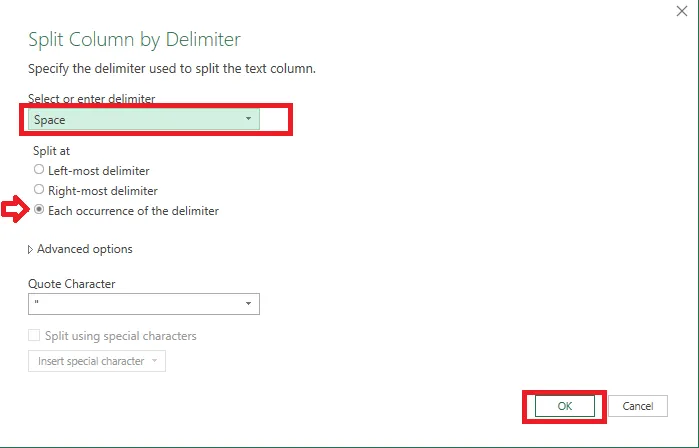
The names are now in two columns.
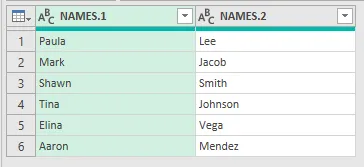
-
Double-click the second column’s heading and rename it Last Name.
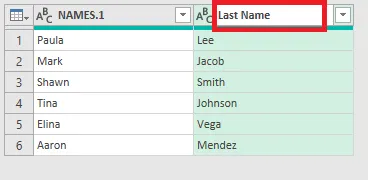
-
Right-click the first-name column’s heading and click Remove.
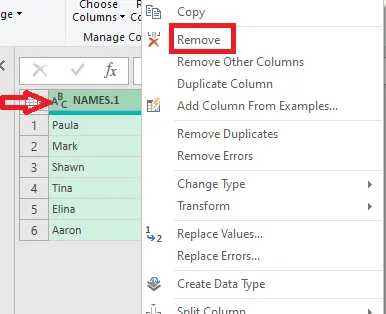
-
Click File > Close & Load.
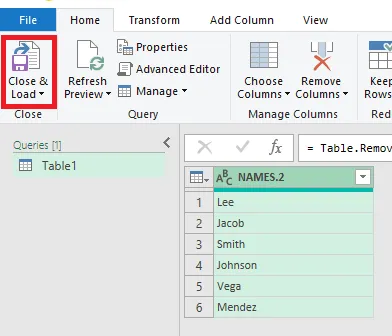
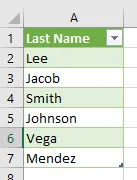
Result: a new sheet with a table of last names.
Tip: To keep the original full names too, click Add Column > Duplicate Column in the Power Query Editor before splitting. When names are added to the original table, click Data > Refresh All to update the results.