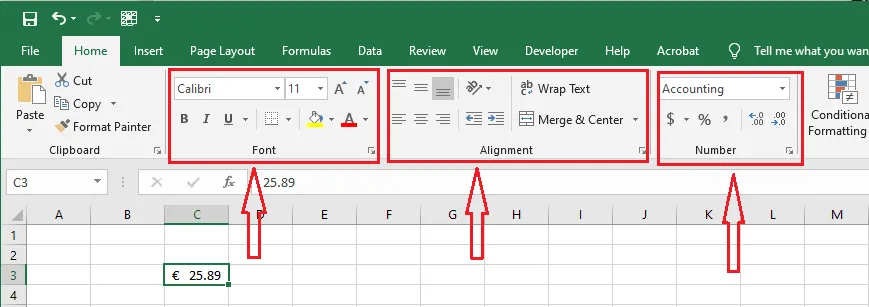
How to Format Cells in Excel
Formatting changes how a value looks, not the value itself. A cell showing $25.89 still holds the number 25.89, and calculations use that number.
-
Type 25.89 in cell C3.
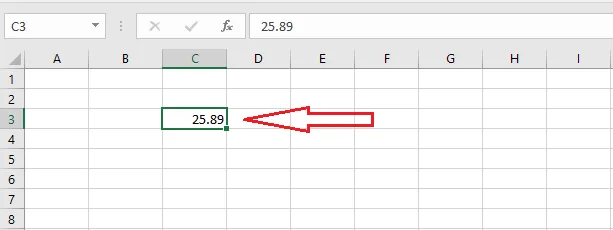
New cells use the General format, which shows numbers as you typed them. Let’s give it a currency format.
-
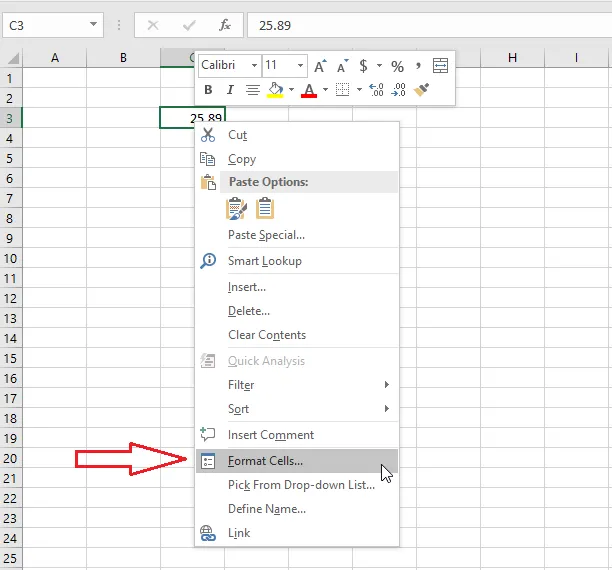
Select C3, right-click it and click Format Cells (or press Ctrl + 1).
-
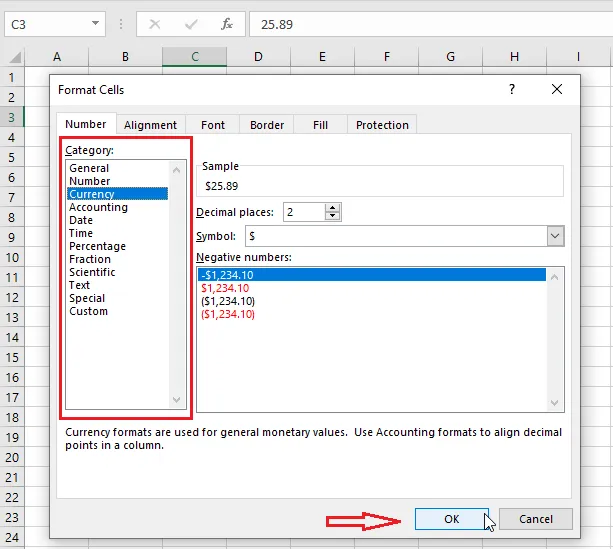
On the Number tab, click Currency. The Sample box shows how the number will look.
-
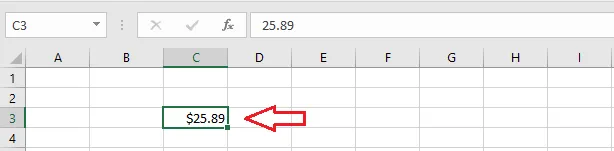
Click OK. The cell now shows the number in dollars.
-
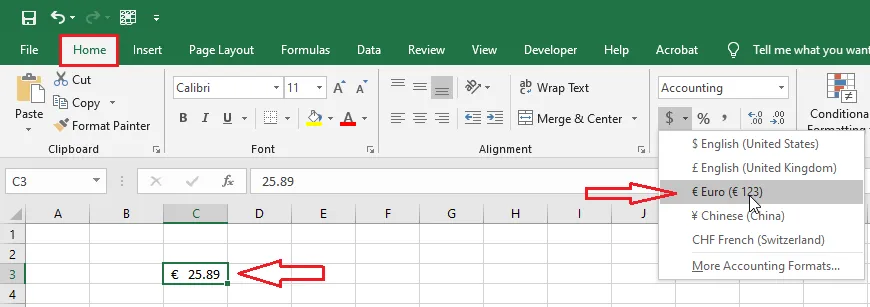
To use another currency, click the arrow next to the $ button on the Home tab and choose one, for example € Euro.
-
Try the other buttons in the same group, such as Percent Style, Comma Style, and Increase/Decrease Decimal, and see how the same number changes its look.
Note: The Home tab has many more formatting tools, grouped into Font, Alignment and Number. The next lessons cover the most useful ones.