How to Insert a Check Mark in Excel
A check mark (tick) or cross makes lists easier to read at a glance. There are two easy ways to add one: a keyboard trick with the Wingdings 2 font, or Insert > Symbol.
The Wingdings 2 trick
-
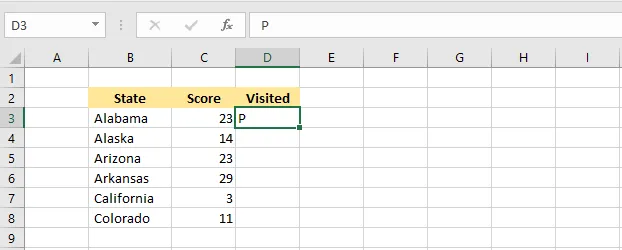
Select cell D3 and type a capital P (Shift + P).
-
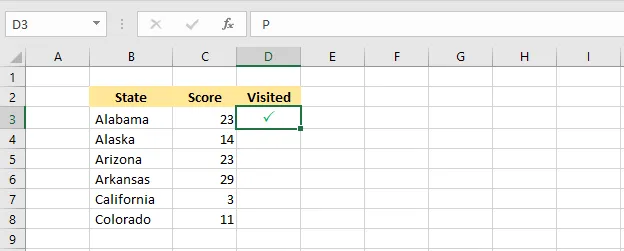
On the Home tab, change the font to Wingdings 2. The P becomes a check mark. For a clearer look, make it larger (size 13), green and centered.
-
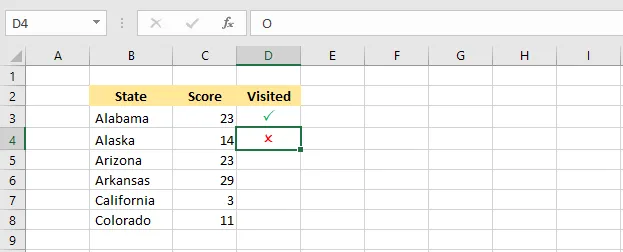
For a cross, select D4 and type a capital O (Shift + O), then use the same font, here in red.
-
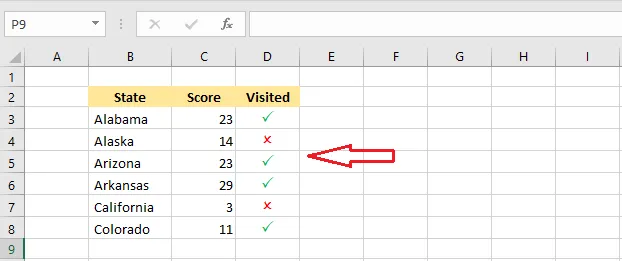
To build a to-do list, copy (Ctrl + C) and paste (Ctrl + V) the marks into the cells below.
From Insert > Symbol
-
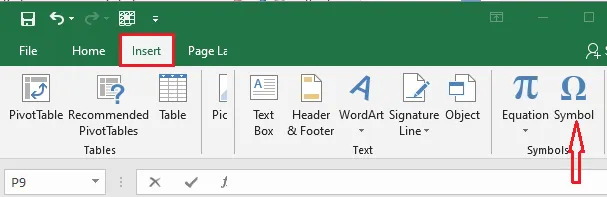
On the Insert tab, click Symbol.
-
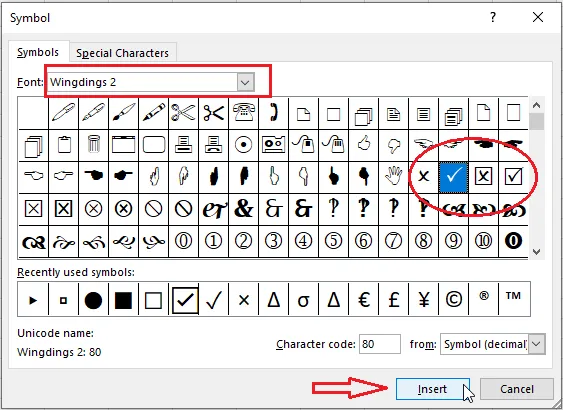
Change the Font to Wingdings 2.
-
Select the symbol you want and click Insert.
These marks are just characters, so they don’t change by clicking. For boxes you can tick and untick, see How to Insert a Checkbox in Excel.