How to Add a Line Break in a Cell
To write more than one line inside a cell, you need a line break. You can add one yourself with Alt + Enter, or with a formula.
With Alt + Enter
-
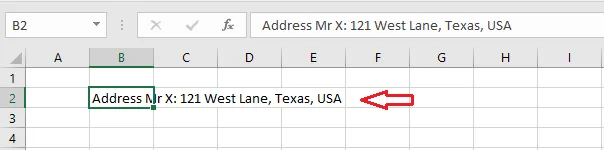
Select the cell with long text, here B2.
-
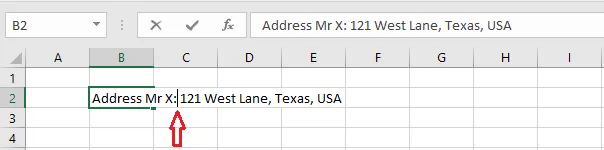
Double-click the cell (or press F2) and click where the new line should start. Here, right after the colon.
-
Press Alt + Enter.
-
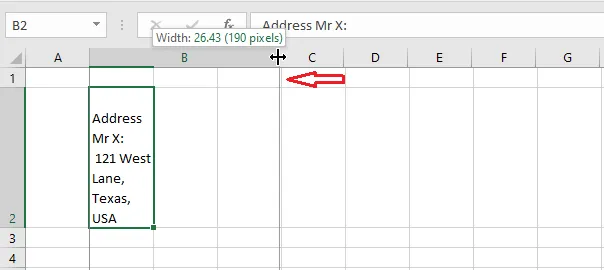
To make column B wider, drag the right border of its heading.
-
Double-click the bottom border of the row 2 heading to fit the row to the text.
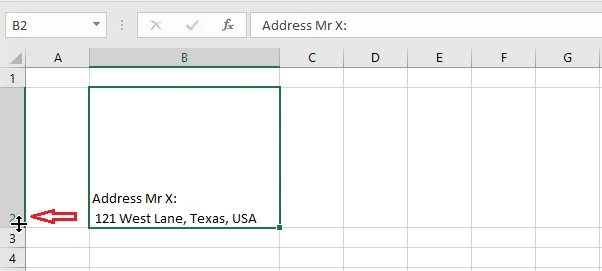
Result:
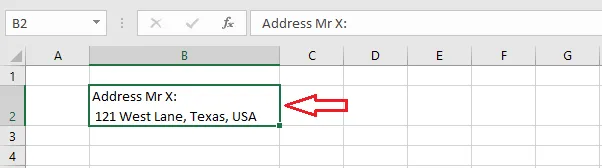
To remove the line break, put the cursor at the start of the second line and press Backspace.
Tip: On a Mac, press Control + Option + Return.
With a formula: CHAR(10)
CHAR(10) is the line-break character. Use it to join text from several cells onto separate lines.
-
In cell E5, type
=B3&CHAR(10)&C3&CHAR(10)&D3and press Enter.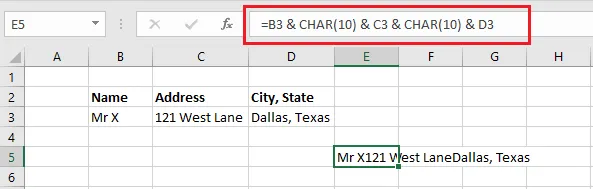
-
The line breaks only show when Wrap Text is on. If they don’t, click Home > Wrap Text.
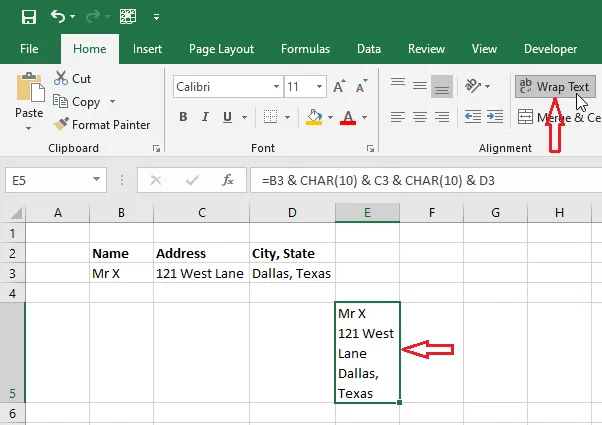
Using Microsoft 365?
=TEXTJOIN(CHAR(10),TRUE,B3:D3)does the same thing and skips empty cells.
Remove line breaks
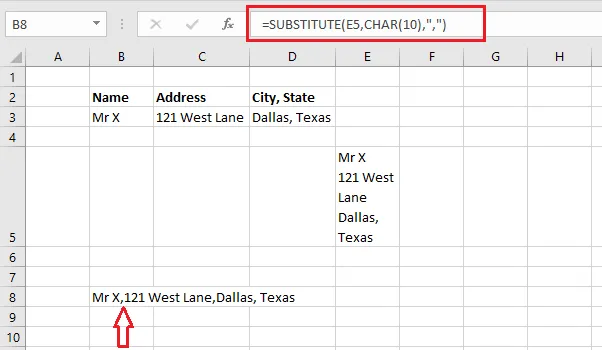
To replace line breaks with commas, use SUBSTITUTE:
-
In cell B8, type
=SUBSTITUTE(E5,CHAR(10),",")and press Enter.