How to Strikethrough Text in Excel
Strikethrough draws a line through text, like this. It’s handy for marking tasks as done or showing something that was removed, while keeping it readable.
From Format Cells
-
Select cells B4 and B5.
-
Right-click and click Format Cells.
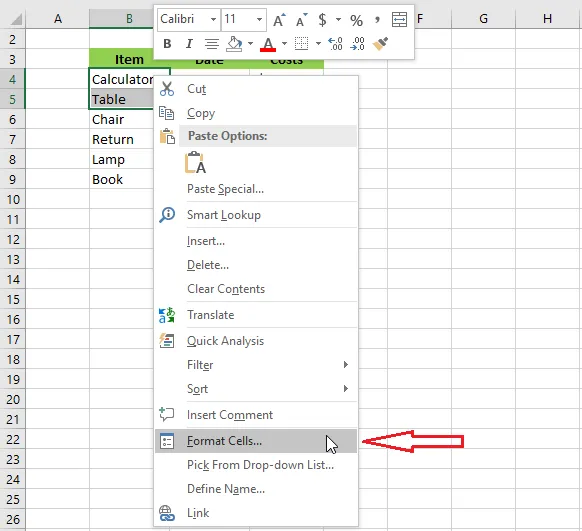
-
On the Font tab, tick Strikethrough.
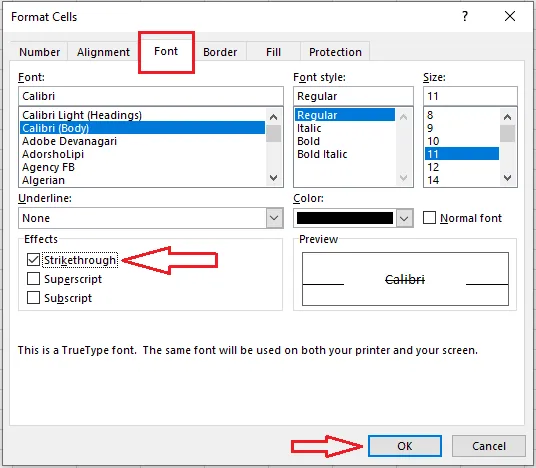
-
Click OK.
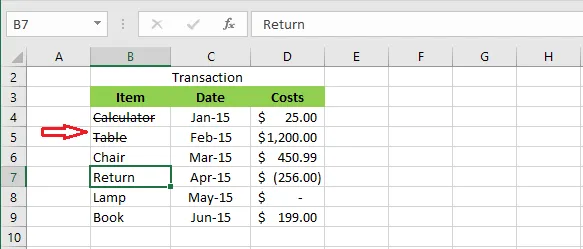
With the keyboard
-
Select cell B7.
-
Press Ctrl + 5.
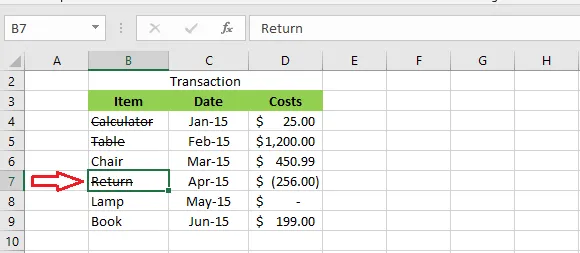
Press Ctrl + 5 again to remove it.
Cross out only part of a cell
-
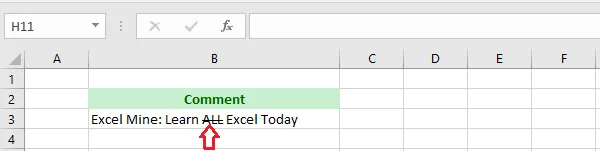
Select the cell, then select just the words to cross out, in the formula bar or after double-clicking the cell.
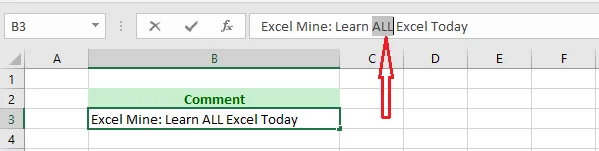
-
Press Ctrl + 5.
Add a Strikethrough button
If you use it a lot, add a button to the Quick Access Toolbar:
- Click the small down arrow at the end of the Quick Access Toolbar.
- Click More Commands.
- Under Choose commands from, select Commands Not in the Ribbon.
- Select Strikethrough and click Add.
- Click OK.
For pictures of these steps, see How to Customize the Quick Access Toolbar.