Excel Window Parts and Their Names
Welcome to the first lesson of this free Excel course. Before you start entering data, it helps to know what each part of the Excel window is called. You’ll see these names in every lesson, and knowing them makes it much easier to follow instructions and find commands quickly.
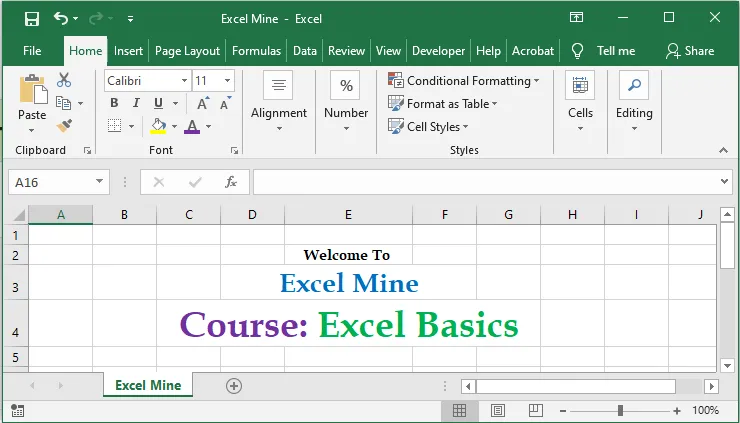
Here is the Excel window we’ll explore. The sections below point out each part.
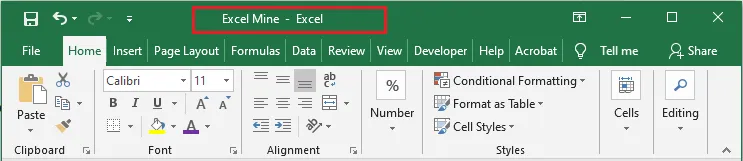
1. Title bar
The title bar runs across the very top of the window. It shows the name of the open workbook and holds the minimize, maximize and close buttons on the right.
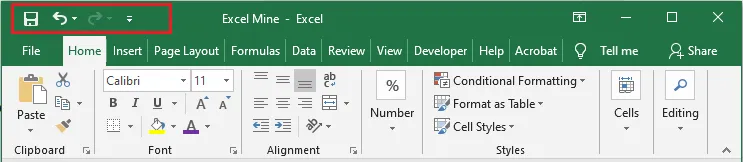
2. Quick Access Toolbar
The Quick Access Toolbar is the small row of buttons in the top-left corner, such as Save, Undo and Redo. You can add the commands you use most, which is covered in How to Customize the Quick Access Toolbar.
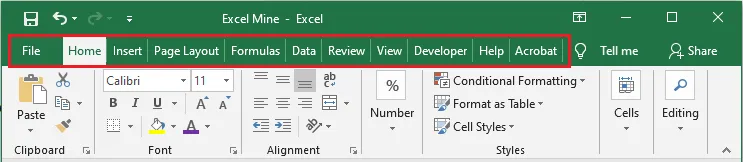
3. Tabs
The tabs, such as File, Home, Insert and Formulas, sit just below the title bar. Click a tab to see its commands.
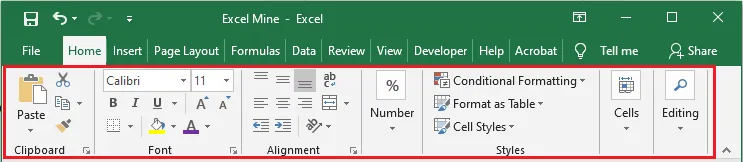
4. Ribbon
The Ribbon is the wide band of buttons under the tabs. It shows the commands for whichever tab is selected, organized into groups. You’ll learn to use it in the next lesson, How to Use the Excel Ribbon.
5. Name Box and formula bar
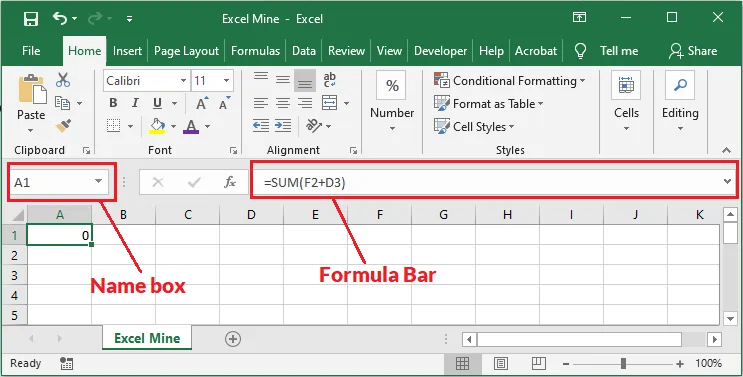
- The Name Box, on the left, shows the address of the selected cell, for example A1.
- The formula bar, to its right, shows what’s in that cell: a number, some text, or a formula such as
=SUM(F2+D3). You can also type and edit there.
6. Cells, column headings and row headings
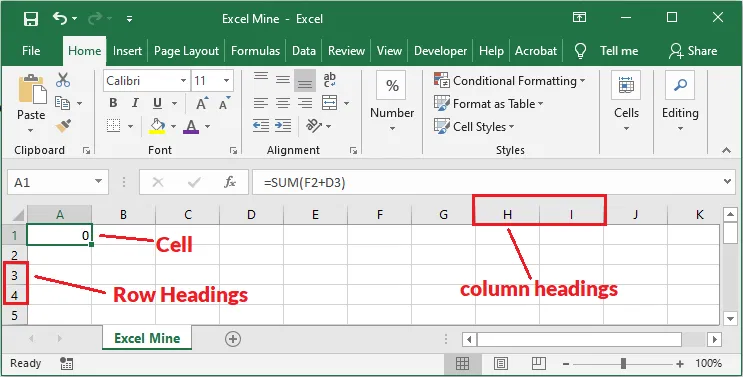
- Column headings are the letters across the top (A, B, C…).
- Row headings are the numbers down the left side (1, 2, 3…).
- A cell is where a column and a row meet. Its address combines the two, so the cell in column B, row 3 is B3.
7. Sheet tabs, navigation buttons and scroll bars
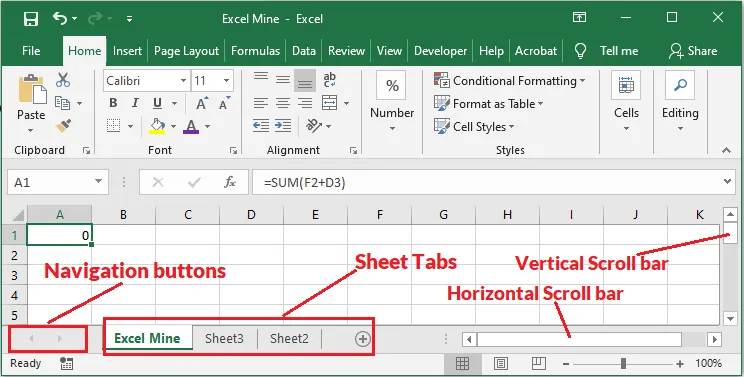
- Sheet tabs at the bottom switch between the worksheets in your workbook. Click + to add a new one.
- The small navigation arrows to their left scroll through the tabs when you have many sheets.
- The scroll bars on the right and bottom move around the worksheet.
Excel has many more parts, and you’ll meet them as you go through the course. These seven are the ones you’ll use in almost every lesson.