How to Hide and Unhide Columns and Rows
Hiding columns and rows keeps your data in the workbook but takes it out of view, which is useful for helper columns or details you don’t need to see all the time.
Hide and unhide a column
-
Select the column.
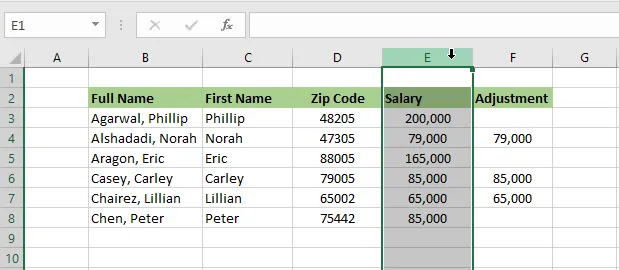
-
Right-click and click Hide.
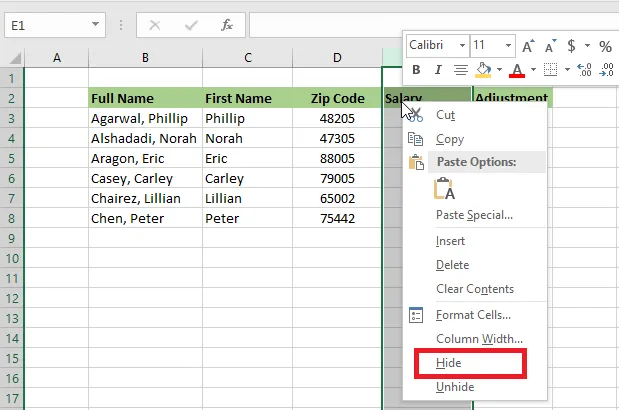
Result: the column disappears. The heading letters skip it, which shows something is hidden.
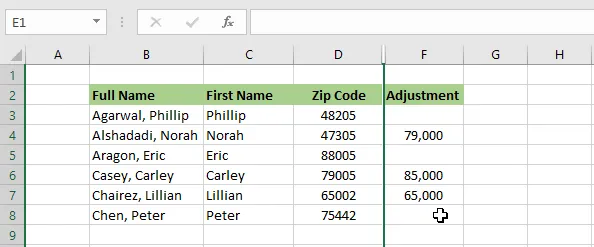
To bring it back:
-
Select the columns on both sides of the hidden one.
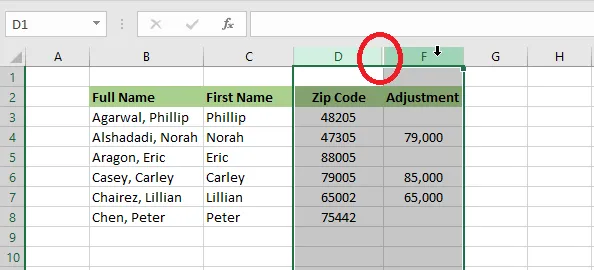
-
Right-click and click Unhide.
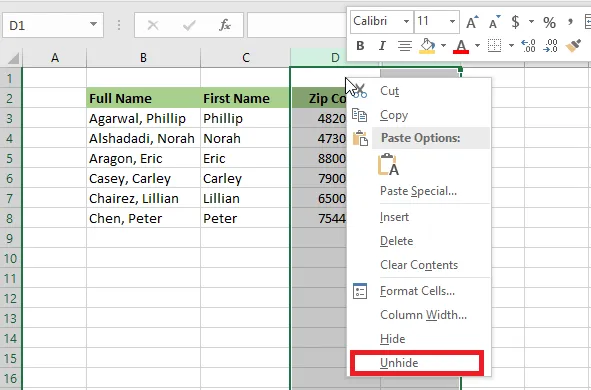
Result: the column is visible again.
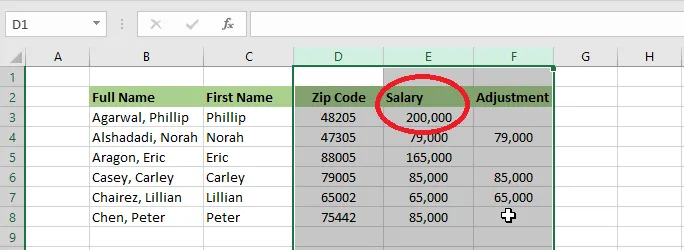
Note: Rows work exactly the same way: select row headings instead of column headings.
Hide several columns at once
-
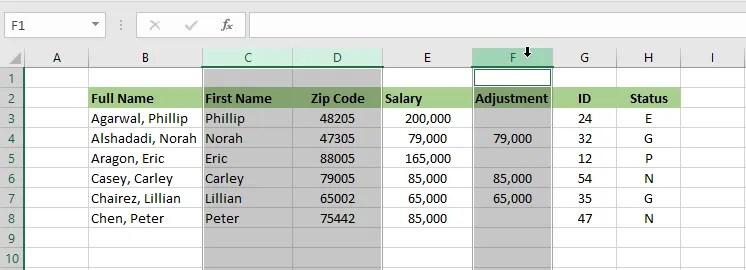
Select the columns by their headings. To pick columns that aren’t next to each other, hold Ctrl as you click. Here columns C, D and F are selected.
-
Right-click and click Hide.
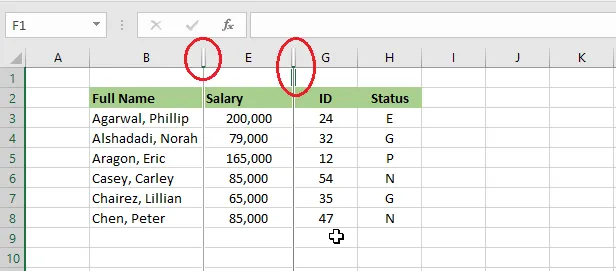
-
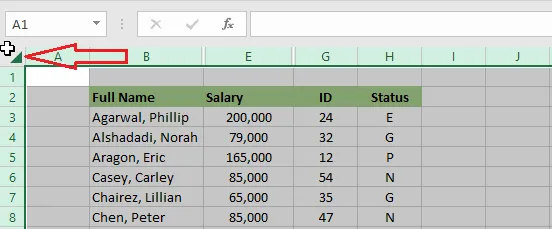
To unhide them all, select the whole sheet by clicking the triangle in the top-left corner, where the row and column headings meet.
-
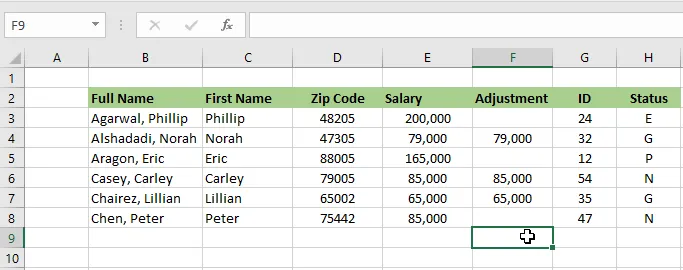
Right-click any column heading and click Unhide.
Hide columns with Group
Grouping adds a small minus button above the columns, so you can collapse and expand them with one click.
-
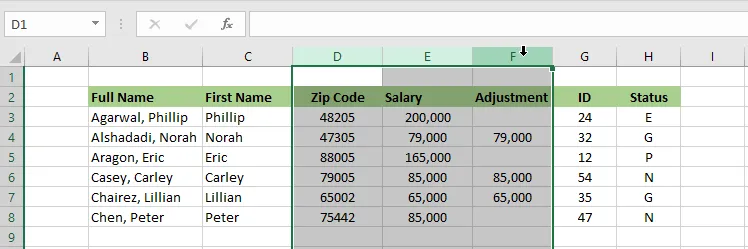
Select the columns you want to be able to hide.
-
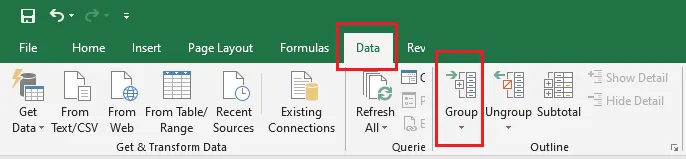
On the Data tab, click Group.
-
Click the minus button to hide the columns.
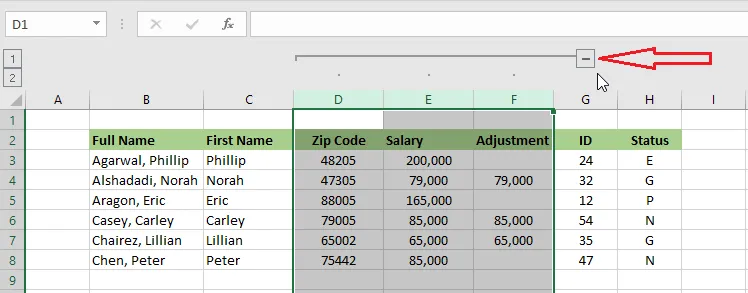
-
Click the plus button to show them again.
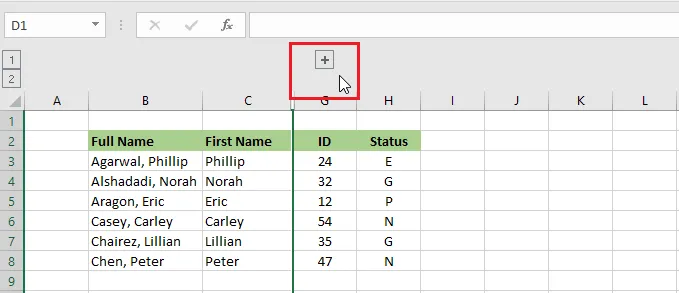
Note: To remove the grouping, select the grouped columns and click Ungroup on the Data tab.
Hide the data inside cells
You can also keep cells visible but make their contents invisible.
-
Select the cells whose contents you want to hide.
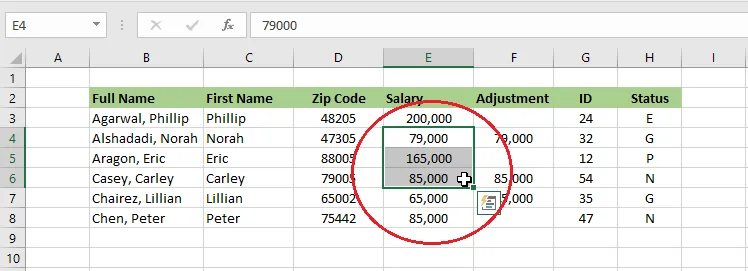
-
Right-click and click Format Cells.
-
On the Number tab, click Custom.
-
In the Type box, type three semicolons,
;;;, and click OK. (A single;also works for numbers, but three hide text as well.)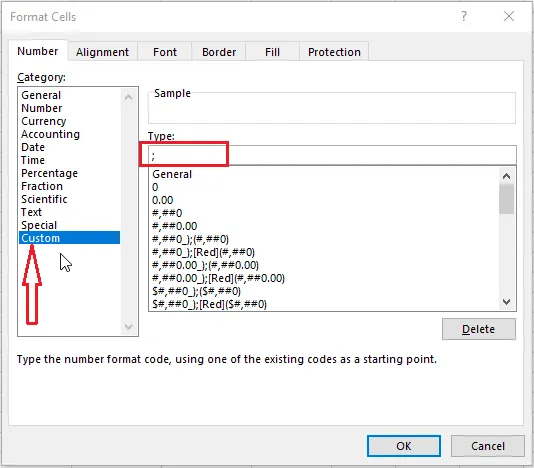
Result: the cells look empty.
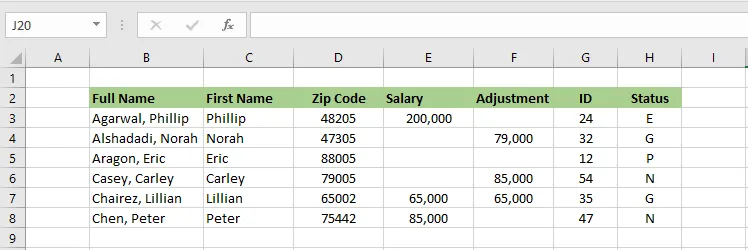
Note: The data is only invisible, not removed. Select one of the cells and you’ll still see its value in the formula bar. To show it again, set the format back to General.