How to Create a Custom Number Format
Excel has many built-in number formats (see Currency vs Accounting), but you can also create your own. Custom formats change only how a number looks, never its value.
All three examples start the same way: select the cell, press Ctrl + 1 (or right-click > Format Cells), click Custom, and type a code in the Type box.
Example 1: add leading zeros
To show every number with 6 digits, so that 376 becomes 000376:
-
Type 376 in cell B3.
-
Select B3, right-click and click Format Cells.
-
Click Custom and type
000000in the Type box.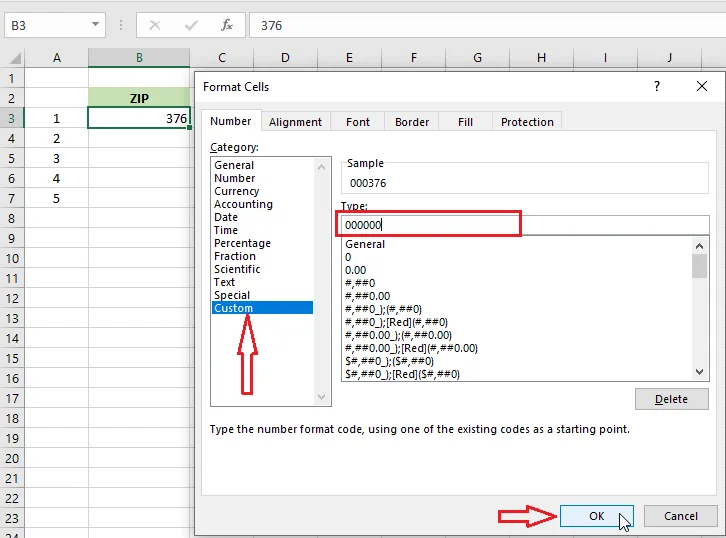
-
Click OK.
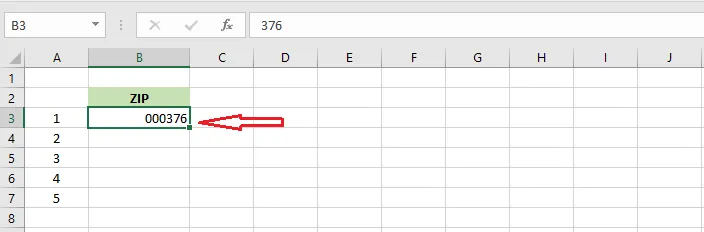
Example 2: add text after a number
To show 376.0 Dollars while keeping the cell a number:
-
Type 376 in cell B3.
-
Select B3, right-click and click Format Cells.
-
Click Custom and type
0.0 "Dollars"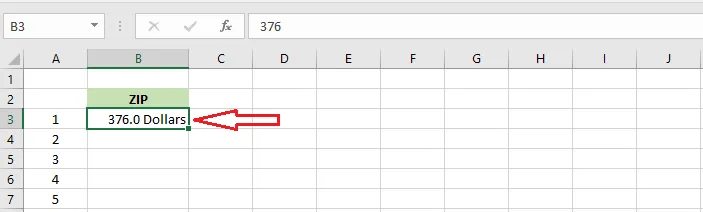
Example 3: show numbers in thousands
To show 1376 as 1.4 Thousand:
-
Type 1376 in cell B3.
-
Select B3, right-click and click Format Cells.
-
Click Custom and type
0.0, "Thousand"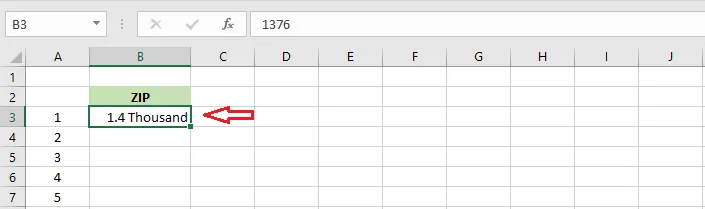
Each comma at the end of the number part divides by 1,000 for display. For millions, use two: 0.0,, "Million"
Tip: Look through the codes already in the Custom list. Picking one and changing it slightly is often the quickest way to build the format you want.