How to Show the Developer Tab in Excel
The Developer tab holds the tools for recording macros, writing VBA code and inserting form controls such as checkboxes and buttons. Excel hides it by default, but it takes only a few clicks to turn on.
-
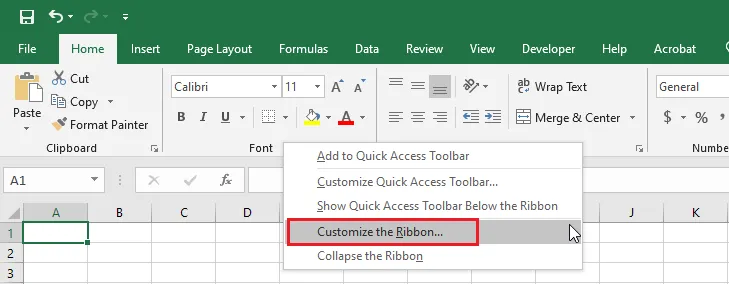
Right-click anywhere on the Ribbon, then click Customize the Ribbon.
-
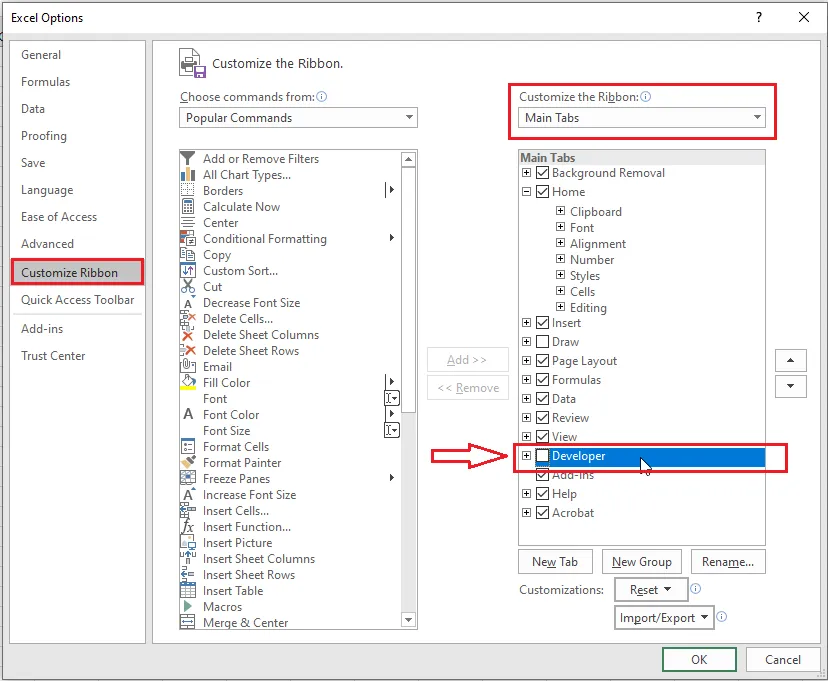
On the right, under Customize the Ribbon, make sure Main Tabs is selected.
-
Tick the Developer box.
-
Click OK.
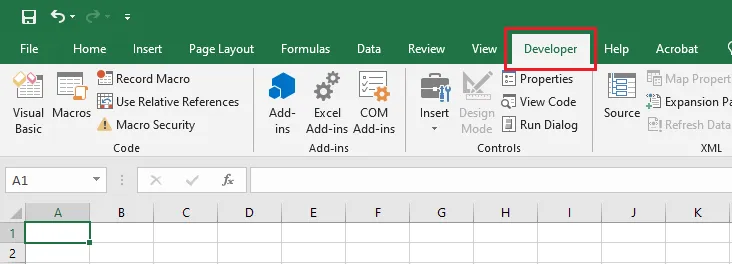
Result: the Developer tab now appears on the Ribbon, and it stays there each time you open Excel.
You’ll use the Developer tab later in this chapter to insert a checkbox.