How to Split the Screen in Excel
On a long worksheet, Split divides the window into separate areas that scroll on their own, so you can see the top and bottom of your data at the same time.
-
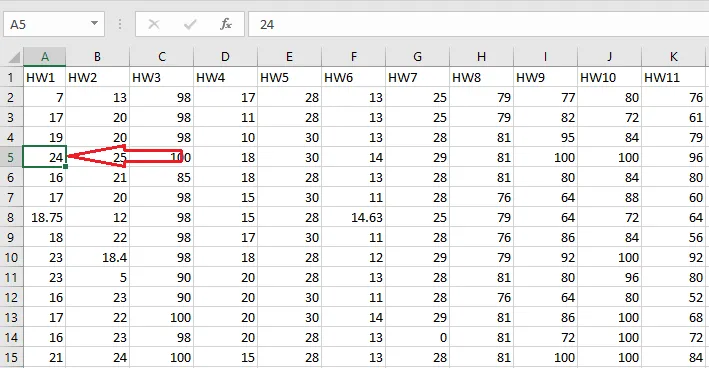
Select the cell where you want the split to start. Here we select A5.
-
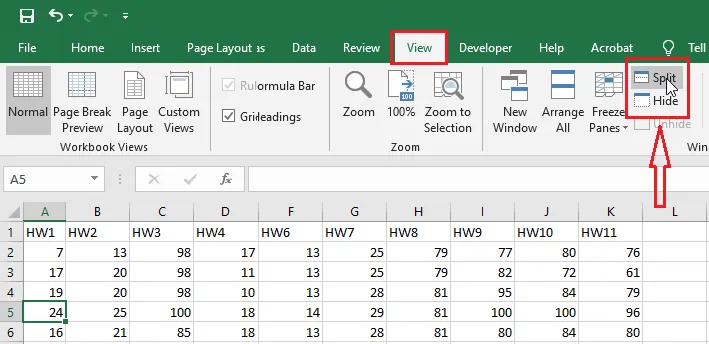
On the View tab, click Split.
-
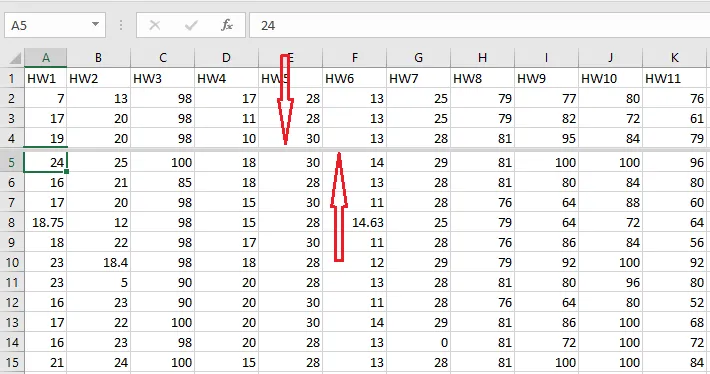
A split line appears above row 5. Each area now scrolls separately, so you can keep rows 1 to 4 in view while scrolling through the rest.
-
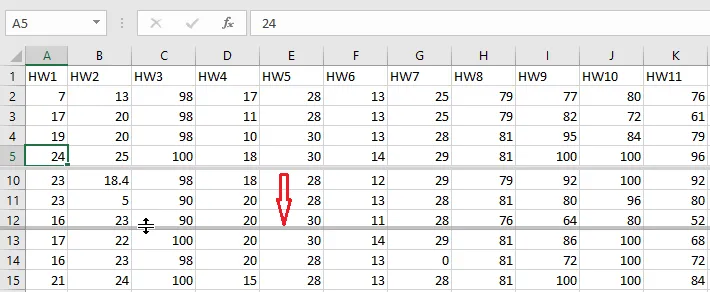
To move the split, drag the split line up or down.
-
To remove the split, double-click the split line, or click Split again.
Tip: Selecting a cell in the middle of the sheet (not in row 1 or column A) splits the window into four areas. If you only want to keep the top rows fixed, Freeze Panes is usually easier.