How to Fix the #SPILL! Error
In Microsoft 365 and Excel 2021 and later, some formulas return several results at once. This is called spilling. When something gets in the way, you see the #SPILL! error. Here’s what it means and how to fix it.
What is spilling?
Functions such as SORT, UNIQUE, FILTER and SEQUENCE return a list of values. Excel places that list in the cells below (or beside) the formula. Those cells are the spill range.
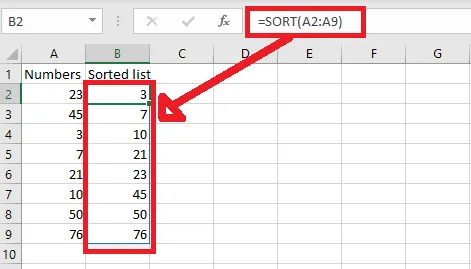
Here, a SORT formula is typed only in B2, but it returns 8 values. They spill into B2:B9.
If anything blocks the spill range, such as the 3 in B5 below, the formula shows #SPILL!.
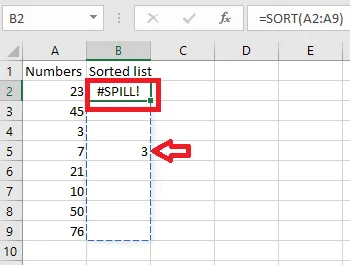
Note: Click the formula cell to see the spill range outlined with a dashed border.
Find the cause
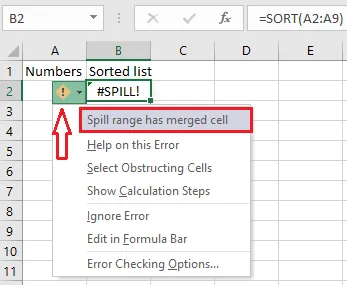
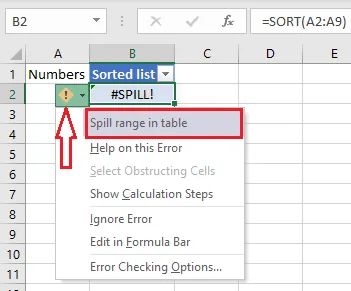
Click the formula cell, then click the warning icon (!) next to it. The first line of the menu tells you why the formula can’t spill.
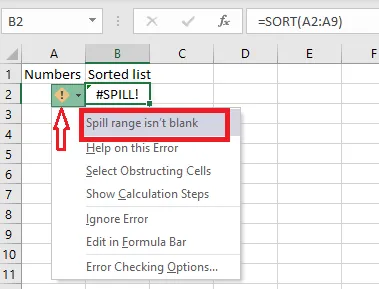
Here are the five common causes and how to fix each one.
1. The spill range isn’t blank
A spilling formula won’t overwrite cells that already have something in them.
Fix: delete or move whatever is in the spill range. Click Select Obstructing Cells in the warning menu to find it.
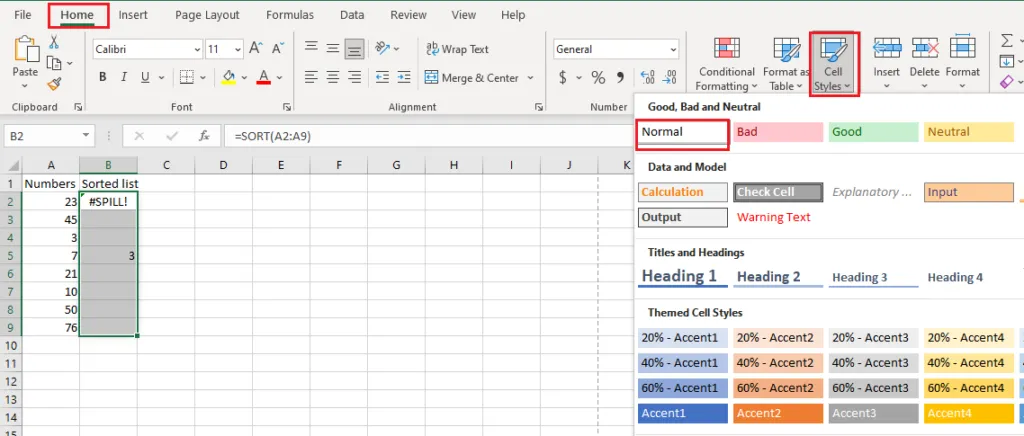
Sometimes the blocking content is invisible, for example white text on a white background. Select the spill range and click Home > Cell Styles > Normal to reset the formatting, and the hidden content appears.
Note: A cell with only a space in it looks empty but still blocks the spill. Select the whole spill range and press Delete.
2. Merged cells in the spill range
A formula can’t spill into merged cells.
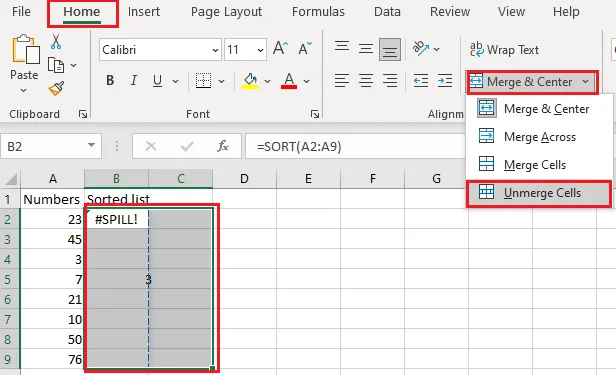
Fix: select the merged cells and click Home > Merge & Center > Unmerge Cells, or move the merged cells out of the way.
3. The spill range is inside a table
Excel Tables don’t support spilling formulas.
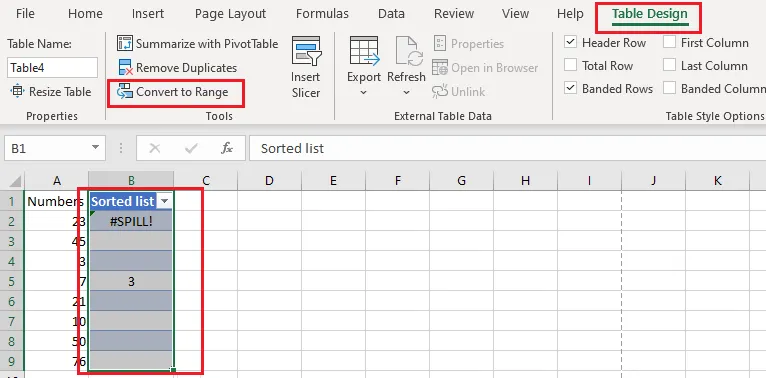
Fix: move the formula outside the table, or turn the table into a normal range. Click inside it, then Table Design > Convert to Range.
4. The spill range is unknown
If the size of the result keeps changing, Excel can’t work out how much room it needs. That happens with random functions such as RAND, RANDARRAY and RANDBETWEEN. Here, =SEQUENCE(RANDBETWEEN(1,30)) asks for a random number of rows.
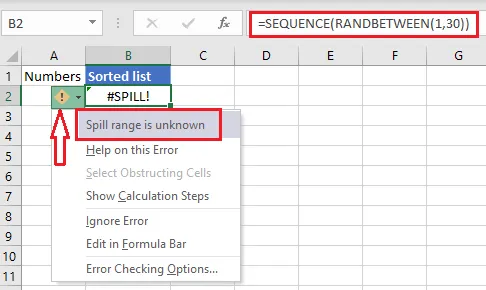
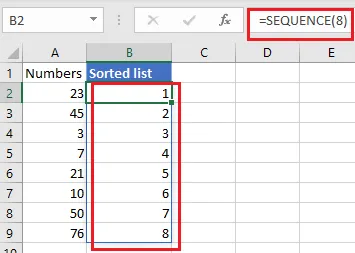
Fix: rewrite the formula so it returns a fixed size, such as =SEQUENCE(8).
5. The spill range is too big
A formula that refers to a whole column, such as =SORT(A:A) in B2, returns over a million rows. Starting from row 2, they’d run past the bottom of the sheet.
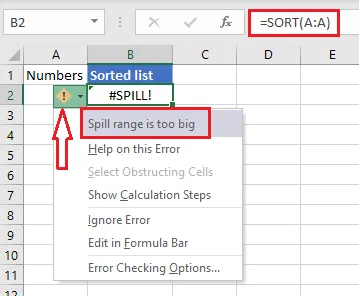
Fix: refer only to the cells with data, such as =SORT(A2:A9). If you really need the whole column, put the formula in row 1.