How to Protect Workbook Structure
Protect Workbook locks the workbook’s structure: nobody can add, delete, move, copy, rename, hide or unhide sheets. (To stop changes to cells, use Protect Sheet.)
-
Open the workbook.
-
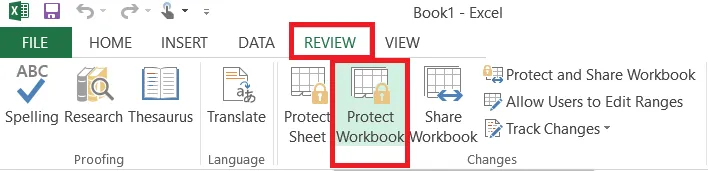
On the Review tab, click Protect Workbook.
-
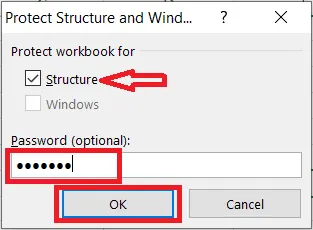
Make sure Structure is ticked, type a password, and click OK.
-
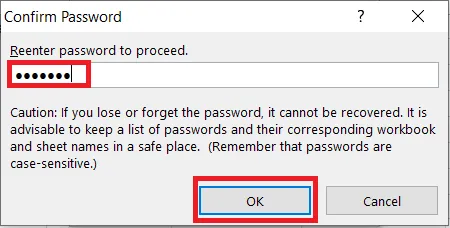
Type the password again and click OK.
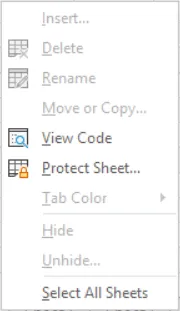
Result: right-click a sheet tab, and the options to insert, delete, rename, move, hide and unhide sheets are greyed out.
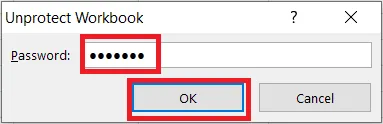
To remove the protection, click Protect Workbook again, type the password (here, protect), and click OK.
Note: The Windows option (to lock the window size and position) is only available in Excel 2010 and earlier, and in Excel for Mac.