How to Protect a Sheet in Excel
Protect Sheet stops others from changing the cells on a worksheet. You decide what they’re still allowed to do, such as selecting cells or using filters.
-
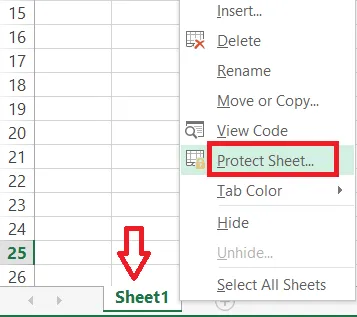
Right-click the Sheet1 tab and click Protect Sheet. (Or click Review > Protect Sheet.)
-
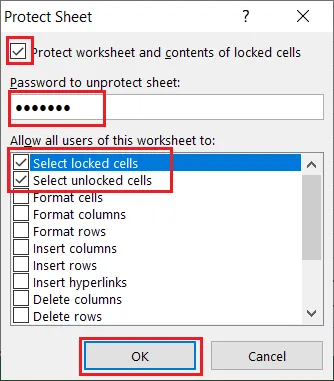
Type a password. This example uses protect.
-
Tick the actions other people may still do. To let them only view the sheet, leave everything except the two “Select” options unticked.
-
Click OK.
-
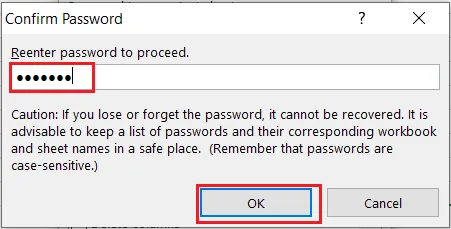
Type the password again and click OK.
Now, anyone who tries to change a cell sees a message that the sheet is protected.
Unprotect the sheet
-
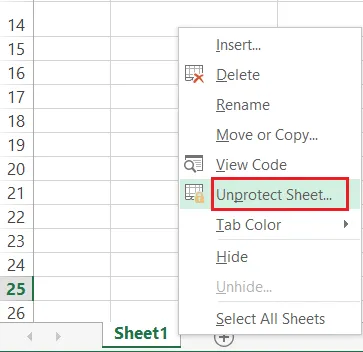
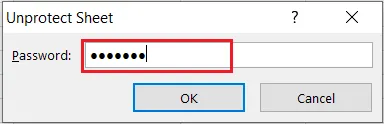
Right-click the Sheet1 tab and click Unprotect Sheet.
-
Type the password (protect) and click OK.
Note: Sheet protection stops accidental changes. It isn’t strong security. To keep a file private, password protect the file.
To protect only some cells, see How to Lock Cells.