How to Calculate Percentage in Excel
A percentage is a part of 100: 45% means 45 out of 100. In Excel, percentages are just decimals shown with a % sign, so 0.45 and 45% are the same value.
Example 1: enter a percentage
-
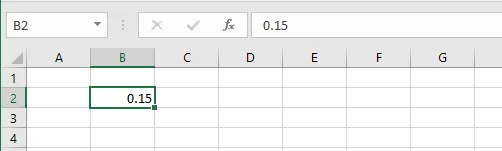
Type a decimal number. Here, 0.15 in cell B2.
-
On the Home tab, click the % button (Percent Style). The cell now shows 15%.
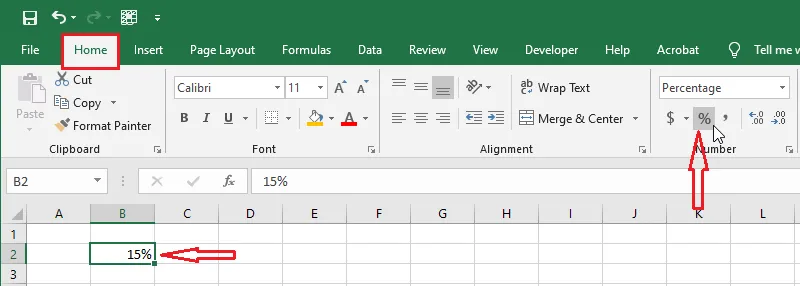
Tip: You can also type 15% straight into a cell, or format empty cells as Percentage first (see How to Format Cells). Then typing 15 gives 15%.
Example 2: what percent is one number of another?
Divide the part by the whole. Here: 28 is what percent of 35?
-
Select cell E3.
-
Type
=D3/C3and press Enter.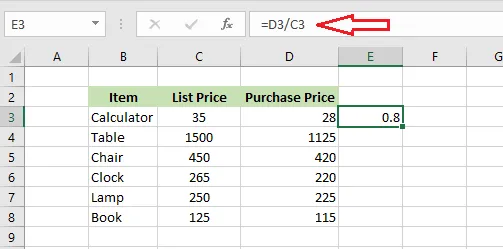
The result is 0.8. Click the % button to show it as 80%.
Example 3: percentage change or discount
The formula is (new − old) / old.
-
Select cell E3.
-
Type
=(D3-C3)/C3and press Enter.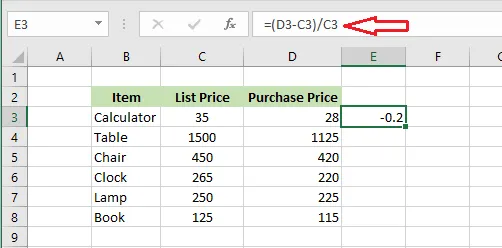
Result: −0.2, or −20% after clicking the % button. A negative result means a decrease (here, a 20% discount); a positive result means an increase.
Note: The brackets matter. Without them, Excel divides C3 by C3 first and gives the wrong answer.