How to Turn Off Scroll Lock in Excel
If your arrow keys scroll the sheet instead of moving to the next cell, Scroll Lock is on. When it’s on, the arrow keys move the view while the active cell stays put. The status bar at the bottom of Excel shows Scroll Lock when it’s on.
Turn Scroll Lock on or off
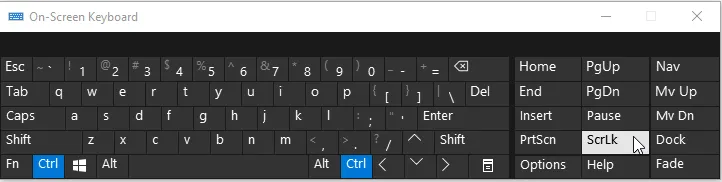
Press the Scroll Lock key (often labeled ScrLk). If your keyboard doesn’t have one, use the Windows on-screen keyboard:
- Press Win + Ctrl + O. (Or go to Start > Settings > Accessibility > Keyboard > On-Screen Keyboard.)
- Click ScrLk.
With Scroll Lock off (normal)
-
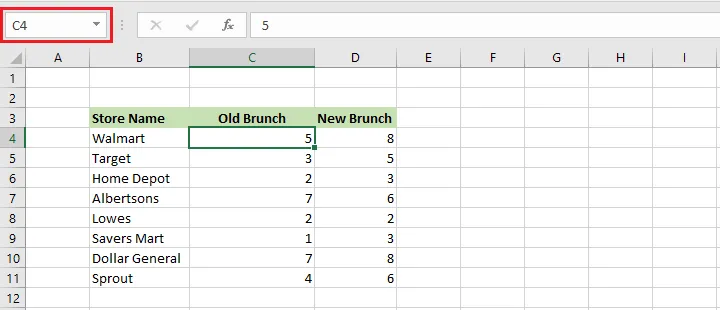
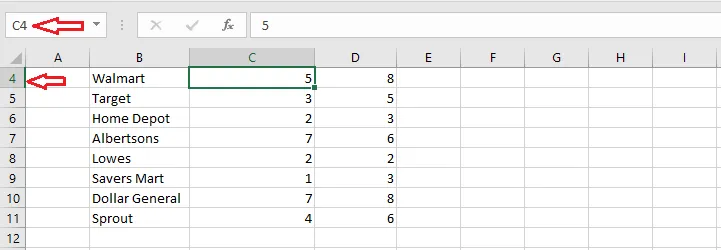
Select cell C4.
-
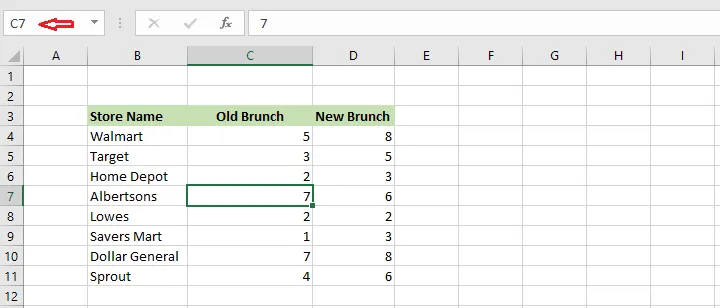
Press ↓ three times. The active cell moves to C7.
With Scroll Lock on
-
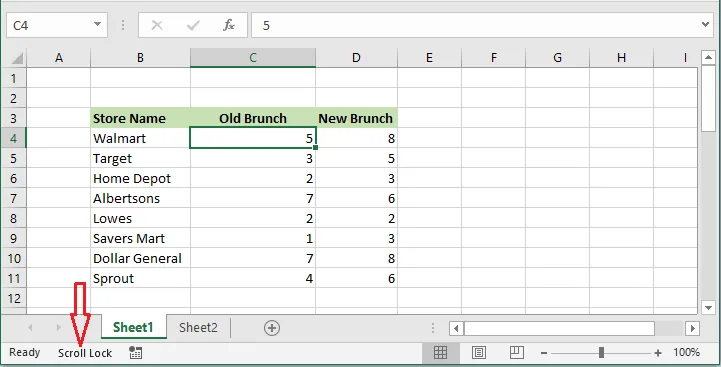
Select cell C4.
-
Turn on Scroll Lock. Scroll Lock appears in the status bar.
-
Press ↓ three times. The sheet scrolls down, but C4 is still the active cell.
Note: Don’t see Scroll Lock in the status bar? Right-click the status bar and tick Scroll Lock. To jump back to the active cell, press Ctrl + Backspace.