How to Wrap Text in Excel
When text is too long for its cell, it spills into the next cell or gets cut off. Wrap Text shows it on several lines inside the same cell. You can also decide exactly where each line breaks.
Wrap text automatically
-
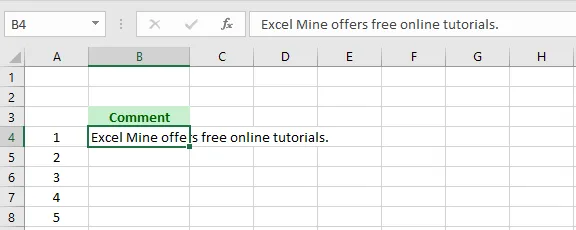
Select cell B4.
-
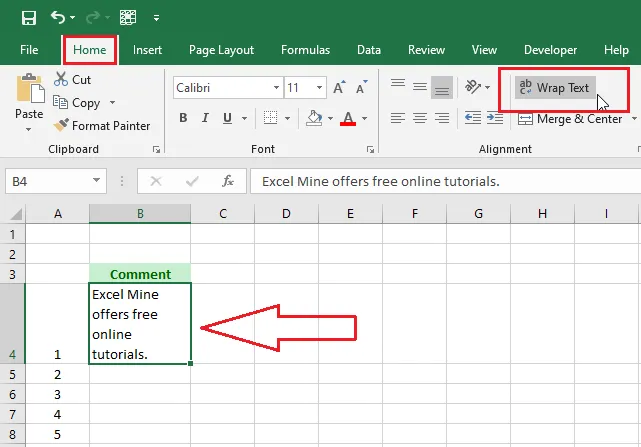
On the Home tab, click Wrap Text. The text now wraps onto several lines.
-
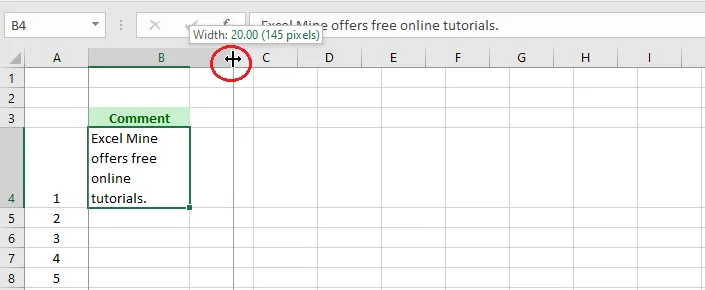
To make the column wider, drag the right border of the column B heading.
-
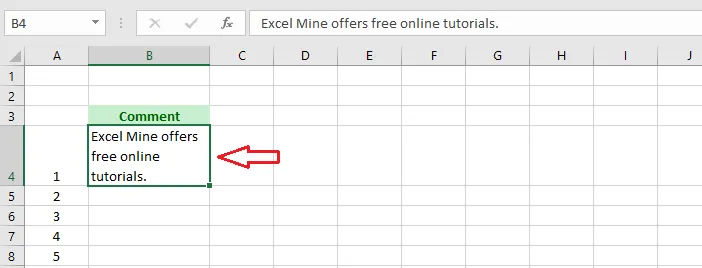
Double-click the bottom border of the row 4 heading to fit the row height to the text.
Add your own line break
-
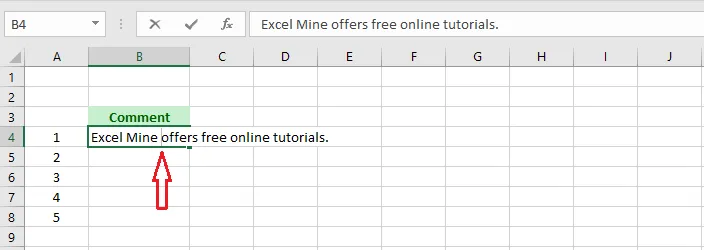
Double-click cell B4 to edit it, and click where you want the new line to start.
-
Press Alt + Enter.
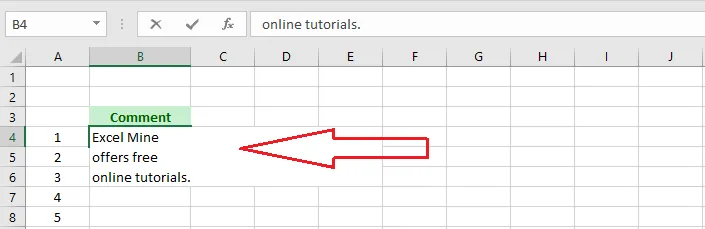
Add as many line breaks as you like; the example above has two. To remove one, put the cursor at the start of the line and press Backspace. More on this in How to Add a Line Break in Excel.