How to Move Columns in Excel
There are three easy ways to move columns in Excel. Use the first two for one or a few columns, and the third to reorder many columns in one go.
Method 1: drag with the Shift key
-
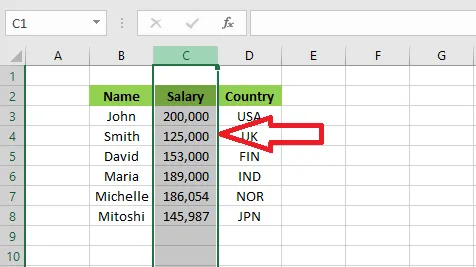
Select the column. Point to the border of the selection until the pointer becomes a four-headed arrow. Hold down Shift, then drag the column to its new place.
-
Release the mouse button, then the Shift key.
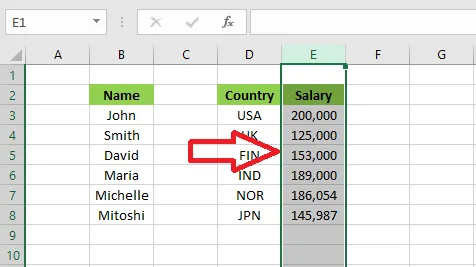
Note: Holding Shift inserts the column between the others instead of overwriting them. Select several columns first to move them together.
Method 2: Insert Cut Cells
-
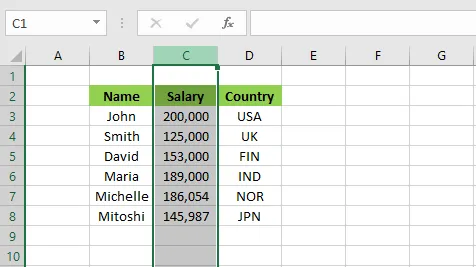
Select the column you want to move.
-
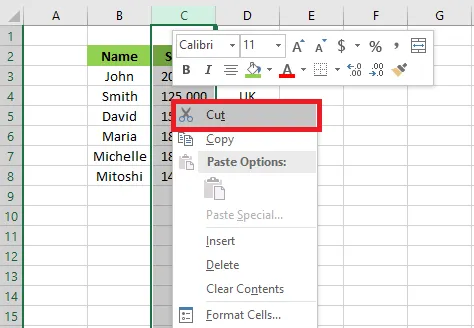
Right-click and click Cut.
-
Select the column where the moved column should go. Right-click and click Insert Cut Cells.
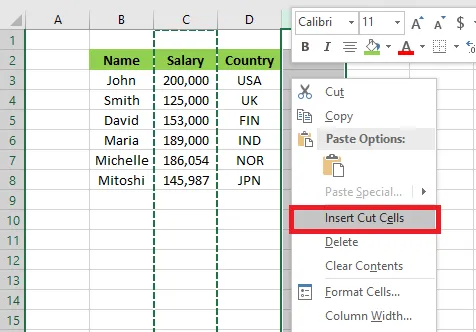
Result: the column moves to its new place and the others shift over.

Method 3: reorder many columns with Sort
-
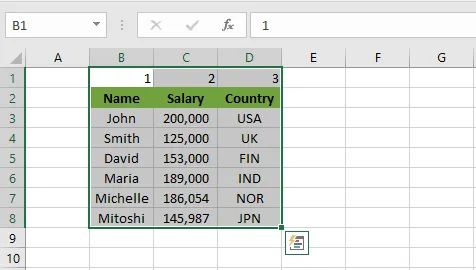
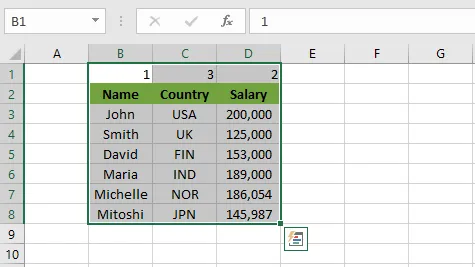
Add a helper row at the top and number the columns in the order you want them. Then select the whole data range, including that row.
-
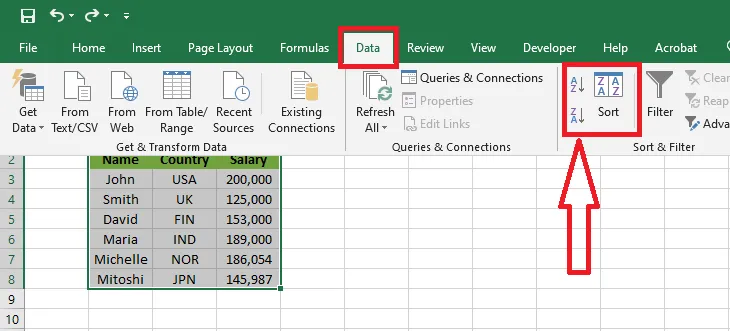
On the Data tab, in the Sort & Filter group, click Sort.
-
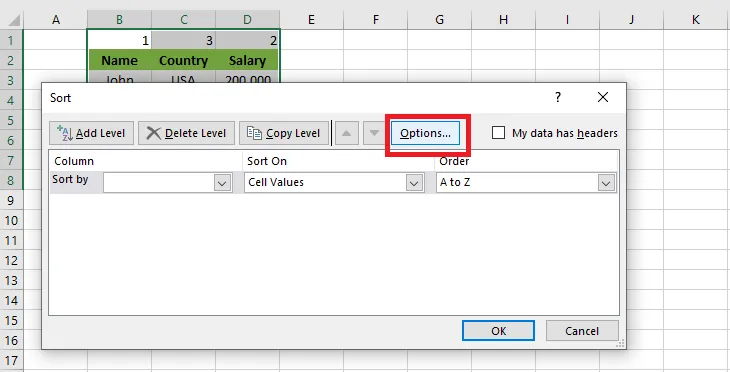
In the Sort dialog box, click Options.
-
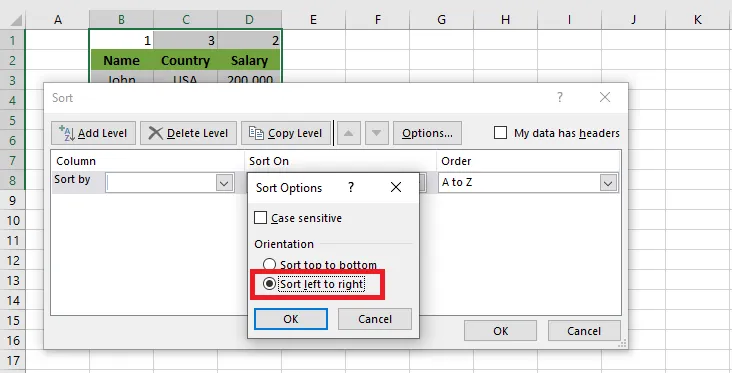
Choose Sort left to right and click OK.
-
In Sort by, choose Row 1 (your helper row) and click OK.
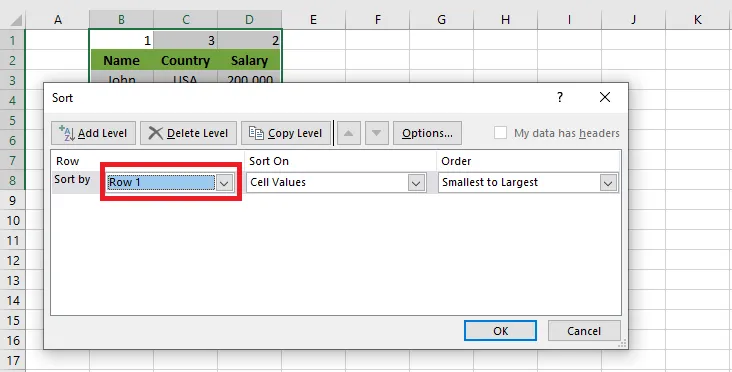
Result: the columns are rearranged in the new order. You can now delete the helper row.