Excel Paste Options Explained
When you paste in Excel, you don’t have to paste everything. The Paste Options let you paste just the value, just the formula, or just the formatting.
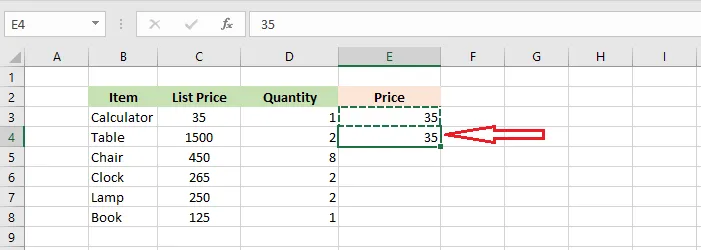
In each example below, you copy E3 and paste into E4:
- Select E3, right-click, and click Copy (Ctrl + C).
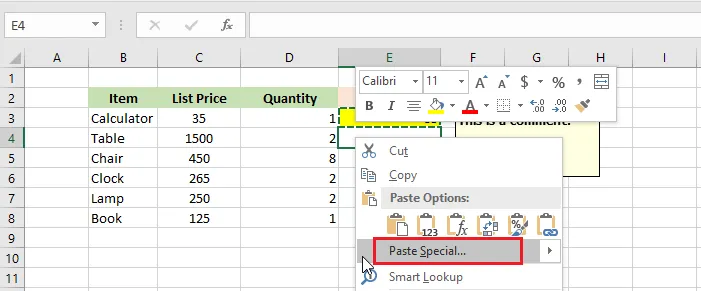
- Select E4, right-click, and choose an icon under Paste Options.
Paste (everything)
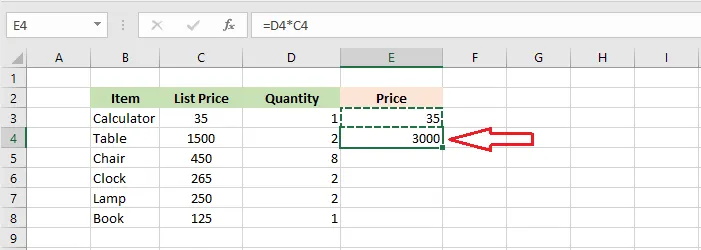
Copies everything: the formula, the value and the formatting. It’s the same as Ctrl + V.
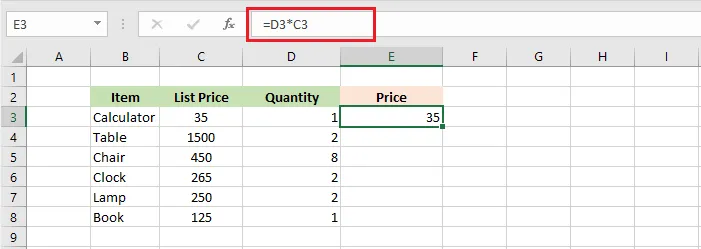
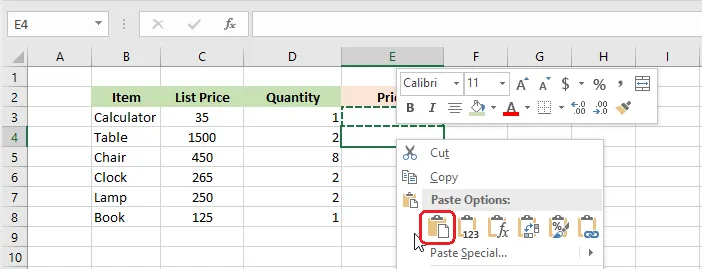
Result: E4 has the same formula and formatting as E3.
Values
Pastes only the result you see, without the formula. Use it when you want a fixed number that won’t change.
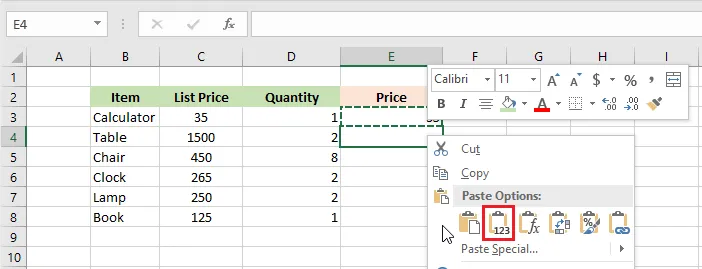
Result: E4 contains only the value from E3.
Formulas
Pastes only the formula, without the formatting.
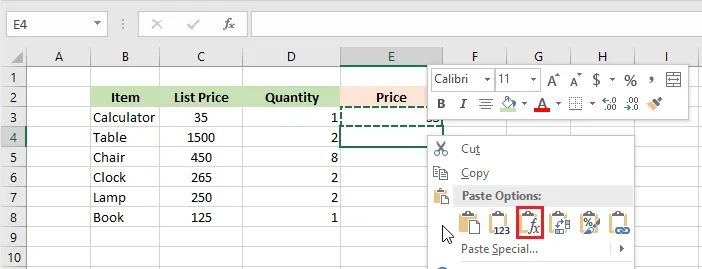
Result: E4 has the formula from E3, but keeps its own formatting.
Formatting
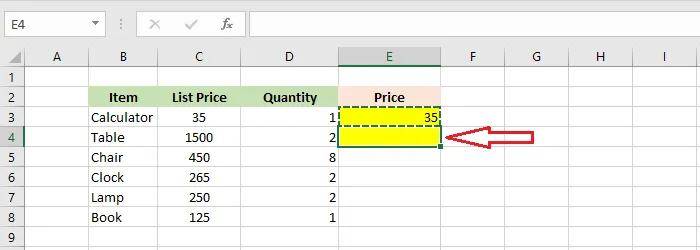
Pastes only the formatting (fill, font, borders, number format), like Format Painter.
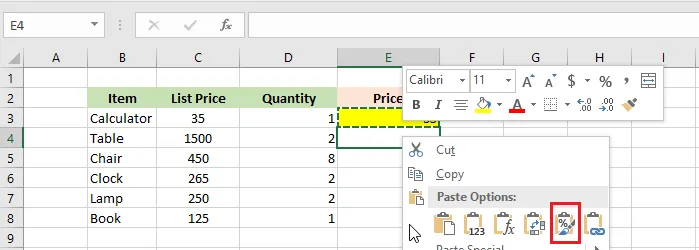
Result: E4 now looks like E3, but its contents haven’t changed.
Paste Special
For even more choices, right-click the target cell and click Paste Special (Ctrl + Alt + V).
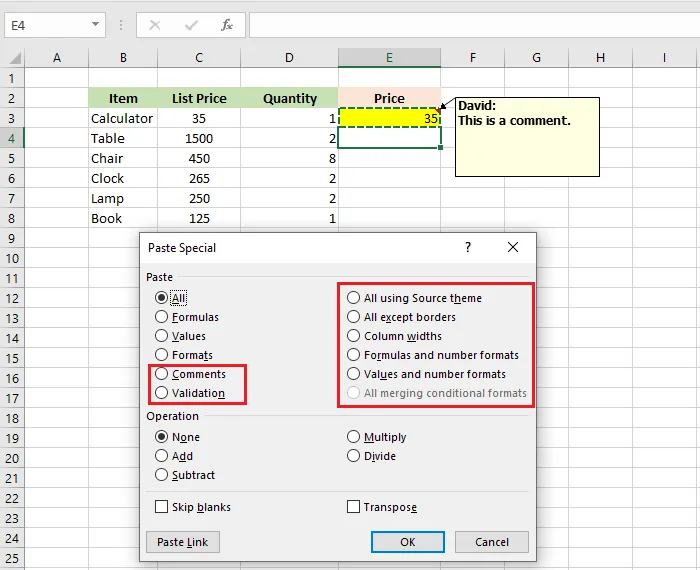
The Paste Special dialog box lets you paste comments, column widths, or validation, and even add, subtract, multiply or divide as you paste. It also has Skip blanks and Transpose.
Tip: The fastest way to paste only values is Ctrl + Shift + V in Microsoft 365, or Ctrl + Alt + V, then V, then Enter in any version.