How to Show Fractions in Excel
Excel can show numbers as fractions, such as 2 3/8. Here’s how to type them, and how to stop Excel rounding them.
-
In cell C3, type 2 3/8 (with a space between the whole number and the fraction). For a fraction under 1, type a zero first, such as 0 3/8, so Excel doesn’t read it as a date.
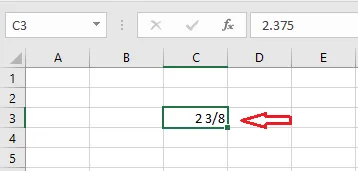
Excel keeps the fraction in the cell and switches the cell to a Fraction format behind the scenes. The formula bar shows the value as a decimal, 2.375.
-
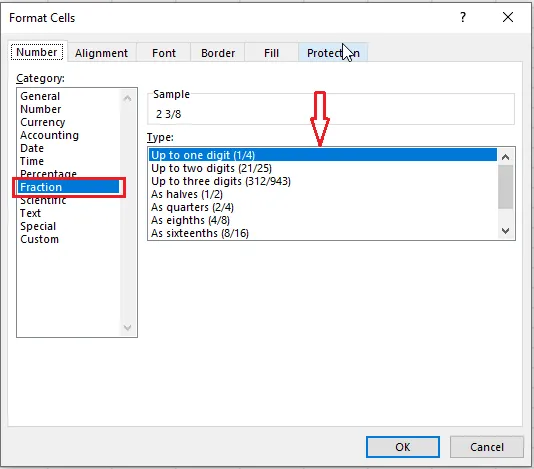
To see which format it chose, select C3, right-click and click Format Cells. It’s Up to one digit, meaning the bottom number (the denominator) can have one digit.
-
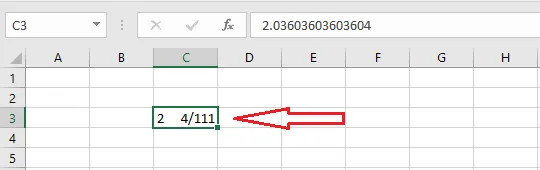
Now type 2 4/111 in C3.
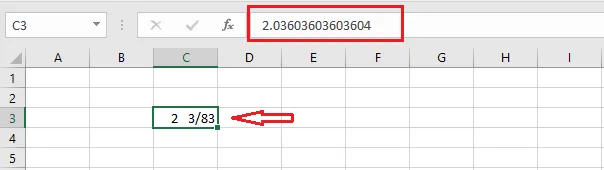
Excel shows a different, simpler fraction. It has rounded to the closest fraction with at most two digits in the denominator, using the Up to two digits (21/25) format.
-
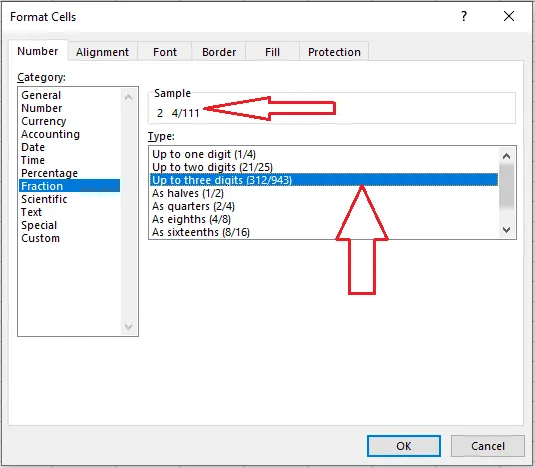
To show it exactly, right-click C3 and click Format Cells again.
-
Choose Up to three digits (312/943).
-
Click OK.
Result: the cell shows 2 4/111, exactly what you typed.
Tip: The same list has fixed fractions too, such as As halves (1/2) or As quarters (2/4), handy for measurements.