How to Use and Create Cell Styles
A cell style is a saved set of formatting (font, fill, border and number format) that you can apply in one click. Excel comes with many built-in styles, and you can create your own.
Apply a built-in style
-
Select cell B3.
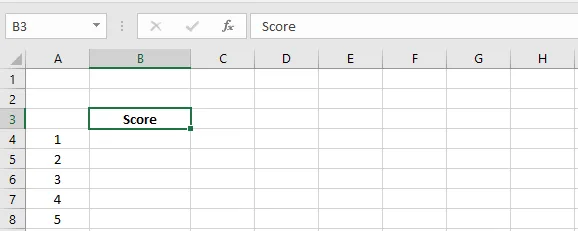
-
On the Home tab, in the Styles group, click a cell style. The cell changes straight away.
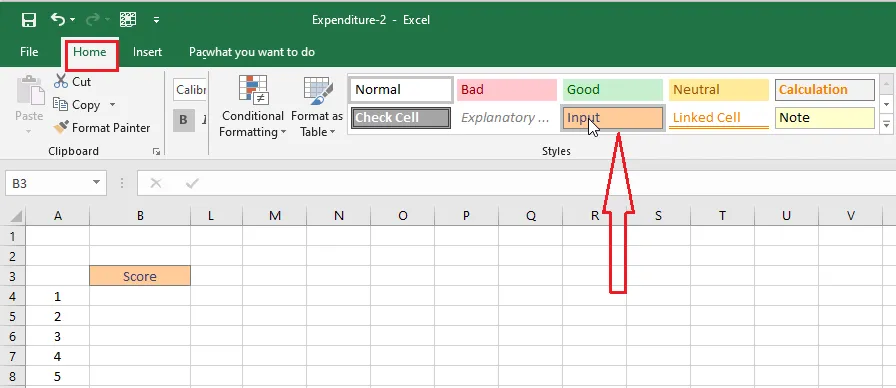
Create your own style
-
On the Home tab, click the More arrow in the corner of the Cell Styles gallery.
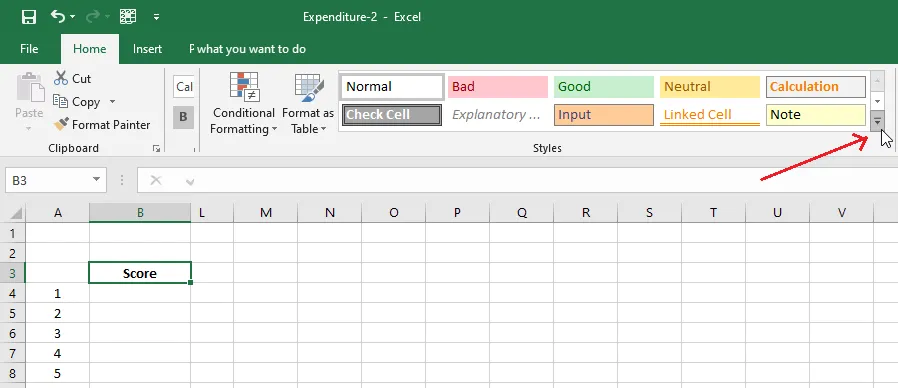
-
At the bottom, click New Cell Style.
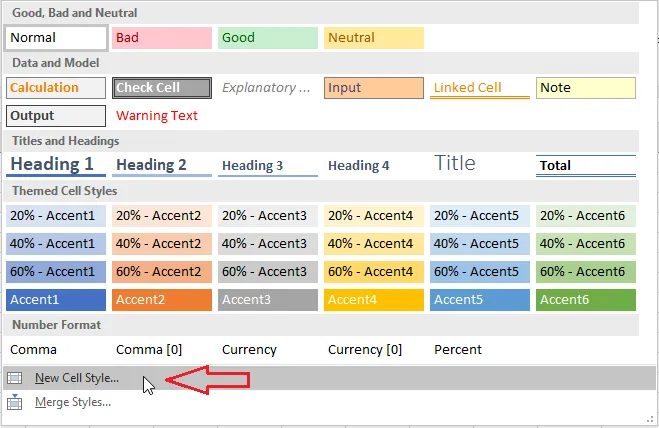
-
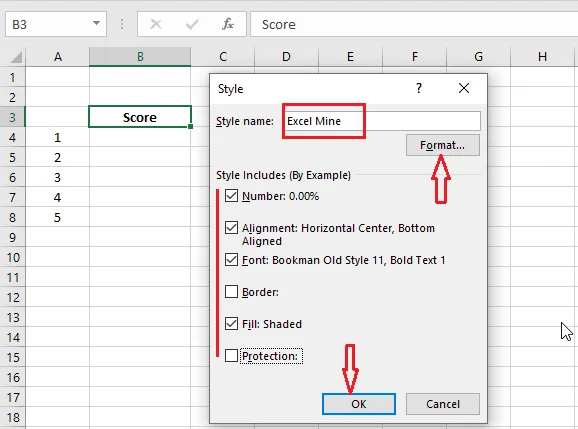
In the Style dialog box, type a name for your style. Click Format to choose its font, fill, border and number format.
-
Click OK when you’re happy with it.
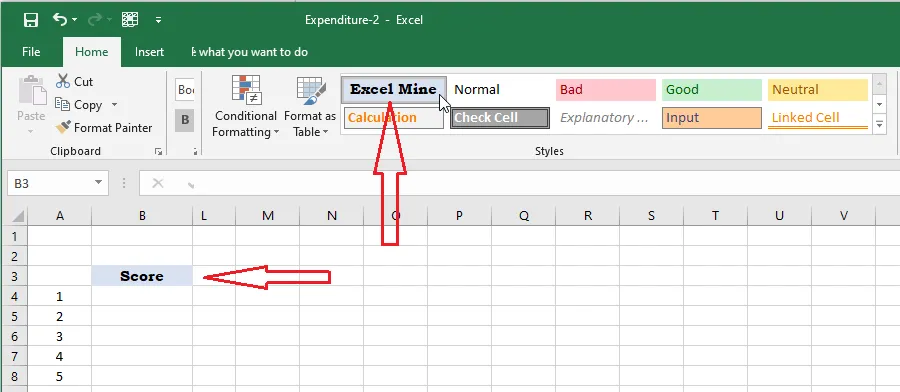
Result: your style appears at the top of the Cell Styles gallery, under Custom. In this example it’s called “Excel Mine”. Click it to apply it to any cell.
Tip: If you later change a style (right-click it > Modify), every cell using that style updates automatically.