Most Used Excel Keyboard Shortcuts
Keyboard shortcuts are the quickest way to speed up your work in Excel. Here are the ones you’ll use most, grouped by task.
Basic
-
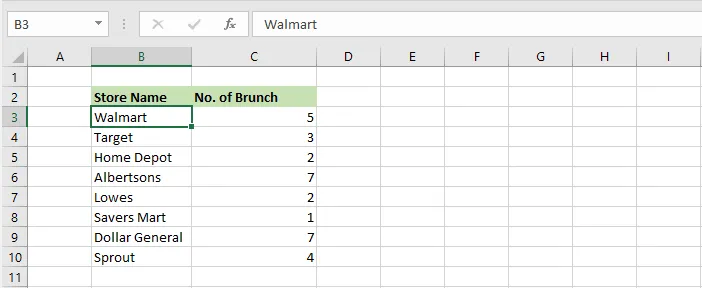
Select cell B3.
-
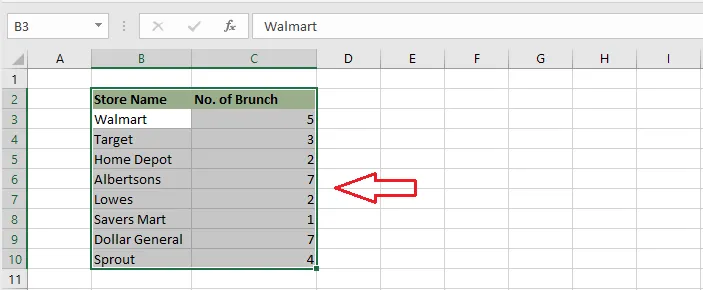
Press Ctrl + A to select the whole data range. Press it again to select the entire sheet.
-
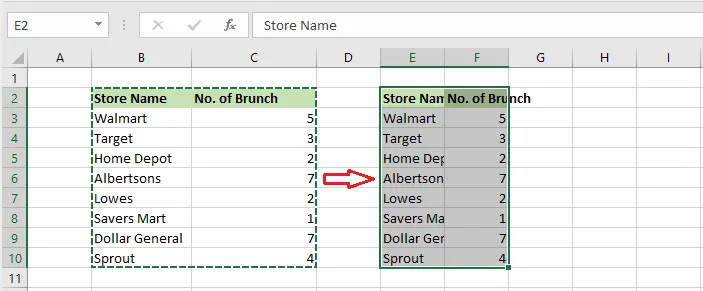
Press Ctrl + C to copy (or Ctrl + X to cut).
-
Select E2 and press Ctrl + V to paste.
Made a mistake? Press Ctrl + Z to undo, and Ctrl + Y to redo.
Move
-
Select cell B3.
-
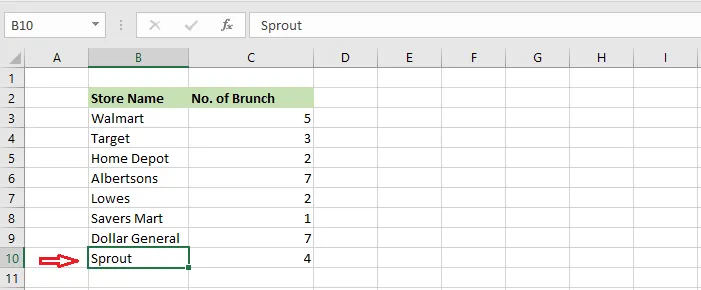
Press Ctrl + ↓ to jump to the last filled cell in the column, here B10.
Ctrl with the other arrow keys jumps right, left and up in the same way. Ctrl + Home takes you back to A1.
Select
-
Select cell B3.
-
Hold Shift and press ↓ to extend the selection down, one cell at a time. Here, B3:B8 is selected.
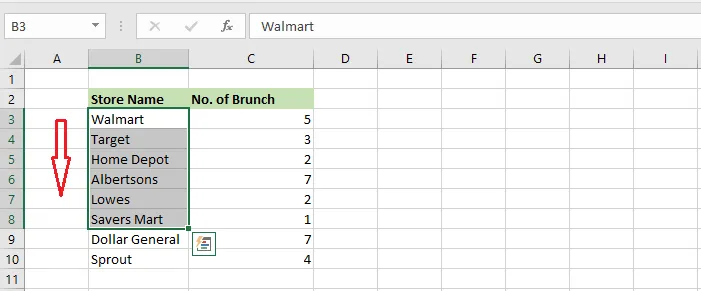
Shift works with the other arrow keys too. Ctrl + Shift + ↓ selects all the way to the end of the data.
Formulas
-
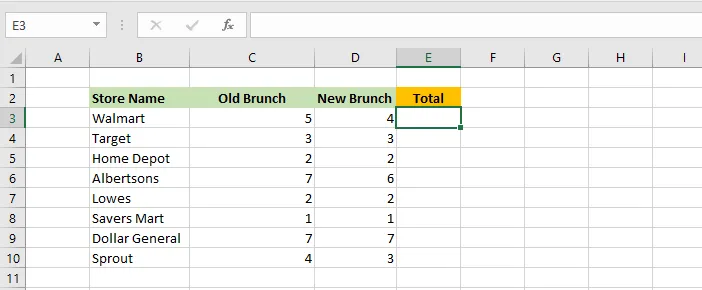
Select cell E3.
-
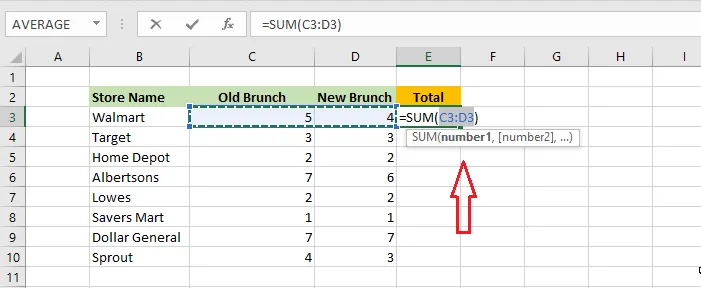
Press Alt + = to insert a SUM function (AutoSum), then press Enter.
-
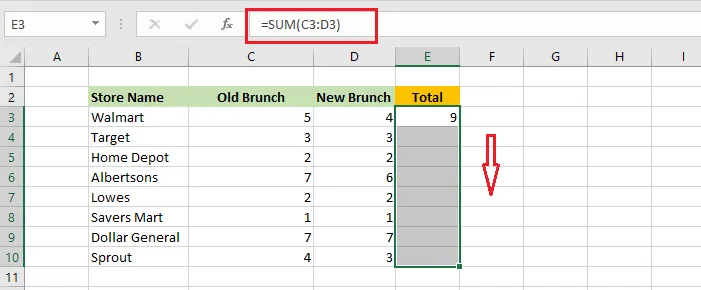
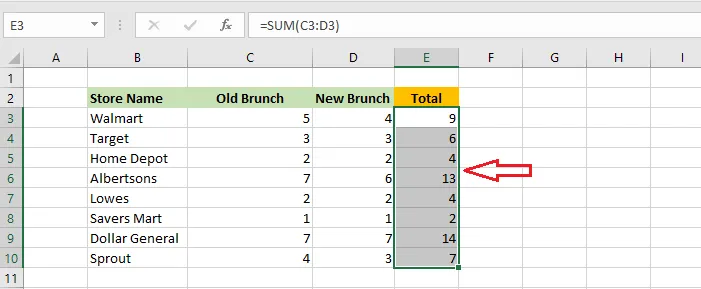
Select E3 again and press Shift + ↓ seven times, to E10.
-
Press Ctrl + D to fill the formula from E3 down to E10.
Format
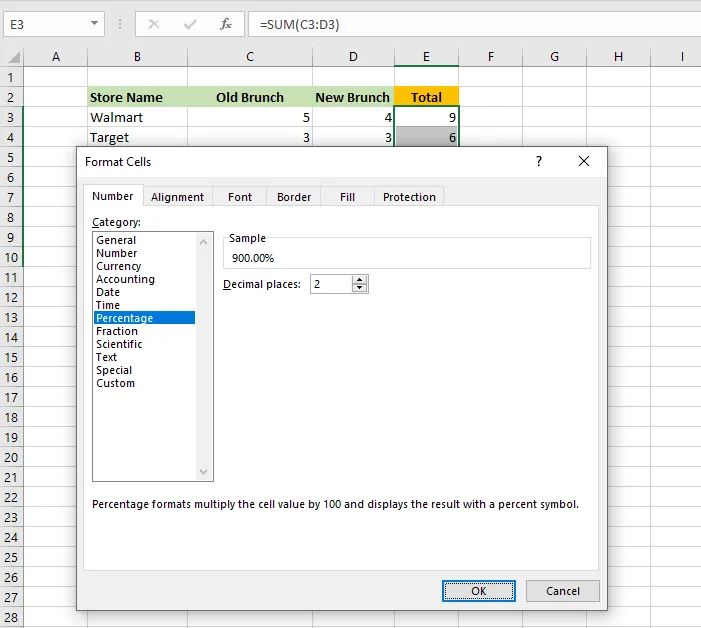
This example uses the Tab key to move around a dialog box without the mouse.
-
Select E3:E10.
-
Press Ctrl + 1 to open Format Cells.
-
Press Tab, then press ↓ a few times until Percentage is selected.
-
Press Tab twice, so the OK button is selected, and press Enter.
-
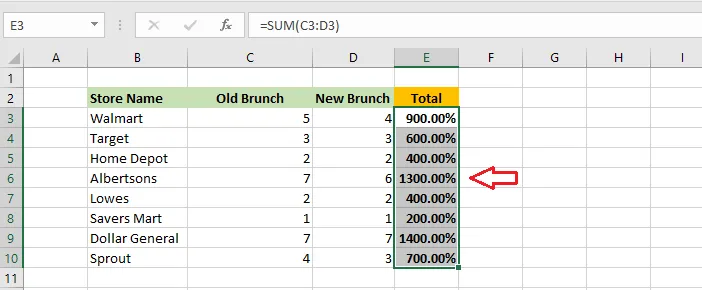
Press Ctrl + B to make the values bold.
Want more? See what each function key does.