How to Password Protect an Excel File
To stop anyone from opening an Excel file without permission, add a password to open. Excel encrypts the file, and nobody can open it without the password.
-
Open the file.
-
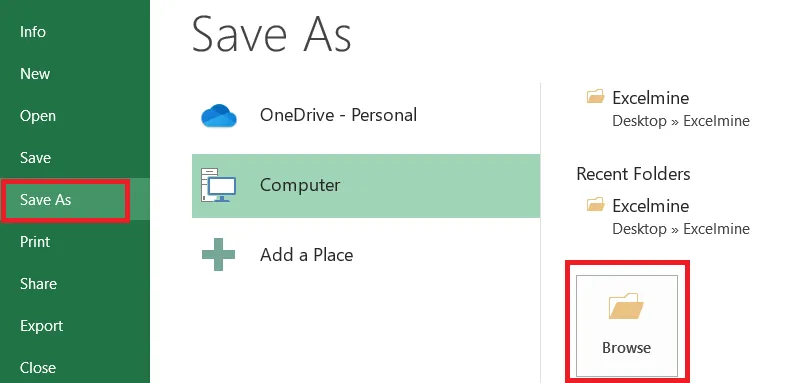
Click File > Save As > Browse.
-
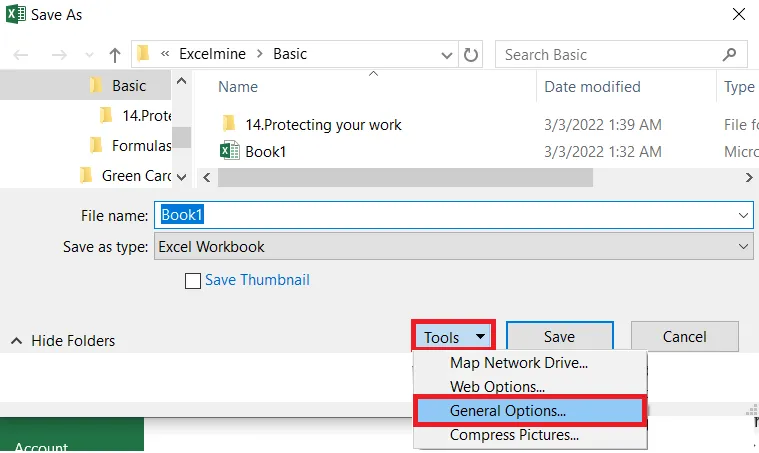
In the Save As dialog box, click Tools > General Options.
-
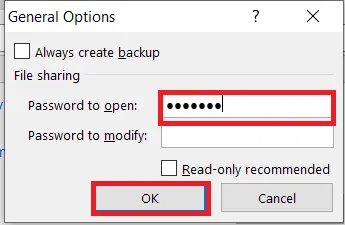
In Password to open, type a password and click OK. (This example uses protect.)
-
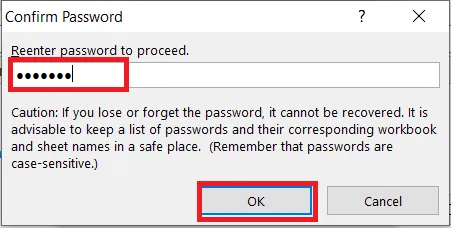
Type the password again to confirm it, and click OK.
-
Type a file name and click Save.
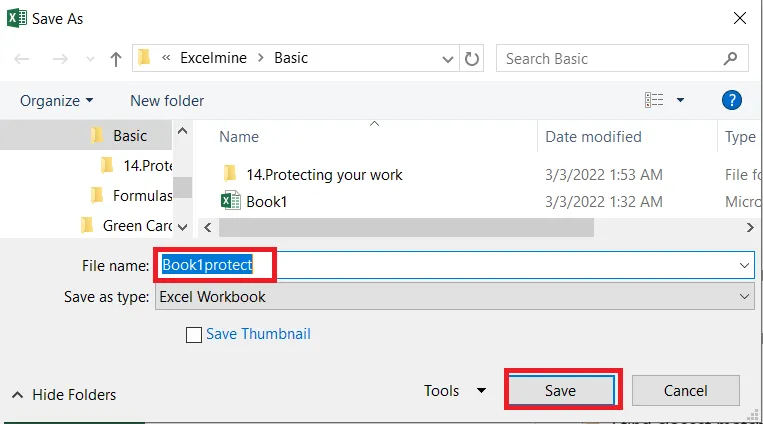
Result: the file now asks for the password whenever someone opens it.
Note: Write your password down somewhere safe. If you forget it, Microsoft can’t recover it, and neither can anyone else.
Tip: A quicker way: File > Info > Protect Workbook > Encrypt with Password. To remove the password, open the same box, clear the password, and click OK.