How to Customize the Ribbon in Excel
You can make the Ribbon fit the way you work by creating your own tab and filling it with the commands you use most. Here’s how.
-
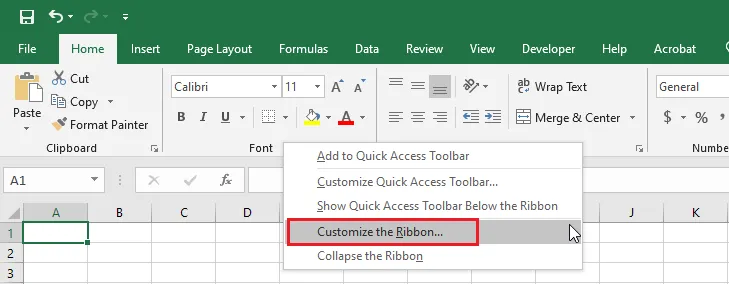
Right-click anywhere on the Ribbon, then click Customize the Ribbon.
-
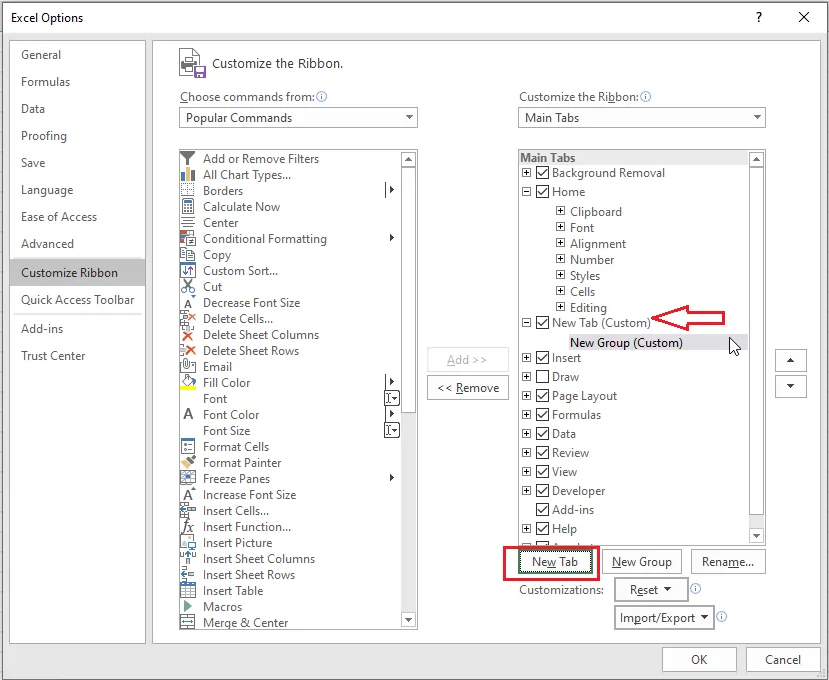
In the window that opens, click New Tab.
-
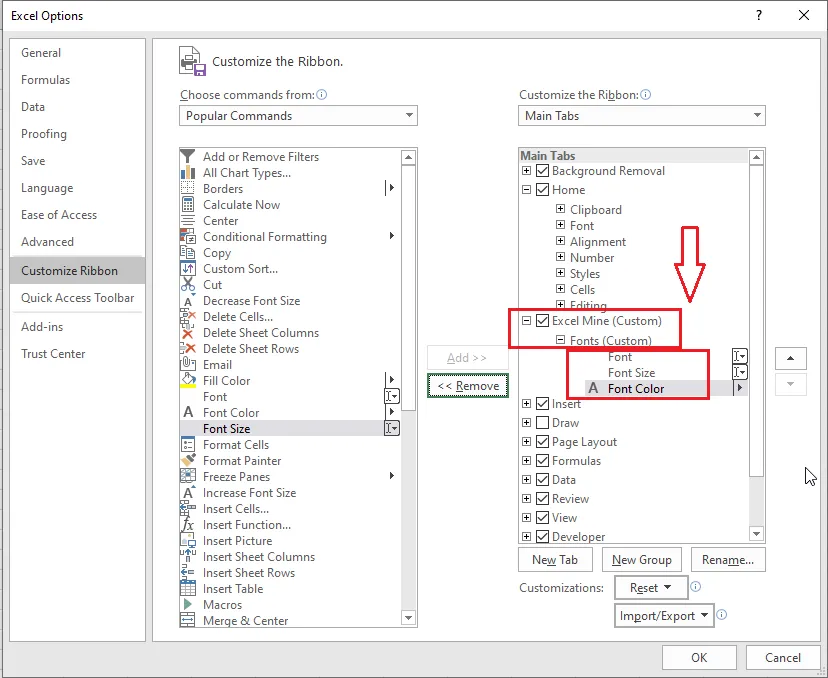
Rename your tab: right-click New Tab (Custom), click Rename, and type a name. Then pick commands from the list on the left and click Add to put them in your tab. You can also add more groups with New Group, to keep related commands together.
-
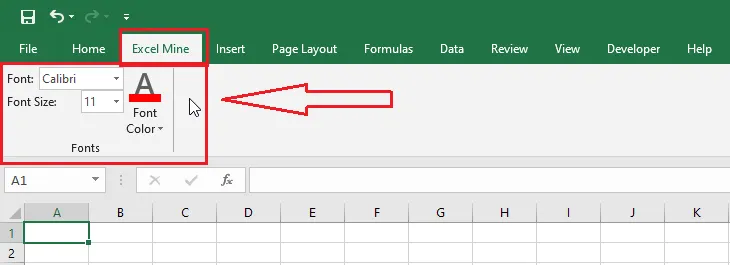
Click OK. Your new tab now appears on the Ribbon.
Note: To remove your tab, open Customize the Ribbon again, right-click the tab, and click Remove. To undo all changes at once, use Reset > Reset all customizations in the same window.
Next, learn to add your favorite commands to the always-visible Quick Access Toolbar.