How to Create a Drop-Down List in Excel
A drop-down list lets people pick a value from a list instead of typing it. It’s faster, and it keeps entries consistent.
Create a drop-down list
-
Type your list, here in B3:B9, and select the cell for the drop-down, C11.
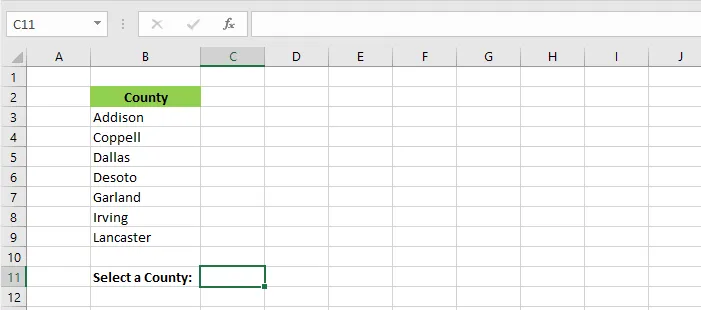
Note: The list can be anywhere: on the same sheet, on another sheet, or in hidden cells.
-
On the Data tab, click Data Validation.
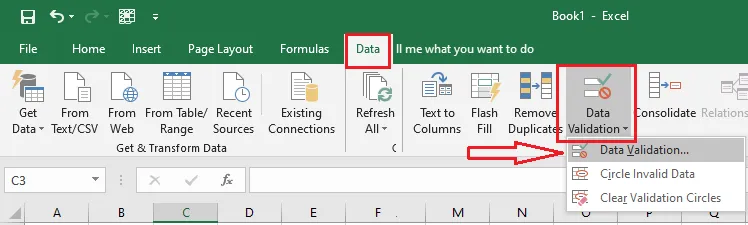
-
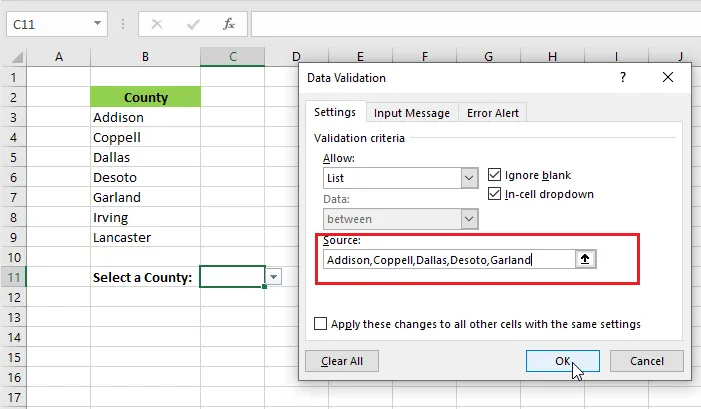
On the Settings tab, under Allow, choose List. Click in the Source box and select B3:B9.
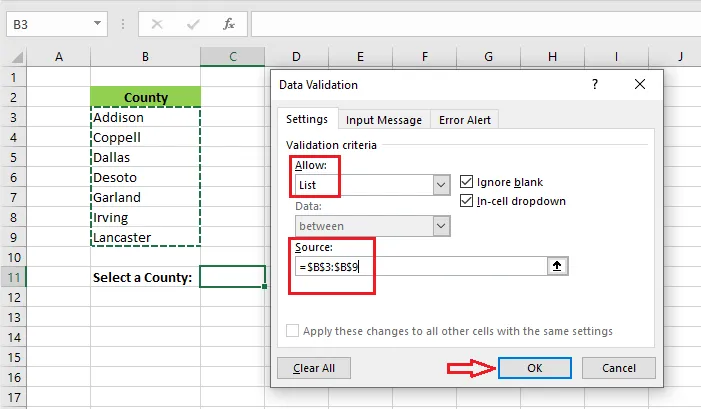
-
Click OK. Click the arrow next to C11 to see the list.
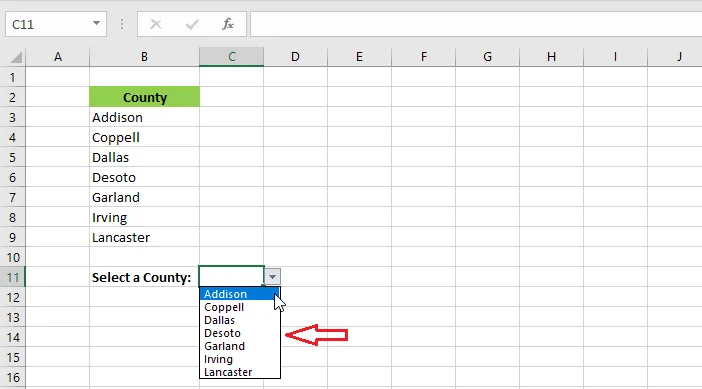
You can also type the items straight into the Source box, separated by commas, such as Yes,No,Maybe.
Allow entries that aren’t on the list
-
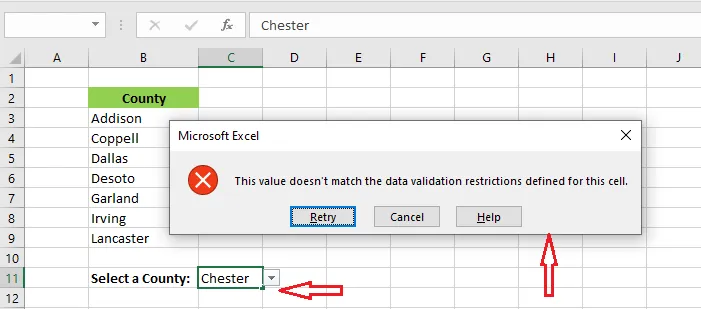
By default, typing a value that’s not in the list shows an error.
-
To allow other values, select the cell and click Data Validation on the Data tab.
-
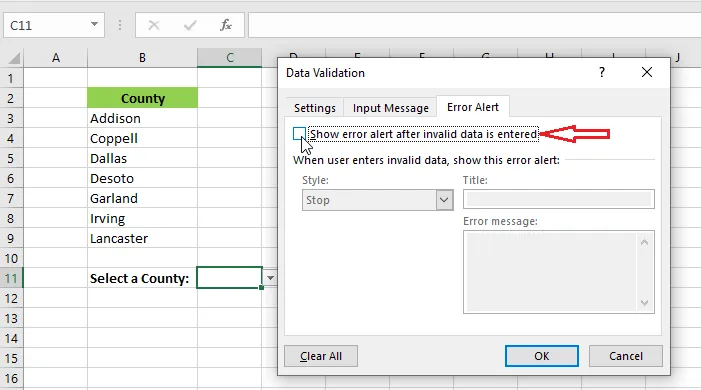
On the Error Alert tab, untick Show error alert after invalid data is entered.
-
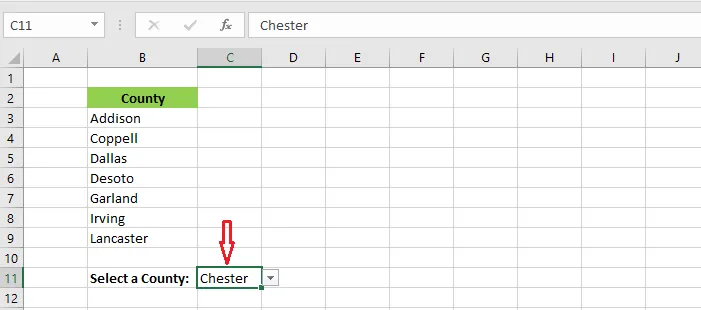
Click OK. People can now pick from the list or type their own value.
Add or remove items
You don’t need to open Data Validation to change the list.
-
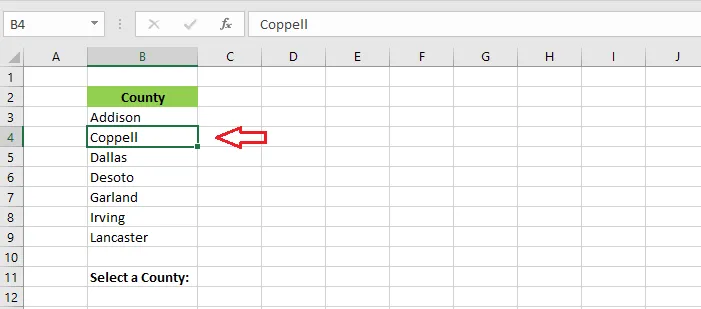
Select an item in the list, for example Coppell.
-
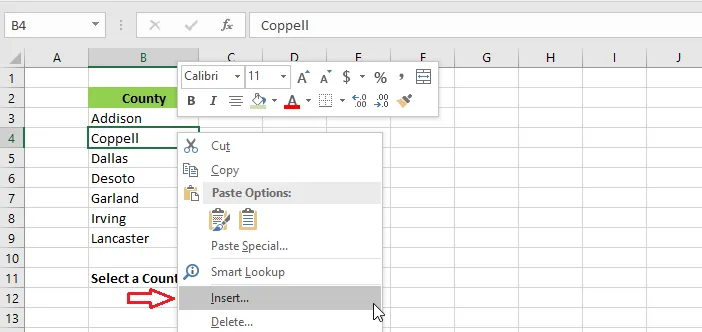
Right-click and click Insert.
-
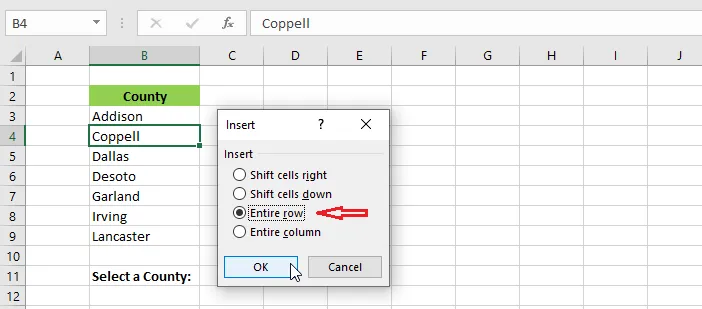
Choose Entire row and click OK.
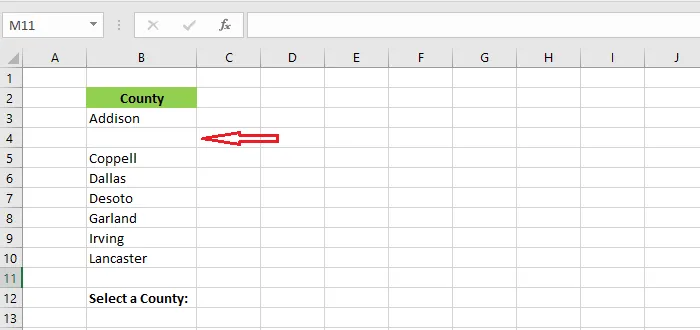
Excel inserts an empty row above, and the list’s range grows automatically.
-
Type the new item in the empty cell (B4). It now appears in the drop-down.
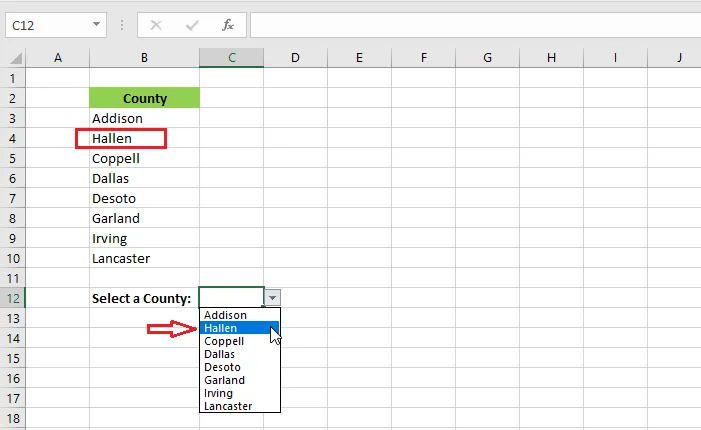
To remove an item, right-click it, click Delete, choose Entire row, and click OK.
A drop-down list that grows automatically
To make new items at the end of the list appear in the drop-down on their own:
-
Select cell D4.
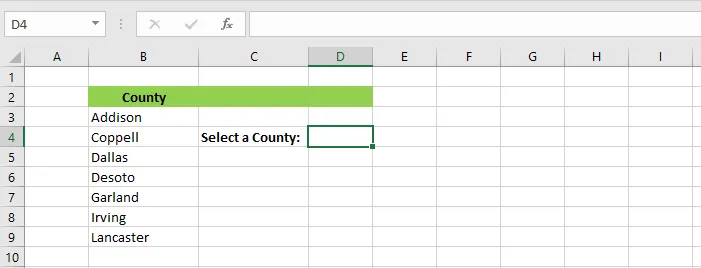
-
On the Data tab, click Data Validation.
-
Under Allow, choose List. In Source, type:
=OFFSET($B$3,0,0,COUNTA($B:$B),1)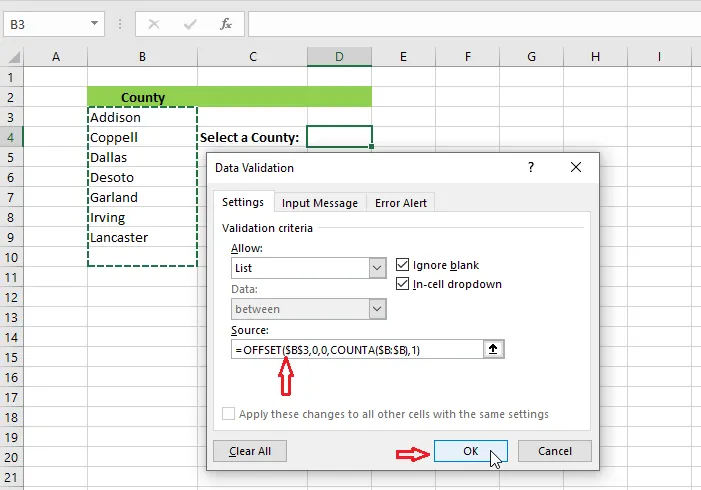
This starts at B3 and is as tall as the number of filled cells in column B. (See dynamic named ranges for how OFFSET works.)
-
Click OK, then add new items at the end of the list.
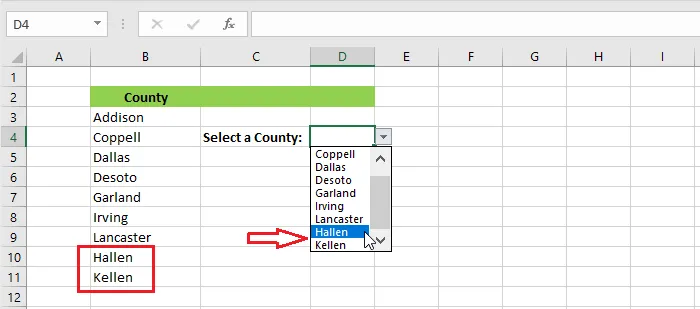
Result: the drop-down includes the new items automatically.
Note: COUNTA counts every filled cell in column B. If there’s a heading or other text above B3, the list picks up empty rows at the end. Keep column B for the list only, or adjust the count, for example
COUNTA($B:$B)-1.
Tip: An easier way: turn the list into a Table (Ctrl + T) and use the Table’s column as the source. New rows are included automatically.
Remove a drop-down list
-
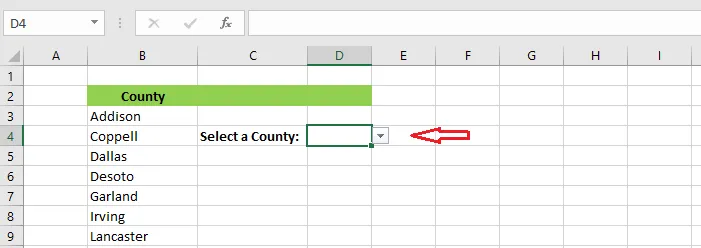
Select the cell with the drop-down, for example D4.
-
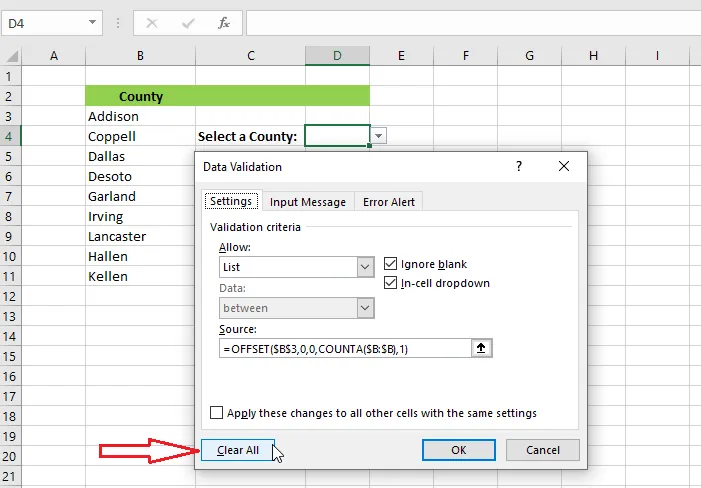
On the Data tab, click Data Validation.
-
Click Clear All, then OK.
Next: make one list change based on another with dependent drop-down lists.