How to Create a Custom List in Excel
AutoFill already knows some lists, such as months and days of the week. A custom list teaches Excel your own, for example team members, products or regions, so you can fill them in by dragging.
See a built-in list
-
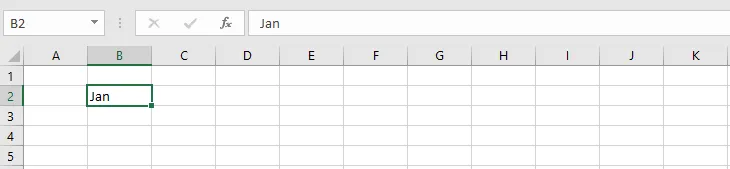
Type Jan in cell B2.
-
Select B2 and drag the fill handle to the right, to J2.
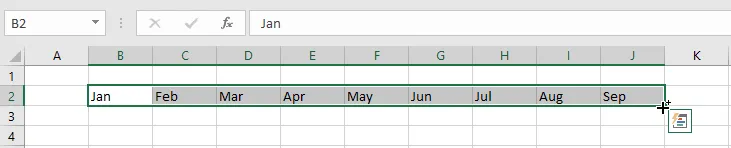
Excel fills in the months from a list it already has. Here’s where that list lives:
-
Click File > Options > Advanced.
-
Scroll down to the General section and click Edit Custom Lists.
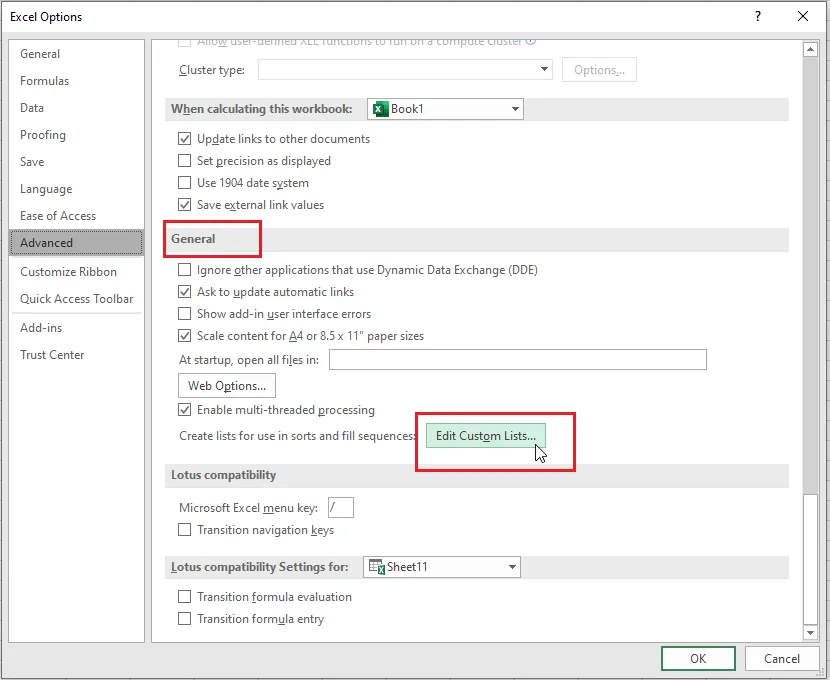
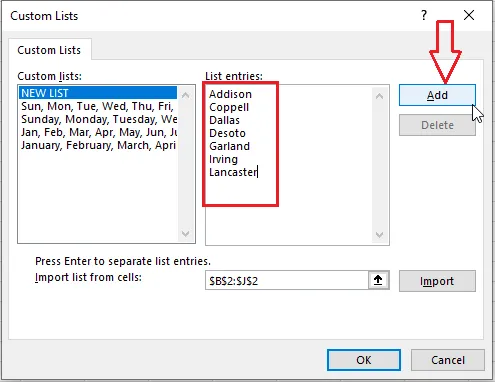
You’ll see Excel’s built-in lists.
Create your own list
-
In the List entries box, type your entries, one per line, then click Add.
-
Click OK twice to close the windows.
-
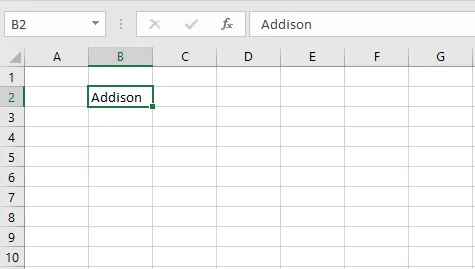
Type the first entry of your list, here Addison, in cell B2.
-
Select B2 and drag the fill handle down to B8.
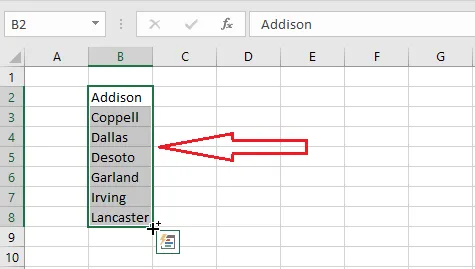
Result: Excel fills in your list. It’s saved with Excel, so you can use it in any sheet or workbook.
Tip: If the list is already typed somewhere in a sheet, use the Import box in the same window to add it without retyping.