How to Make a Box and Whisker Plot
A box plot, or box and whisker chart, summarizes a whole set of numbers in one picture. It shows where most of the values lie, how spread out they are, and any unusual values.
What is a box plot?
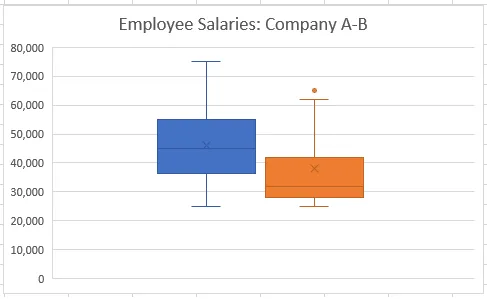
A box plot splits the data into four equal parts, called quartiles:
- The box runs from the first quartile (25% of values below it) to the third quartile (75% below it). The middle half of the data sits inside the box.
- The line across the box is the median, the middle value.
- The whiskers reach out to the smallest and largest values.
- Values far from the rest (outliers) are shown as separate dots beyond the whiskers.
Why use a box plot?
It shows five key numbers at a glance: the minimum, first quartile, median, third quartile and maximum. That makes it easy to see how the data is spread out, whether it’s lopsided (skewed), and whether there are outliers. The bigger the dataset, the more useful it is.
How to read a box plot
Here are the salaries of employees at a company. With a short list you can read every number, but with hundreds of rows you’d want a summary.
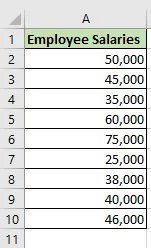
Here’s the same data as a box plot:
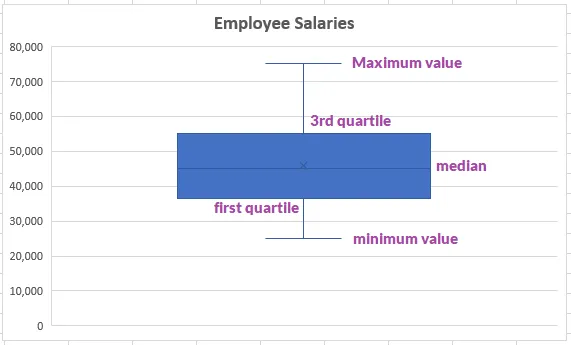
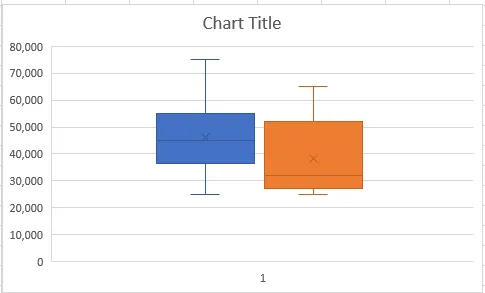
- The top whisker shows the highest salary: $75,000.
- The bottom whisker shows the lowest salary: $25,000.
- The range is the difference: $75,000 − $25,000 = $50,000.
- The median line shows the middle salary. If it isn’t centered in the box, or one whisker is much longer than the other, the salaries are skewed in that direction.
Create a box plot in Excel
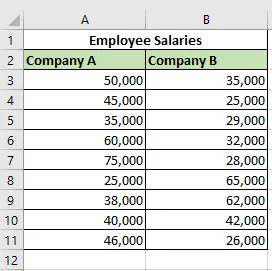
You need Excel 2016 or later. This dataset compares salaries at two companies, Company A and Company B.
-
Select the data, A2:B11.
-
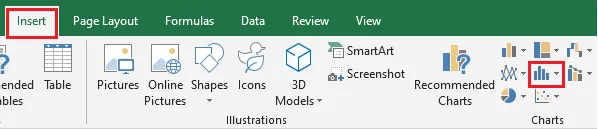
On the Insert tab, click the Insert Statistic Chart button.
-
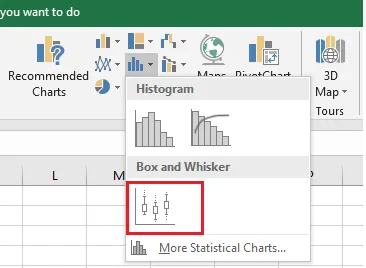
Click Box and Whisker.
Excel draws a box plot for each company.
-
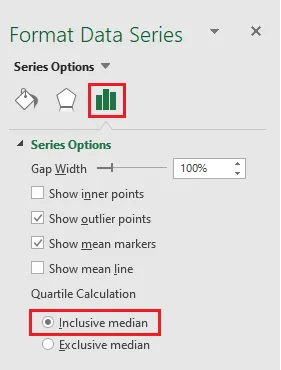
Excel calculates quartiles with the exclusive median method by default. To include the median, right-click a box and click Format Data Series. Then, under Series Options, choose Inclusive median.
-
Change the chart title and style as you like.