How to Merge and Unmerge Cells
Merging joins several cells into one big cell, which is useful for a title that spans several columns. Be careful: Excel keeps only the value in the top-left cell and deletes the rest.
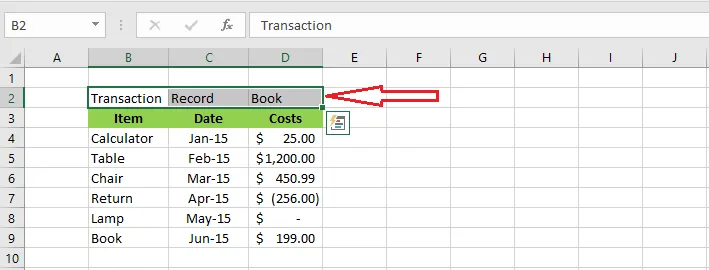
In this table, Transaction, Record and Book are in cells B2, C2 and D2.
-
Select B2:D2.
-
On the Home tab, click Merge & Center.
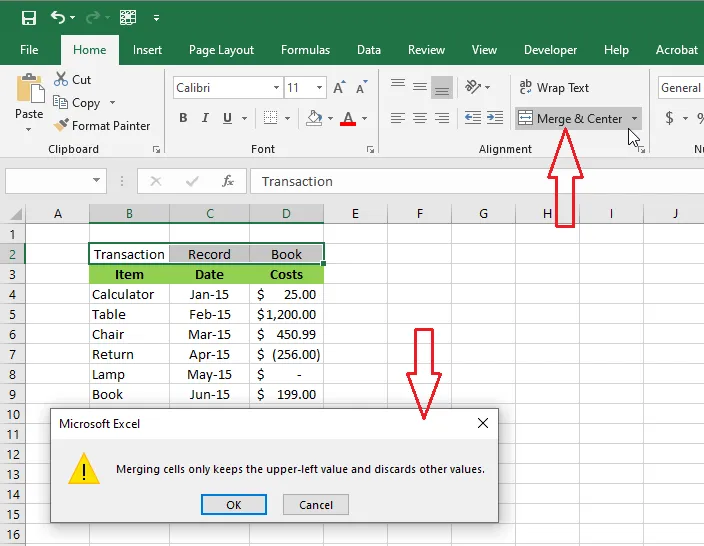
Excel warns you that merging keeps only the upper-left value.
-
Click OK.
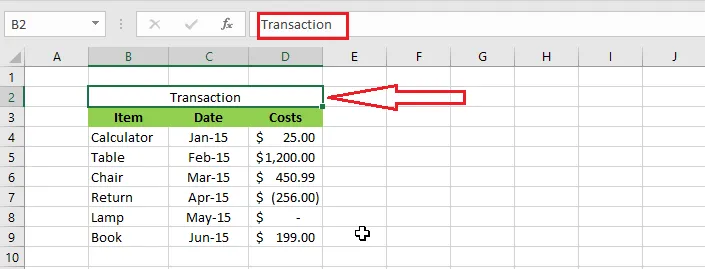
Result: one wide, centered cell showing Transaction. The words in C2 and D2 are gone.
To unmerge, select the merged cell and click Merge & Center > Unmerge Cells on the Home tab. The deleted values don’t come back.
Tip: Merged cells can cause trouble when you sort, filter or copy. To center a title across columns without merging, select the cells, press Ctrl + 1, and on the Alignment tab choose Horizontal > Center Across Selection.