How to Use the Excel Ribbon
The Ribbon is where almost every Excel command lives. When you open Excel, the Home tab is selected for you. This lesson explains how the Ribbon is organized and how to use it.
Tabs
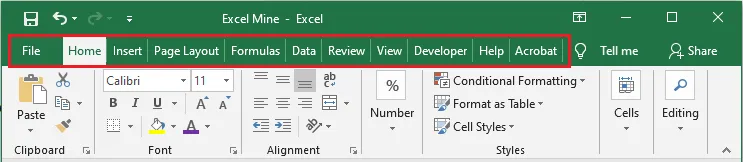
The standard tabs are File, Home, Insert, Page Layout, Formulas, Data, Review, View and Help. More tabs can appear when you add them yourself (see How to Show the Developer Tab) or when you select certain objects, such as a chart or a table.
The Home tab holds the commands you’ll use most often, like fonts, alignment and number formats.
Groups
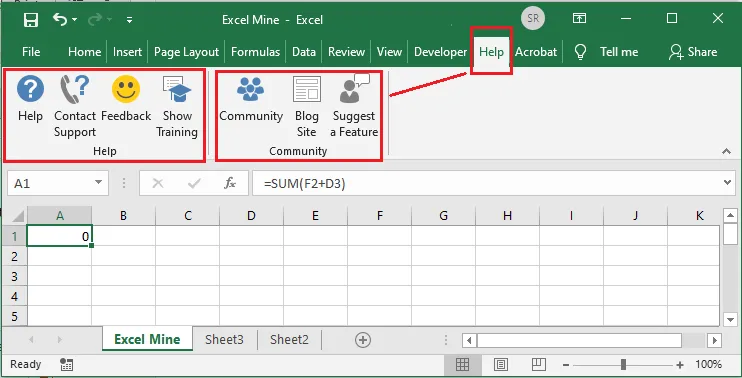
Each tab is split into groups of related commands, with the group name shown underneath. For example, the Help tab has a Help group and a Community group.
Using the Ribbon: insert a table
Let’s use a Ribbon command to turn a list into a table.
-
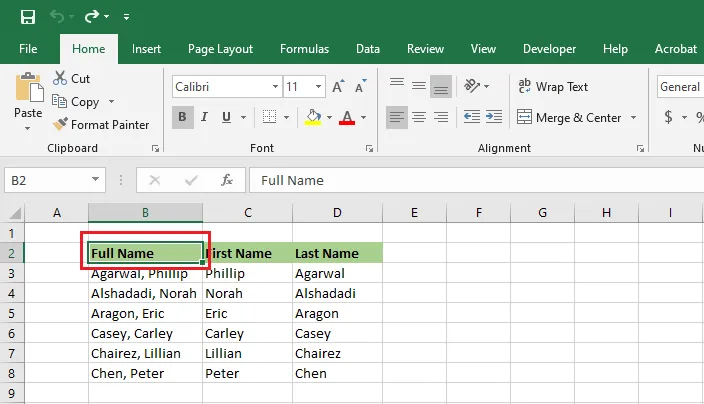
Select cell B2, any cell inside your list.
-
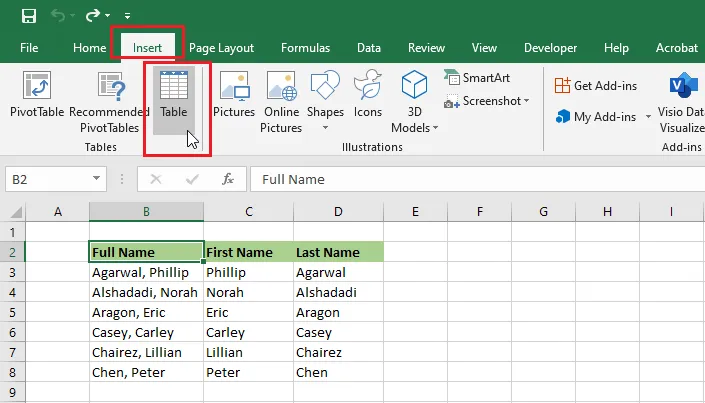
Click the Insert tab, then click Table.
-
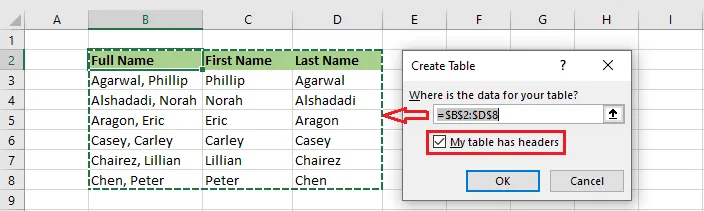
Excel selects the data range for you. If your list has a header row, tick My table has headers, then click OK.
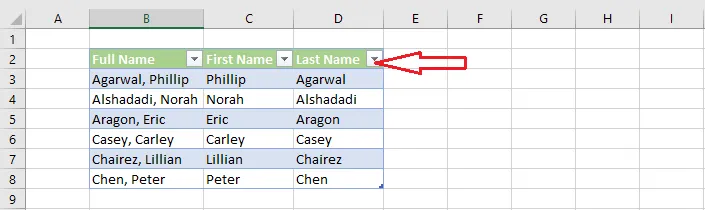
Result: Excel formats your list as a table. The drop-down arrows in the header row let you sort and filter the data.
How to collapse the Ribbon
Collapsing the Ribbon hides the buttons and leaves only the tab names, giving you more room for your worksheet.
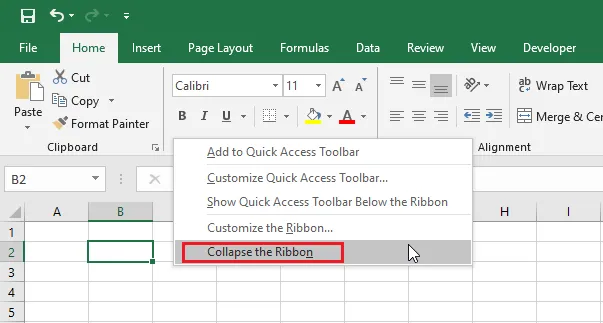
- Right-click anywhere on the Ribbon.
- Click Collapse the Ribbon.
The keyboard shortcut is Ctrl + F1, which hides and shows the Ribbon each time you press it.
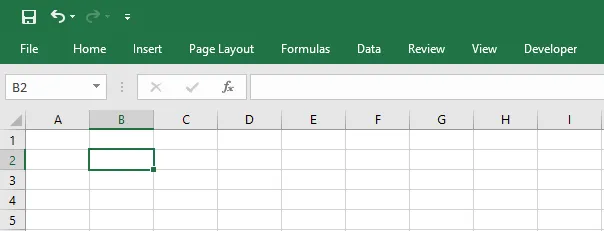
Result: only the tab names remain. Click a tab to open its commands for a moment.
Tip: To pin the Ribbon open again, click any tab, right-click the Ribbon, and click Collapse the Ribbon again so the tick disappears. Or simply press Ctrl + F1. In newer versions of Microsoft 365, you can also use the small arrow at the right end of the Ribbon to choose how it’s shown.