How to Make a Weekly Meal Planner
In this lesson, you’ll build a weekly meal planner from scratch. Each meal cell has a drop-down list, so planning the week takes a few clicks.
-
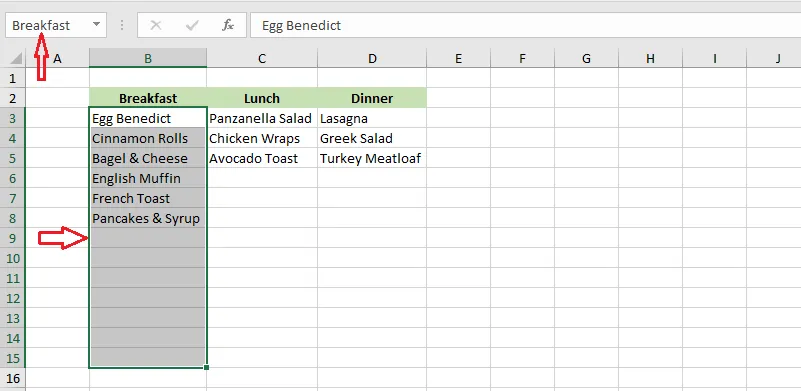
On Sheet2, list your meal ideas and create three named ranges: B3:B15 as Breakfast, C3:C15 as Lunch, and D3:D15 as Dinner.
-
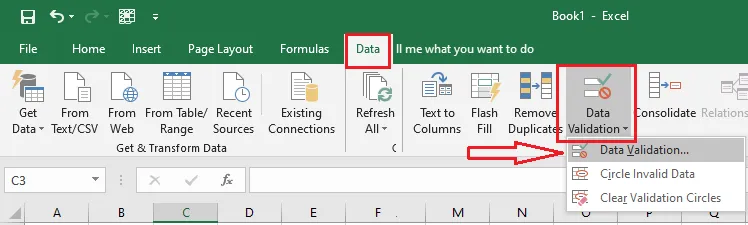
On Sheet1, select cell C5, and on the Data tab, click Data Validation.
-
Under Allow, choose List. In Source, type
=Breakfast.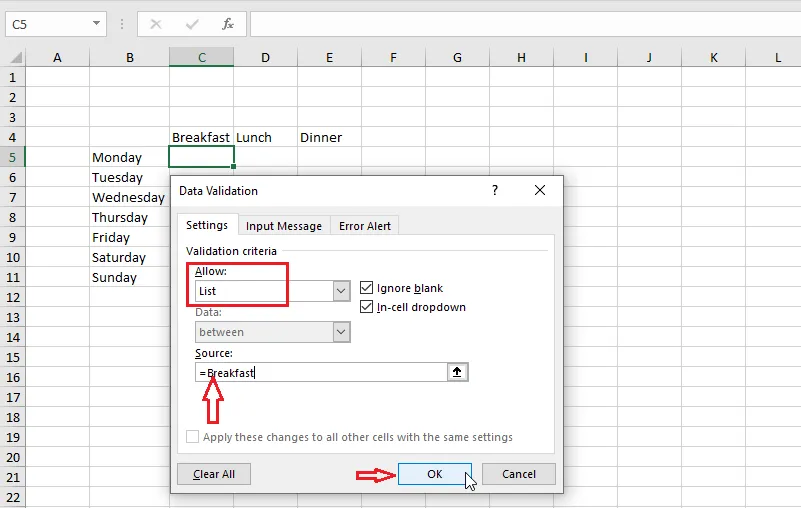
-
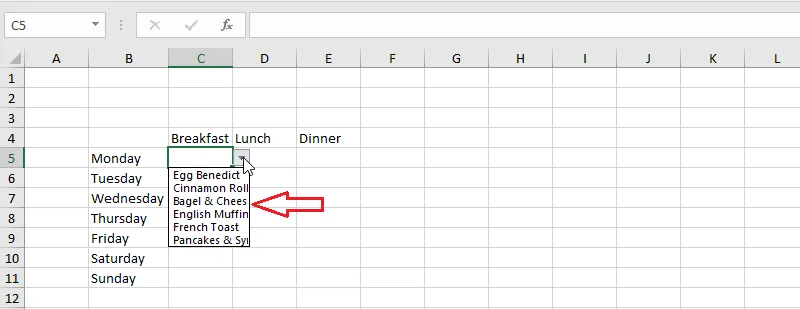
Click OK. C5 now has a drop-down list of breakfasts.
-
Repeat steps 2 to 4 for D5 (
=Lunch) and E5 (=Dinner). -
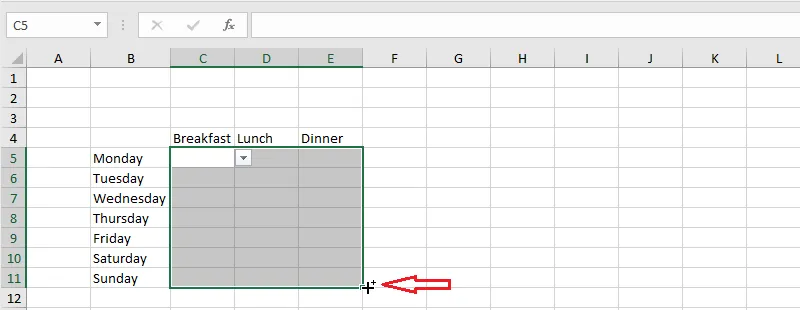
Select C5:E5 and drag the fill handle down to row 11, one row for each day.
-
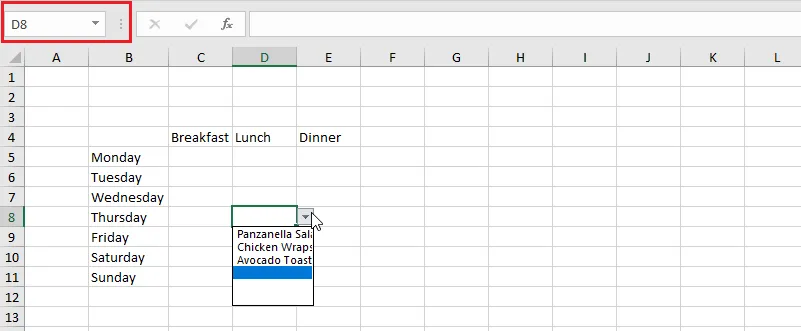
Click any cell in C5:E11. Each one shows the right list of meals.
-
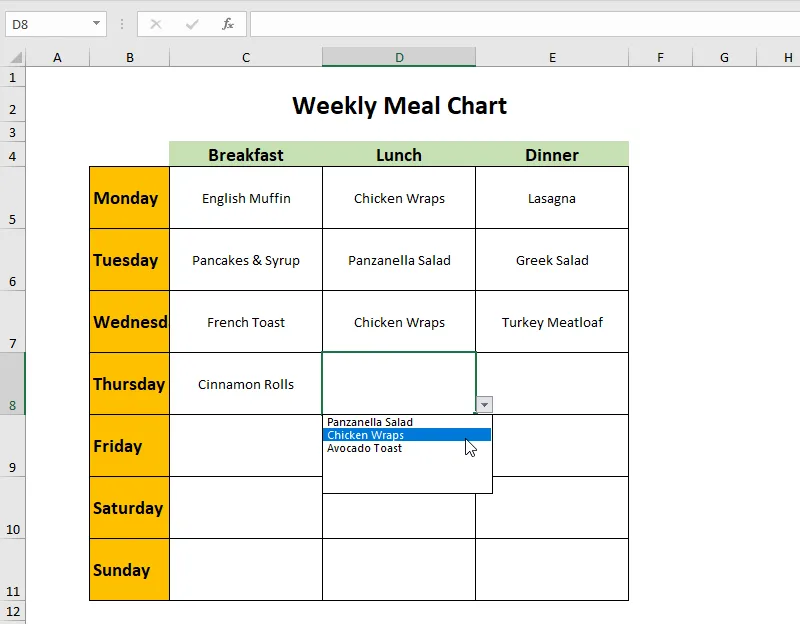
Finish with formatting. Untick Gridlines on the View tab, and add font sizes, fills and borders as you like.
Download the template to compare: excel-meal-chart.xls