How to Set and Clear a Print Area
A print area tells Excel to print only certain cells, every time you print that sheet. It’s saved with the workbook.
-
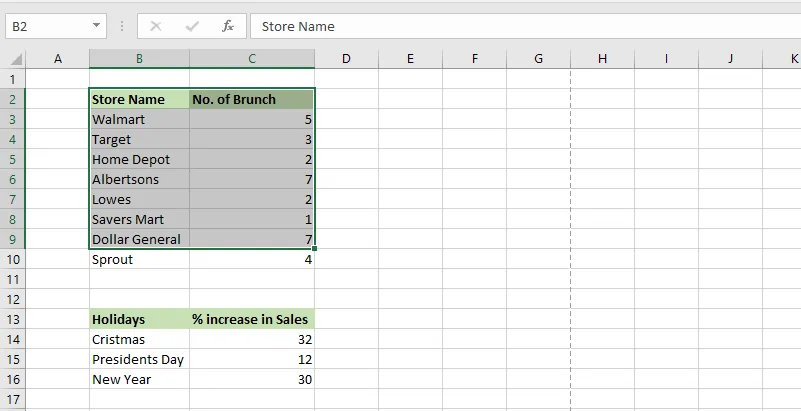
Select the cells to print. Here, B2:C9.
-
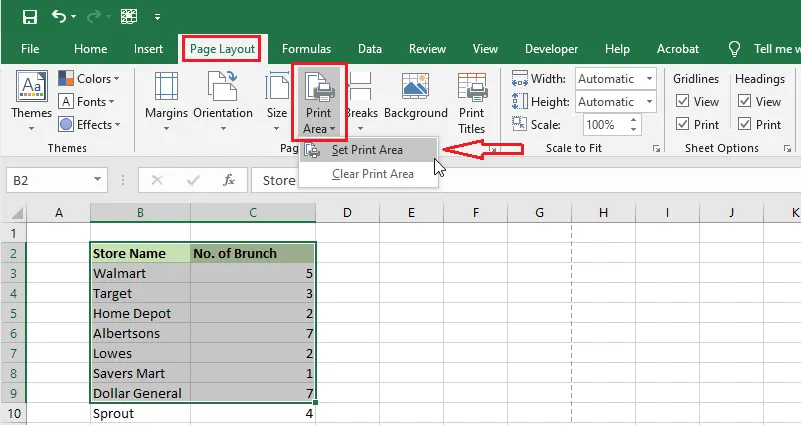
Click Page Layout > Print Area > Set Print Area.
-
Save the workbook.
-
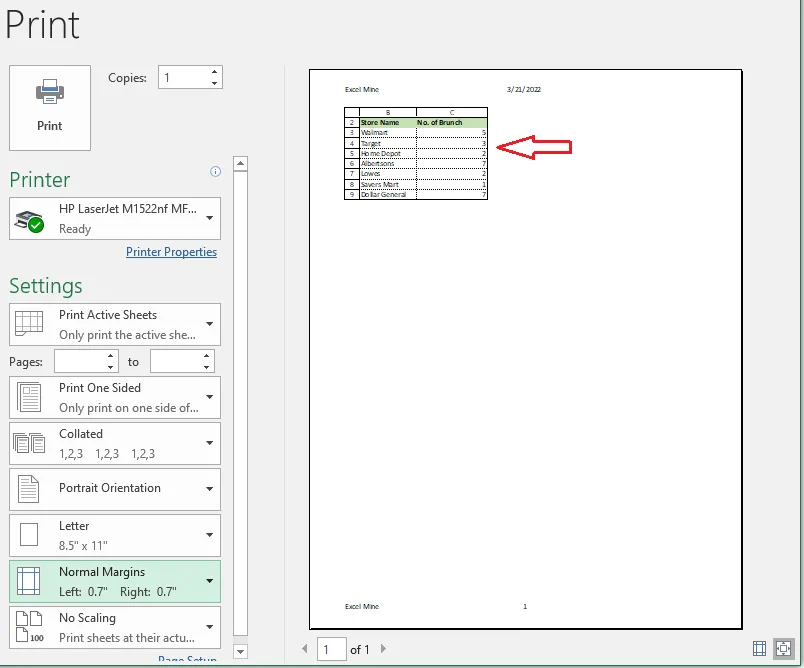
To check, click File > Print (Ctrl + P). Only the print area appears.
Clear the print area
The quickest way is Page Layout > Print Area > Clear Print Area.
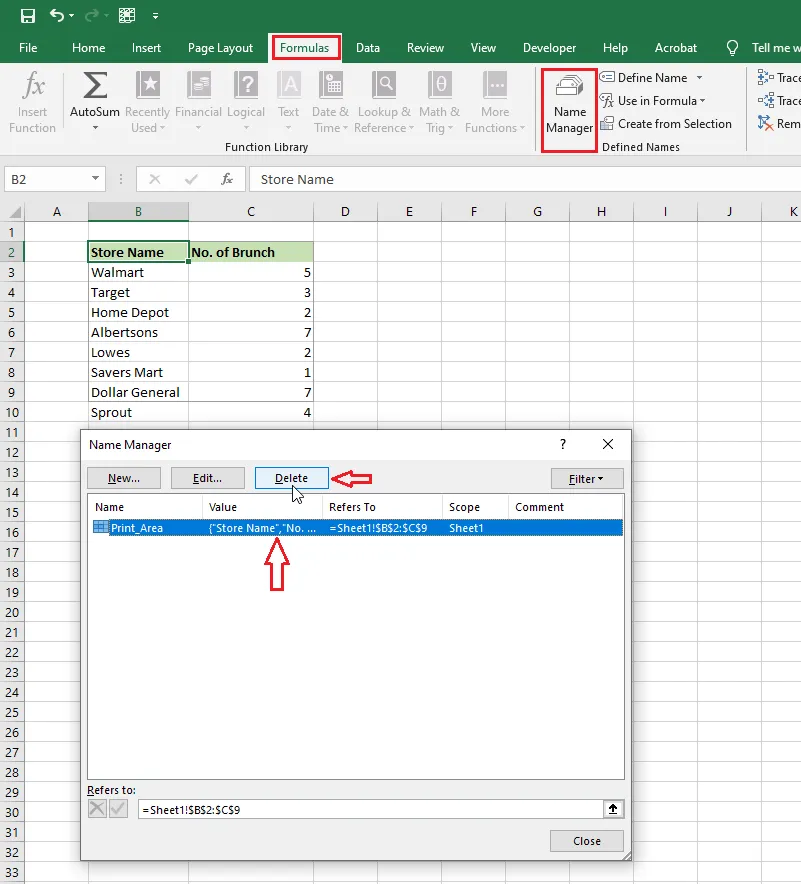
You can also delete it in Name Manager, because Excel stores the print area as a name:
-
Click Formulas > Name Manager.
-
Select Print_Area and click Delete.
Check the print preview again (Ctrl + P) to make sure the whole sheet prints.