How to Print in Excel
This lesson covers Excel’s print settings: what to print, how many copies, and how to make your sheet fit nicely on the page.
Print the whole worksheet
-
Open the worksheet you want to print.
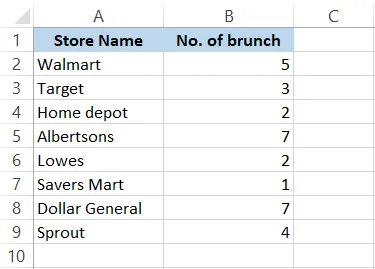
-
Click File > Print (Ctrl + P). A preview appears on the right.
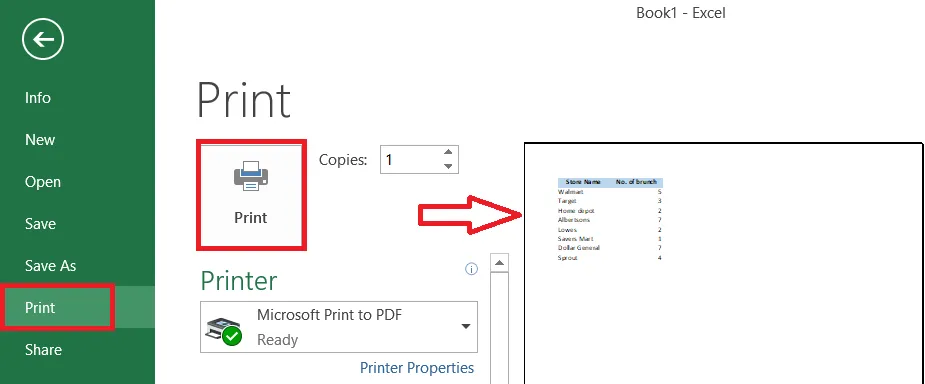
-
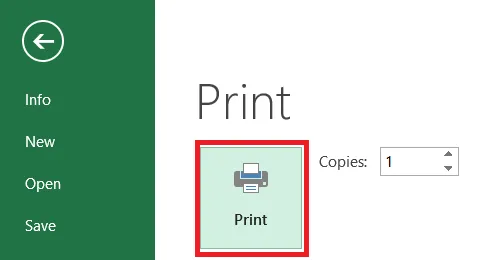
Click Print.
Print only a selection
-
Select the cells you want to print.
-
Click File > Print, and under Settings, choose Print Selection.
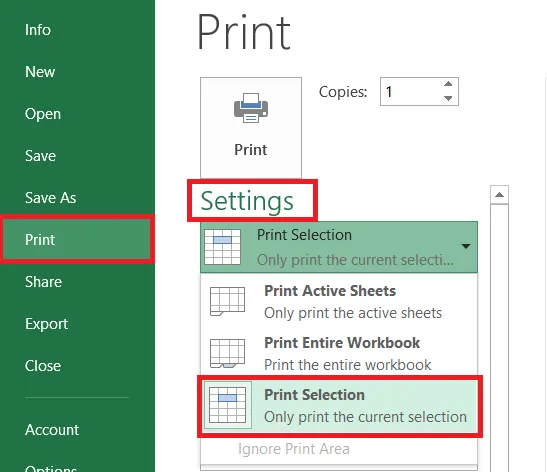
To print only certain pages, enter them in the Pages boxes. For example, 4 to 4 prints just page 4.
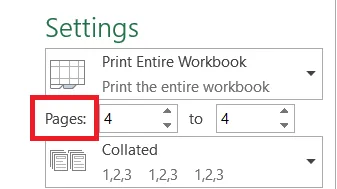
-
Click Print.
Print several copies
-
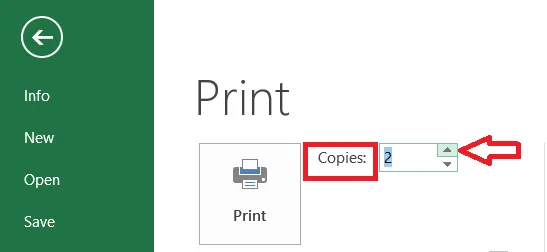
Click File > Print and type the number of copies in the Copies box, for example 2.
-
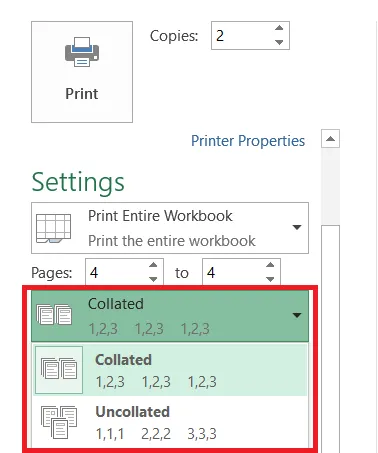
For documents with several pages, choose Collated or Uncollated. Collated prints one complete copy and then the next (1, 2, 3, 1, 2, 3). Uncollated prints all copies of page 1, then all copies of page 2, and so on (1, 1, 2, 2, 3, 3).
Change the orientation
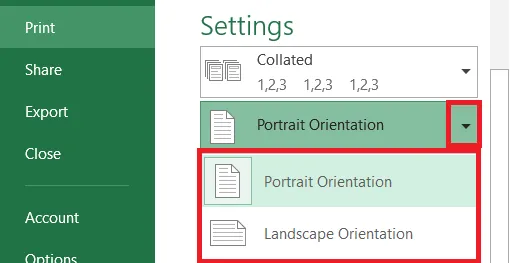
Choose Portrait (tall: more rows, fewer columns) or Landscape (wide: more columns, fewer rows).
Adjust the margins
-
For a preset, choose Normal, Wide or Narrow from the Margins list.
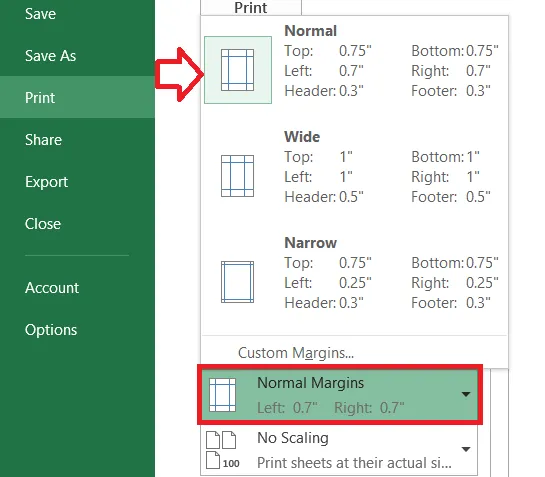
-
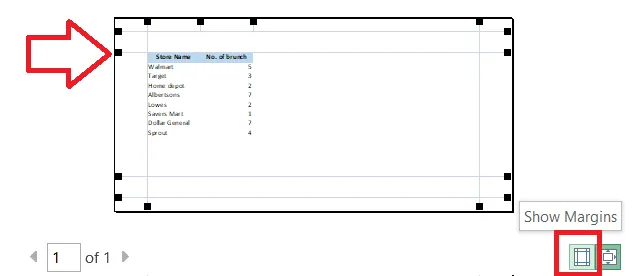
To set them by hand, click the Show Margins button at the bottom-right of the preview, then drag the margin lines.
Fit the sheet on one page
Scaling shrinks your sheet so more fits on each page.
-
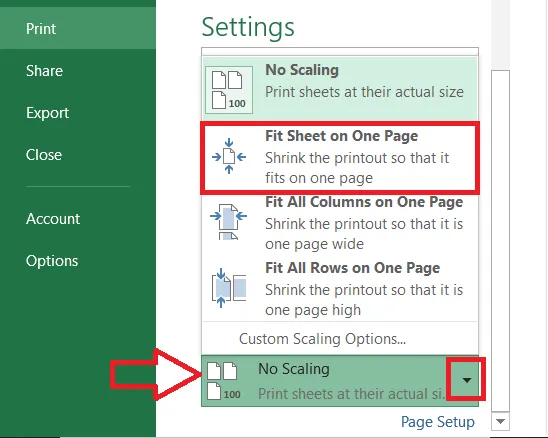
Click No Scaling and choose Fit Sheet on One Page. (Or choose Fit All Columns on One Page to keep the width on one page.)
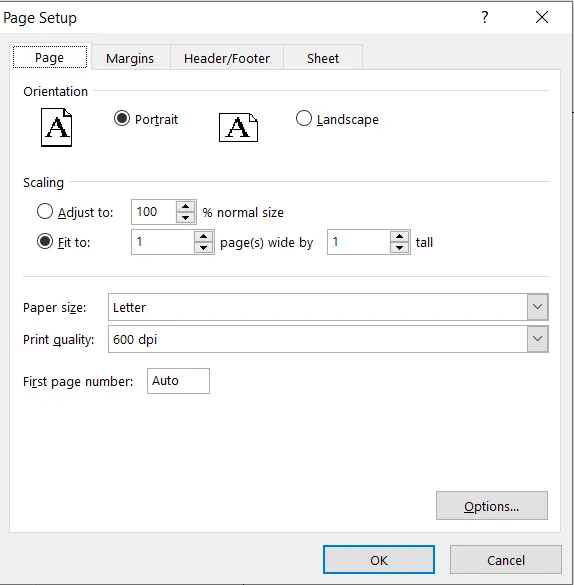
For more control, click Custom Scaling Options and change the settings in the Page Setup dialog box.
Note: Fitting a large sheet on one page can make the text very small. Check the preview before you print.