Find and Replace in Excel, Plus Go To Special
The Find & Select menu on the Home tab does two jobs: it finds (and replaces) text, and it selects special kinds of cells, such as every cell with a formula.
Find text
-
On the Home tab, click Find & Select. (Shortcut: Ctrl + F.)

-
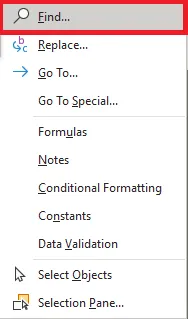
Click Find.
-
In the Find and Replace dialog box, type the text to look for, for example Accounting.
-
Click Find Next. Excel jumps to the first cell that contains it.
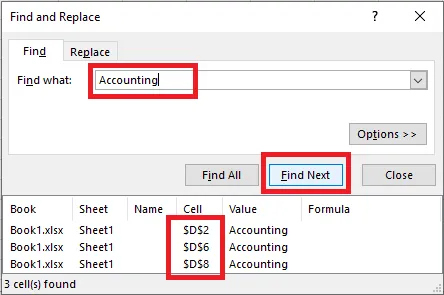
Click Find All to see a list of every matching cell instead.
Note: To search the whole sheet, select a single cell first. To search only part of it, select that range first.
Replace text
-
On the Home tab, click Find & Select. (Shortcut: Ctrl + H.)
-
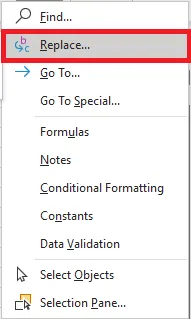
Click Replace.
-
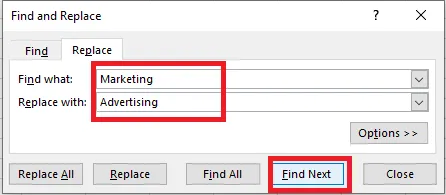
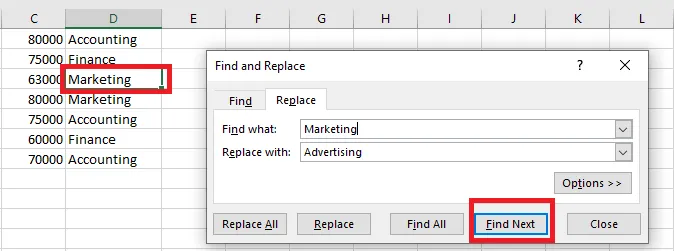
In Find what, type the text to find (Marketing). In Replace with, type the new text (Advertising).
-
To replace one at a time, click Find Next.
-
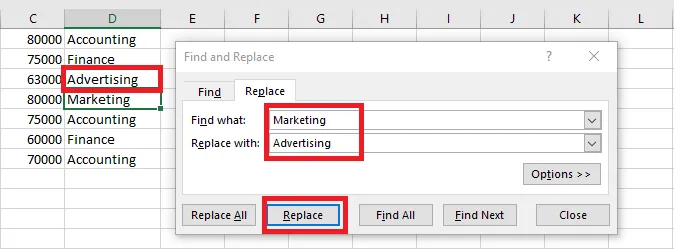
Click Replace. The first match is replaced, and Excel moves to the next one.
-
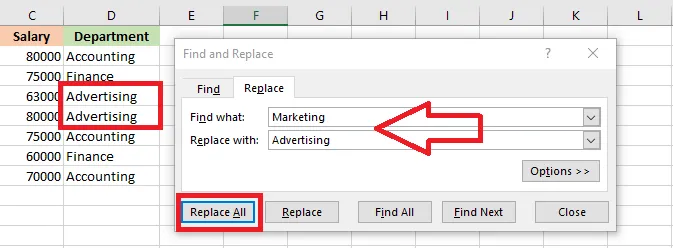
To replace every match at once, click Replace All.
Go To Special
Go To Special selects all cells of a certain type: formulas, comments, constants, blanks, data validation, conditional formatting and more.
-
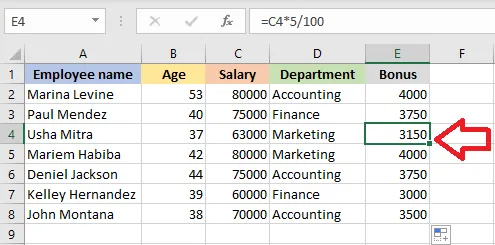
Select any single cell, for example E4.
-
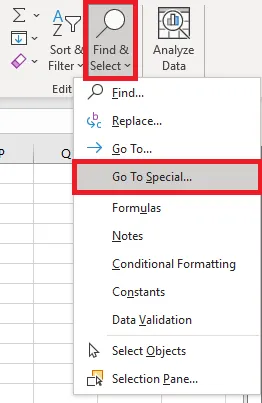
On the Home tab, click Find & Select > Go To Special.
-
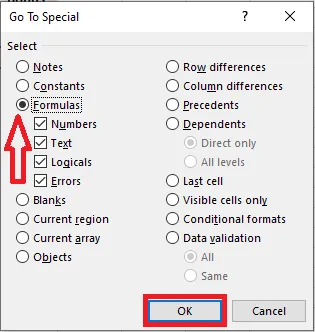
Choose Formulas and click OK.
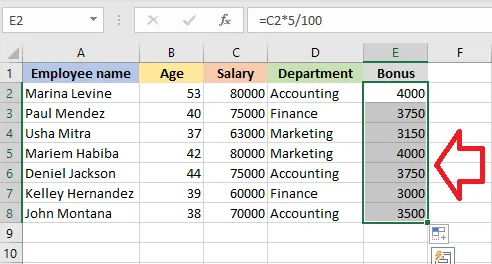
Result: every cell that contains a formula is selected.
For more search options, such as matching case or searching the whole workbook, see Advanced Find Features.