How to Set a Budget Limit in Excel
A custom Data Validation rule can stop anyone from entering a cost that would push the total over budget. In this example, a birthday party has a budget of $250.
-
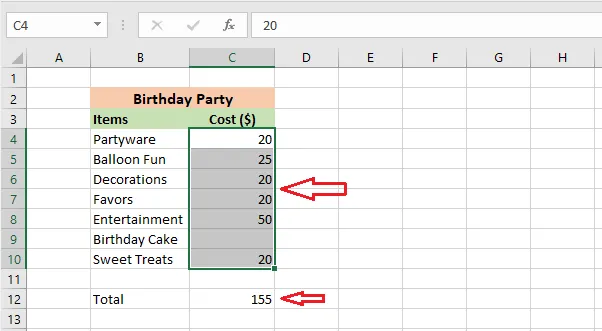
In cell C12, type
=SUM(C4:C10)to show the total cost. -
Select the cost cells, C4:C10.
-
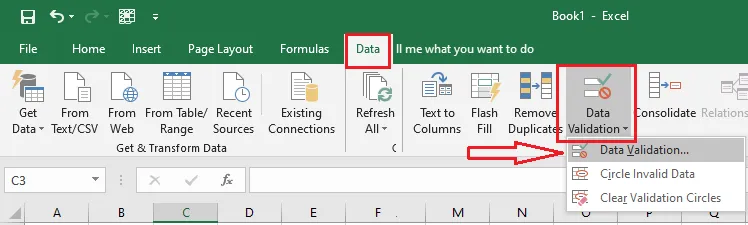
On the Data tab, click Data Validation.
-
On the Settings tab, under Allow, choose Custom. In the Formula box, type:
=SUM($C$4:$C$10)<=250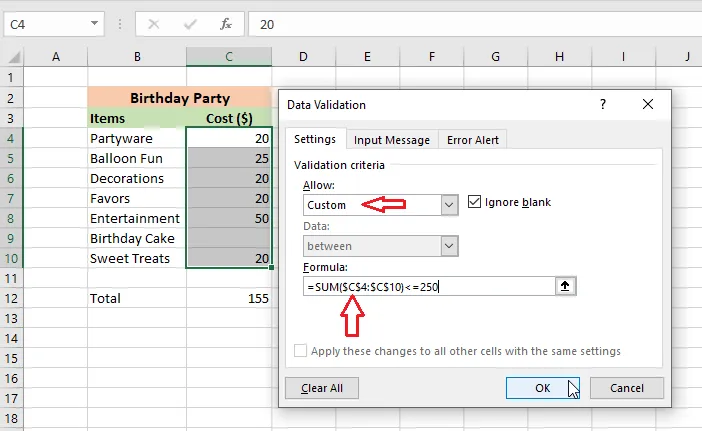
The rule says: an entry is allowed only if the total stays at or below 250. The
$signs keep the same range for every cell. -
On the Error Alert tab, type a title (Birthday Party Budget) and a message (You are over the budget limit of $250).
-
Click OK.
-
Test it: select C9, type 100, and press Enter.
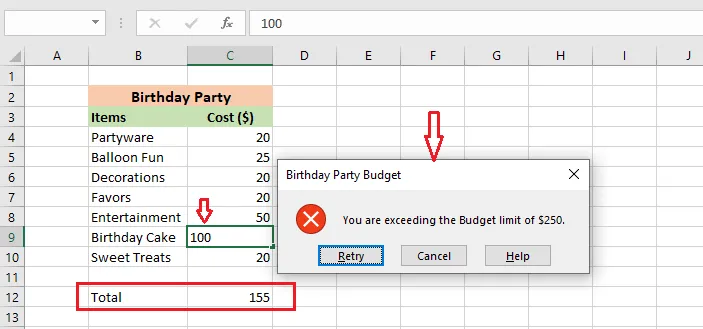
Result: the total would go over $250, so Excel blocks the entry and shows your message.
To remove the rule, select C4:C10, click Data > Data Validation > Clear All, then OK.