How to Use and Create Excel Templates
A template is a ready-made workbook you can start from, so you don’t have to build everything yourself. Excel comes with many free templates, and you can save your own.
Use a built-in template
-
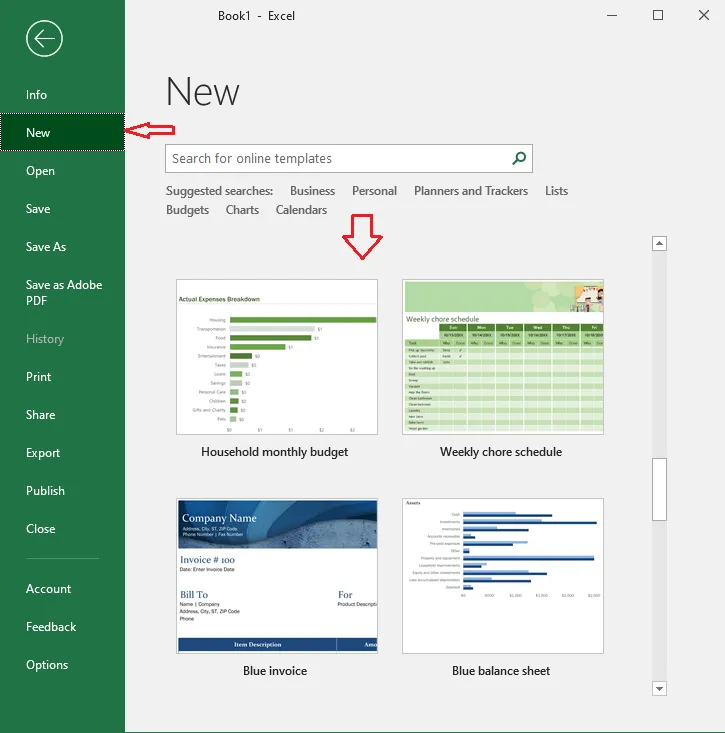
On the File tab, click New.
-
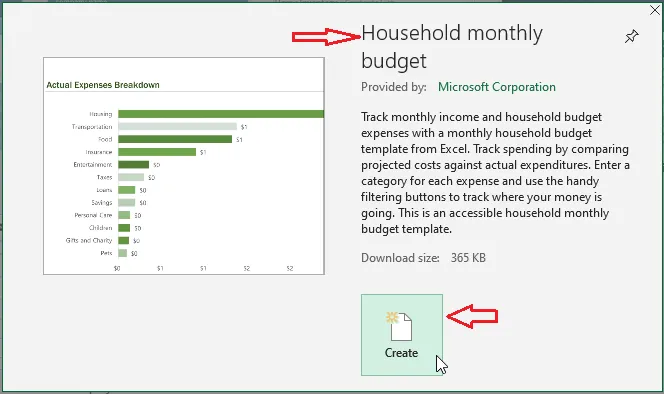
Click a template you like, or search for one. Here, we choose Household monthly budget.
-
Click Create.
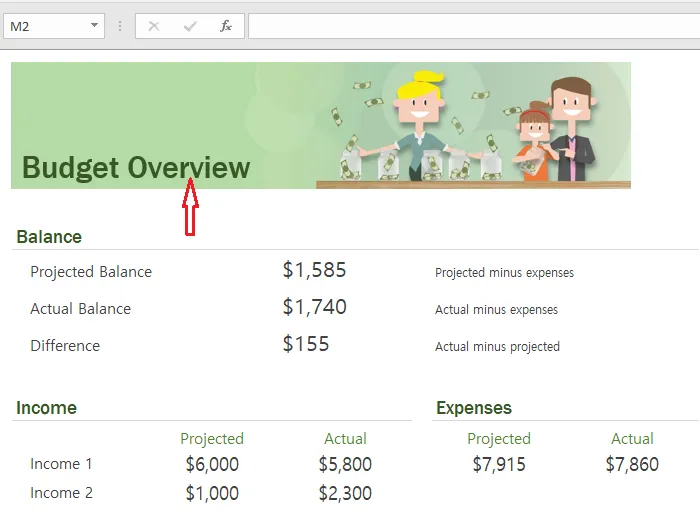
Result: Excel opens a new workbook based on the template. Change it however you like.
Save your own template
Whether you built a workbook from scratch or changed a free template, you can save it as your own template. Each time you use it, Excel opens a fresh copy, and the template itself stays unchanged.
-
Create or customize the workbook. Here, a budget overview based on a free design.
-
Click File > Save As > Browse, and under Save as type, choose Excel Template (*.xltx).
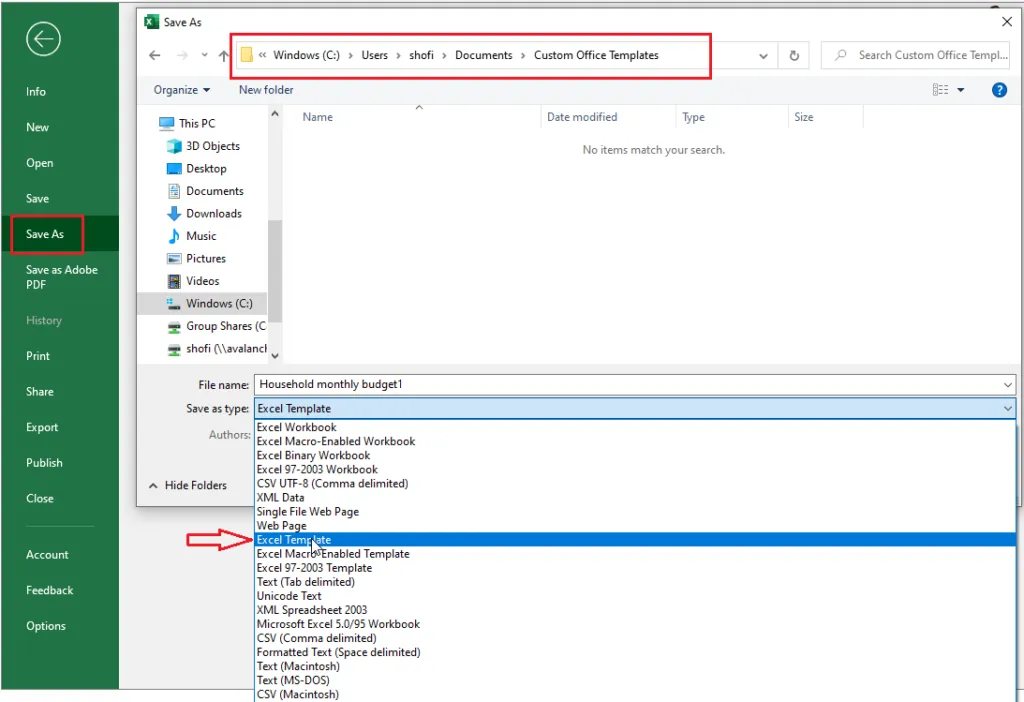
Excel switches to your templates folder automatically. Usually that’s C:\Users\[your name]\Documents\Custom Office Templates.
-
Type a name, such as Excel Mine monthly budget, and click Save.
To create a workbook from your template:
-
On the File tab, click New.
-
Click Personal.
-
Click your template.
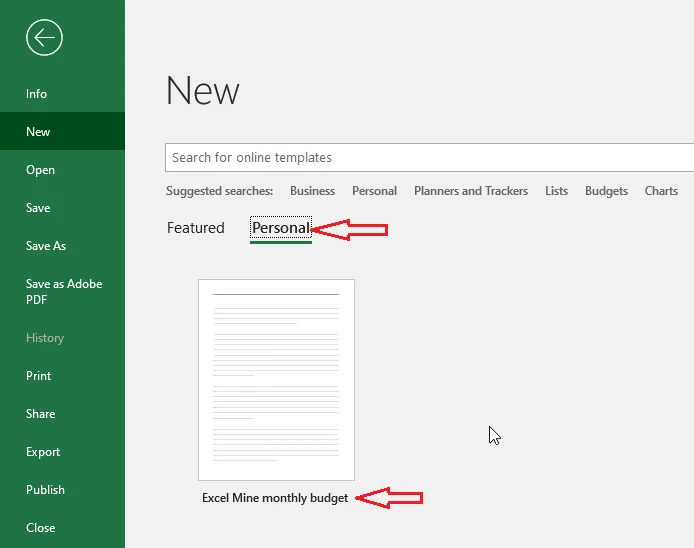
Result: Excel opens a new workbook based on your template. Your original template stays as it was.
The next lessons show how to build useful templates of your own, starting with a cash budget.